How to use AI texting on calls and the Texts inbox
Turn on AI texting for outreach and incoming calls, send booking links, capture emails by text, and reply to every conversation in the Swashi Texts inbox.
- 1Activate your Swashi number. Texts go from the same Swashi number as your calls, so activate it in Voice Outreach first.
- 2Add your booking link. Enter your Calendly link in Receptionist settings and click Save.
- 3Turn on texting on outreach calls. Switch Texting on outreach calls On so the AI texts prospects during and after outbound calls.
- 4Turn on texting on incoming calls. Switch Texting on incoming calls On so the receptionist texts callers your booking link.
- 5Open Texts. Open Texts in Voice Outreach to read every conversation to and from your number.
- 6Reply or start a text. Pick a conversation and reply, or click New text and enter a number with its country code.
Swashi can text your prospects and callers from your own Swashi number during and after AI calls: it sends your booking link and asks them to text back their email so it is captured exactly. Every text to and from your number lands in one Texts inbox, where you can reply yourself.
Before you start
- A Swashi number. Texts go from the same number as your calls. Without one, you will see "You need a Swashi number to text — activate one in Voice Outreach." See Voice Outreach.
- Voice credits. Texts are paid from your credits. See Voice credits.
- A booking link. Add your Calendly link in Receptionist settings so the AI has a link to send. See AI Receptionist.
Texting on outreach calls
When Texting on outreach calls is On, the AI texts prospects during and after your outbound calls with:
- your booking link, and
- a request to text back their email.
The setting shows the text rate on your account (each text up to 160 characters, paid from your credits).
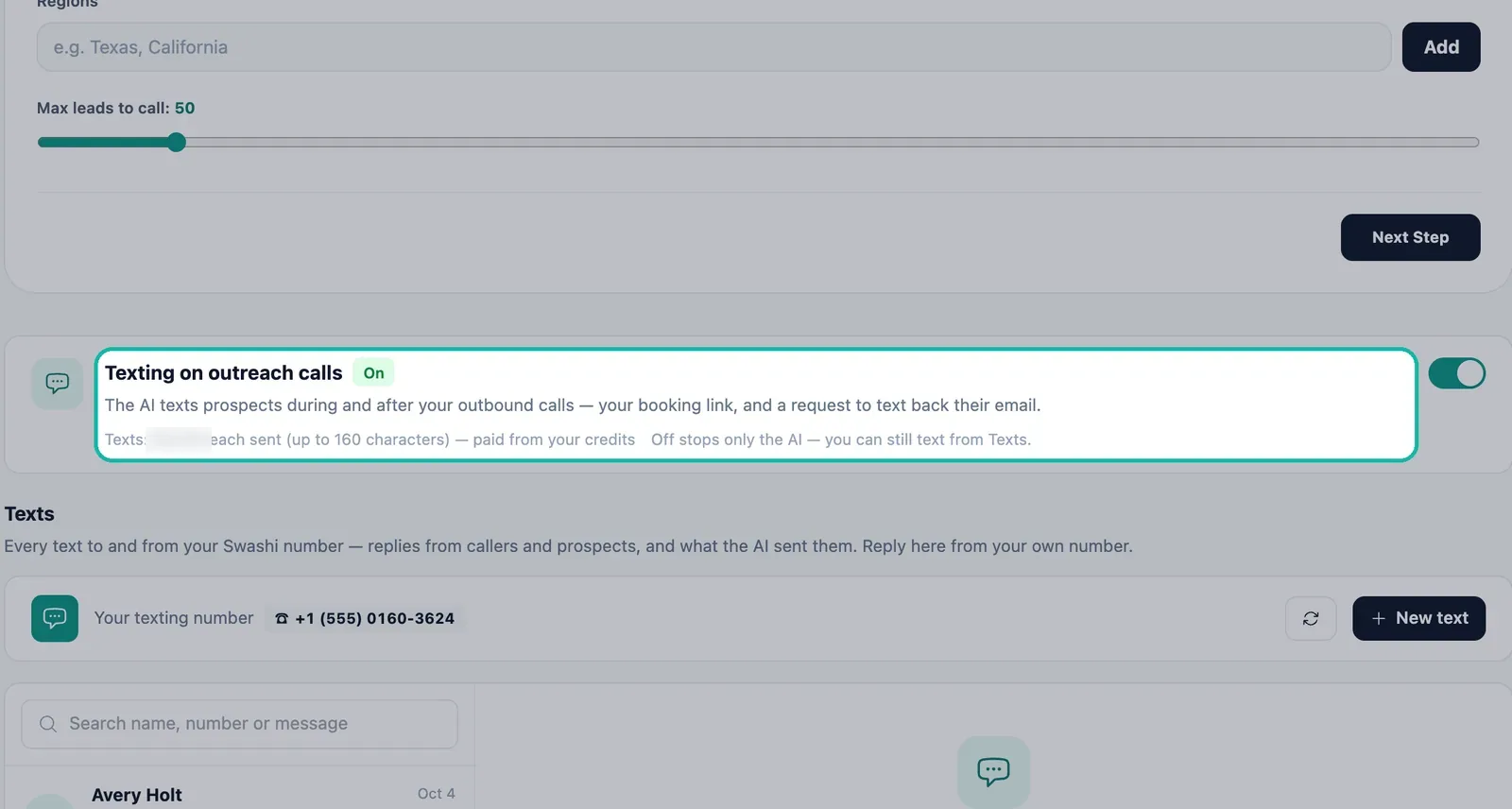
Texting on incoming calls
When Texting on incoming calls is On, the AI Receptionist texts callers your booking link and asks them to text back their email, so it is captured exactly.
Note:Turning either toggle Off stops only the AI. You can still text from Texts. If AI texting is off somewhere, the Texts page shows "AI texting off:" followed by where.
Click Open Texts → next to a toggle to jump to your conversations.
The Texts inbox
Texts (marked SMS) shows every text to and from your Swashi number: replies from callers and prospects, and what the AI sent them. Your number is shown at the top as Your texting number.
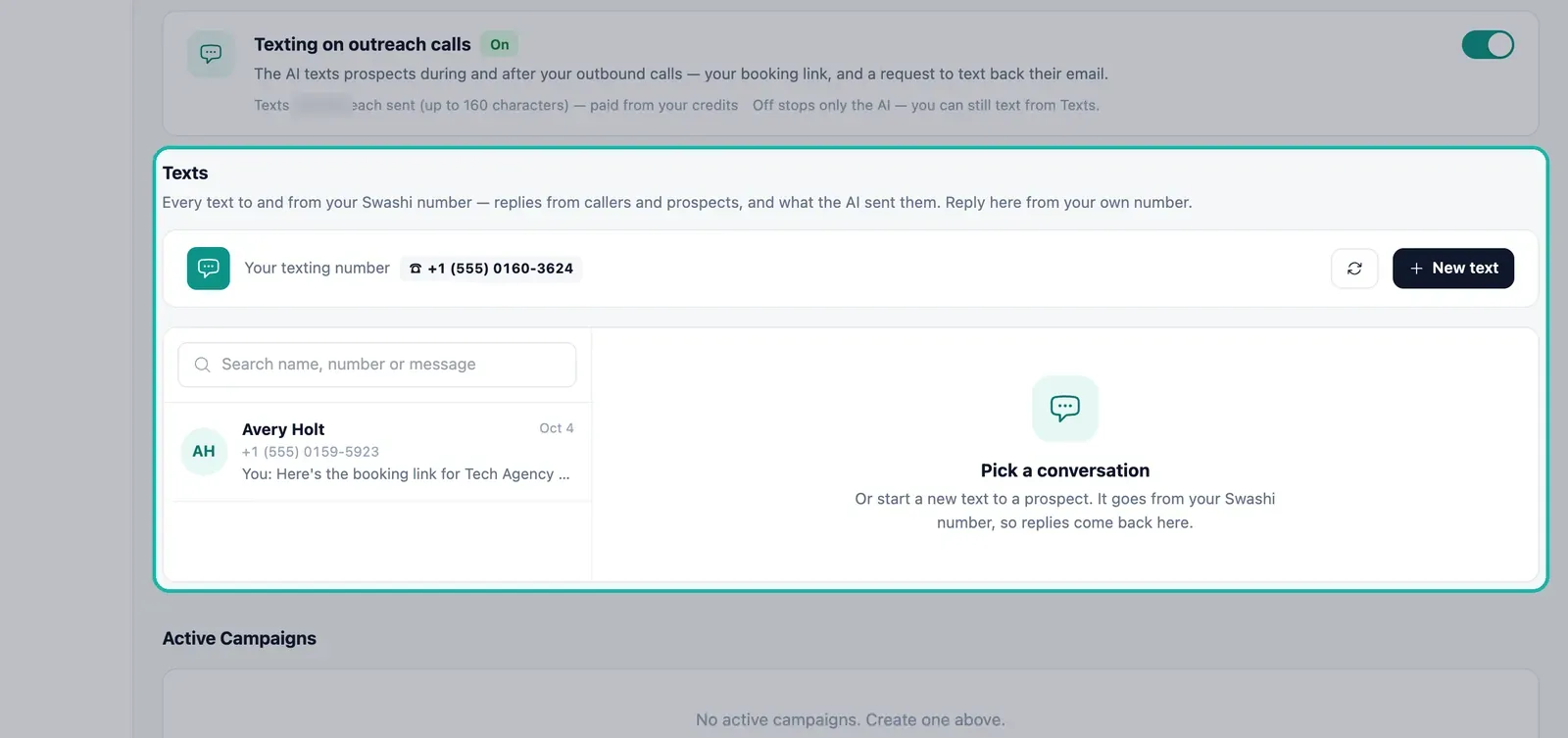
Read a conversation
- Open Texts in Voice Outreach.
- Use Search name, number or message to find someone.
- Click a conversation. Ones marked Awaiting your reply need you.
Each message shows who sent it:
| Label | Sent by |
|---|---|
| AI Receptionist | The receptionist, on an incoming call |
| AI outreach | The AI, on an outbound call |
| You | You, from the Texts inbox |
| Auto-reply | An automatic reply |
| Swashi | A system message |
Reply
Type in Write a text… and click Send, or press ⌘/Ctrl + Enter. The reply goes from your own Swashi number, so the person's answer comes back to the same conversation. The counter shows how many texts a long message will use.
Start a new text
- Click New text.
- Under To, enter the number with its country code, for example +1 for the US.
- Write your message and click Send.
Texts on the AI Receptionist page
The AI Receptionist page has an Inbound messages section: texts callers and prospects sent to your number, newest first, with a count awaiting reply. For example, a caller texting their email after a call appears here. Click All texts in Voice Outreach → for the full inbox.
Tip:A text-back email is spelled exactly as the person typed it, which is more reliable than an email read out on a call. Watch for these replies after busy calling days.
Where texting works
Texting is not available to every country. If a country is not enabled, Swashi shows "Texting to this country is not enabled." Numbers that cannot receive texts show "That number cannot receive texts."
Troubleshooting
| Message | What to do |
|---|---|
| You need a Swashi number to text | Activate a number in Voice Outreach. |
| Not enough voice credits | Top up in Voice Outreach with Buy Credits. |
| This person replied STOP — they cannot be texted | The person opted out. Do not text them again. |
| Texting to this country is not enabled | Texting to that country is not available. |
| That number cannot receive texts | Check the number, or contact the person another way. |
| The text was not sent | Try again. |
Next steps
Frequently asked questions
What does the AI text to people?+
During and after a call, the AI texts your booking link and asks the person to text back their email address, so the email is captured exactly instead of being spelled out loud.
If I turn AI texting off, can I still send texts?+
Yes. Turning the toggle off stops only the AI. You can still text people yourself from Texts.
Do texts cost credits?+
Yes. Texts are paid from your voice credits and counted per text of up to 160 characters. The exact rate for your account, and whether received texts are billed, is shown in your Voice Outreach wallet.
Can I text any country?+
Not every country. If a country is not enabled for texting, Swashi shows 'Texting to this country is not enabled.' and the text is not sent.
What happens if someone replies STOP?+
They are opted out and cannot be texted. Swashi shows 'This person replied STOP — they cannot be texted.' if you try.