How to run AI voice calling campaigns with Voice Outreach
Learn how to set up AI voice calling in Swashi: activate your number, respect safe daily calls, build a Voice Studio campaign and review every call result.
- 1Open Voice Outreach. Click Voice Outreach in the sidebar to see your number, credits, personas, campaigns and call results.
- 2Activate your calling number. If you have no number yet, confirm the calling rules and activate your dedicated AI calling number.
- 3Choose your active persona. Preview the voices under Active Voice Persona and click Set as Active Persona.
- 4Make a test call. Use Manual Test Call to trigger a live AI call to your own phone before you launch.
- 5Pick your audience. In Voice Studio, choose the ICP Tier, the Lead Source, the Regions and the Max leads to call, then click Next Step.
- 6Set up the call. Add an optional Value Proposition and choose a Call Goal such as Book a Demo.
- 7Schedule and start. Set the call window, days, dates and Daily Call Cap, then click Start Voice Campaign.
- 8Review results. Check Voice Performance and Recent Calls for outcomes, durations, scores and recordings.
Prefer to watch? This tutorial walks through the same steps in the live app. All tutorials →
Voice Outreach is where you run outbound AI calling in Swashi: an AI persona calls your leads from your own Swashi number, qualifies interest, books demos and logs every result. This guide shows you how to activate your number, build a calling campaign in Voice Studio and read your call results.
Before you start
- Plan. Outbound AI Voice Campaigns are included from the Growth plan. Starter is "Voice AI ready", so you can activate a number at any time. Compare plans on the pricing page.
- Leads. You need leads in your pipeline. See Find high-ticket leads and ICP tiers.
- Credits. Calls and texts are paid from your voice credits. See Voice credits.
- Business Brain. The AI answers questions about your business from your Business Brain, so fill it in first.
Open Voice Outreach
Click Voice Outreach in the sidebar. This is your AI calling team in one place: campaigns, personas, texts and every call result.
Activate your Swashi number
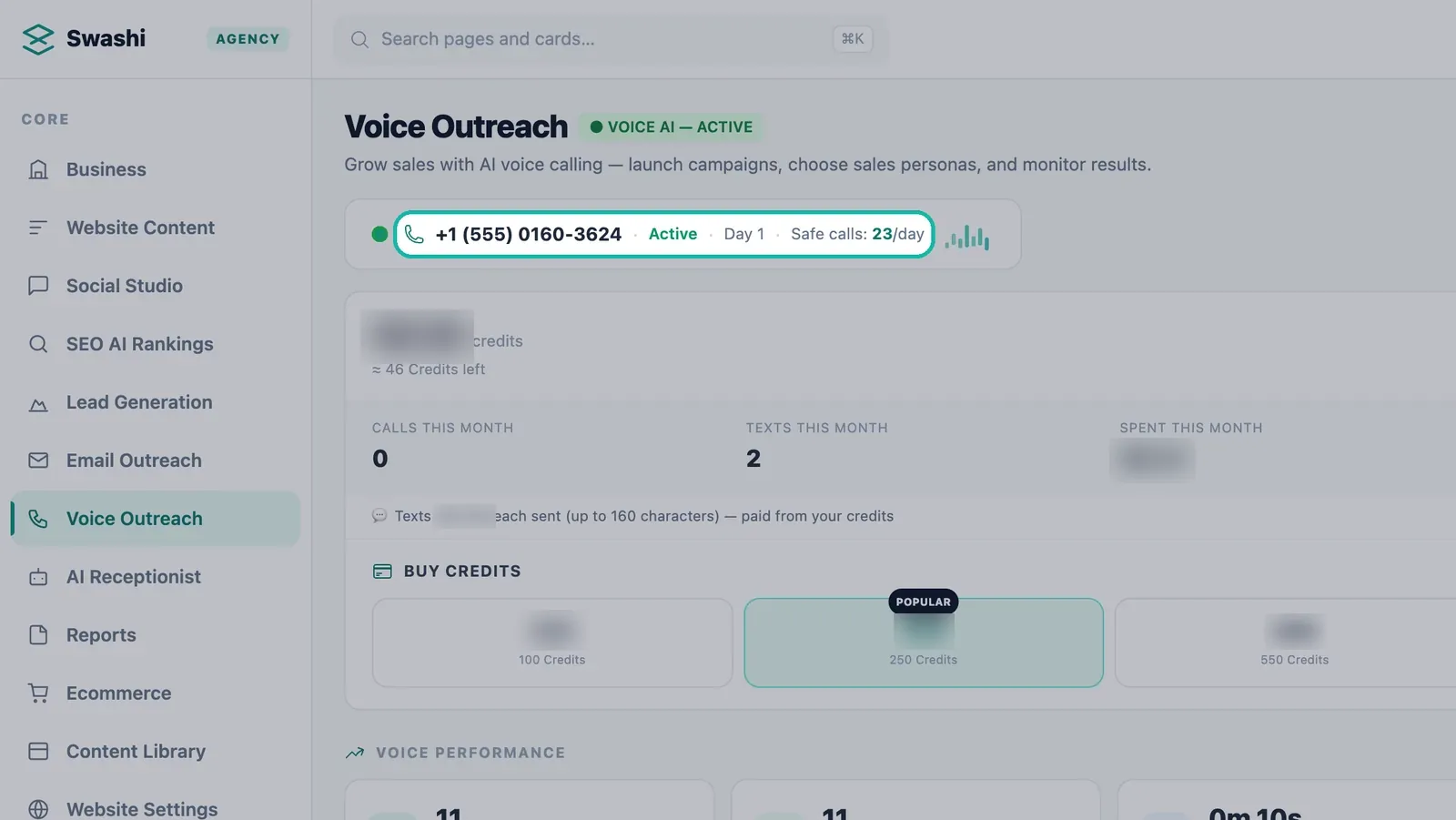
Calls and texts go out from your own Swashi number. If you do not have one yet, the page shows Activate Your AI Calling Number:
- Review what is included: a Dedicated US Number, isolated from other users, plus Starter Voice Credits.
- Tick the confirmation that you have a lawful basis to contact these leads by phone and agree to comply with TCPA regulations, including keeping a Do Not Call list and calling only during permitted hours.
- Click Activate Voice AI and complete checkout.
- Refresh the page once the number is provisioned. The number renews monthly.
Note:The same number is used by the AI Receptionist for inbound calls and by Texts.
Safe daily calls
Your number card shows the number, its status (Warming Up or Active), the warm-up Day and Safe calls/day. Swashi keeps your calling inside a safe daily limit so your number stays healthy.
Choose a persona and make a test call
Under Active Voice Persona, click any avatar to hear a preview, then click Set as Active Persona. New campaigns use this persona by default. See Personas and voices.
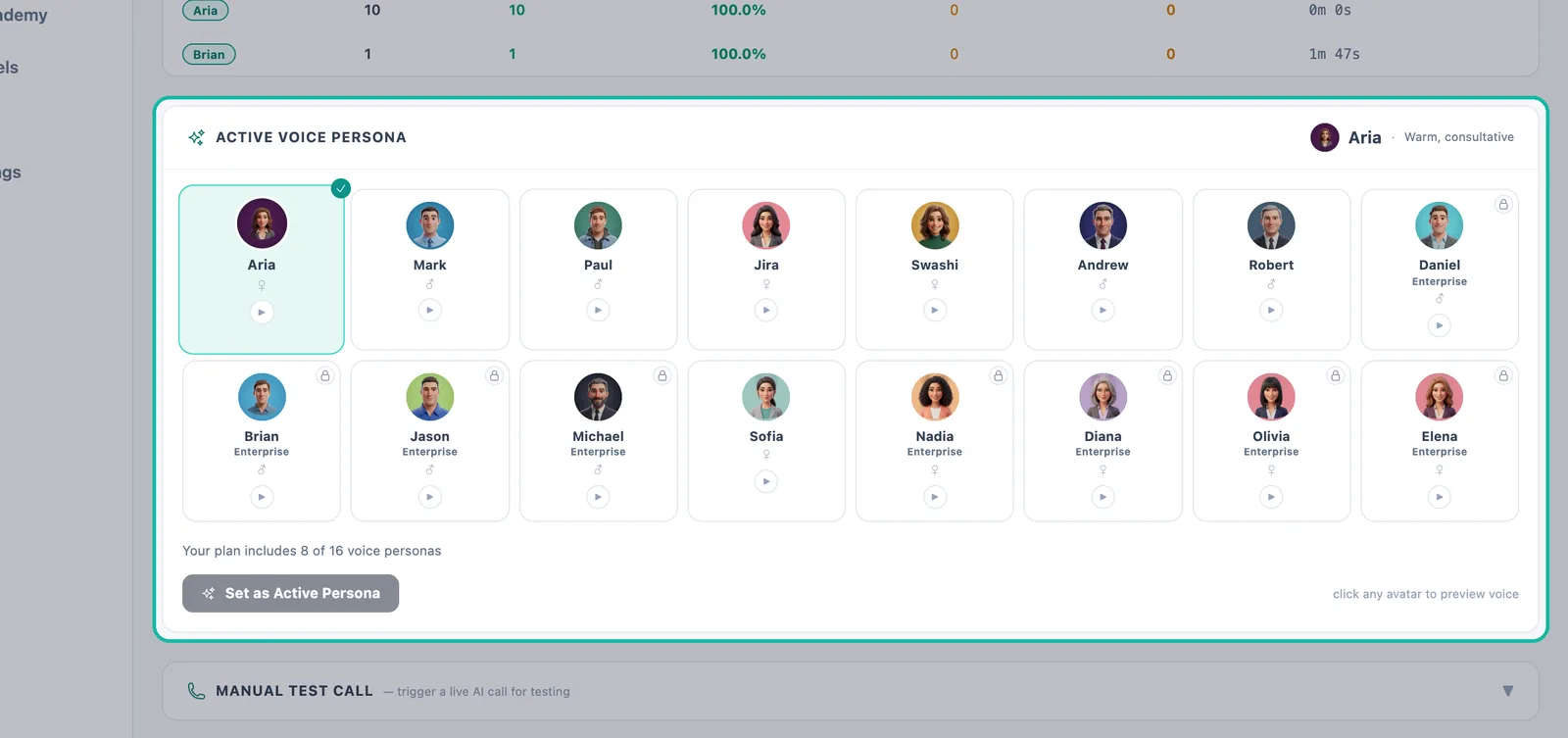
Preview personas and set the active one. In Manual Test Call, enter a Phone Number and Contact Name (Company is optional), choose an AI Persona and click Trigger Call. Call yourself first to hear exactly what your leads will hear.
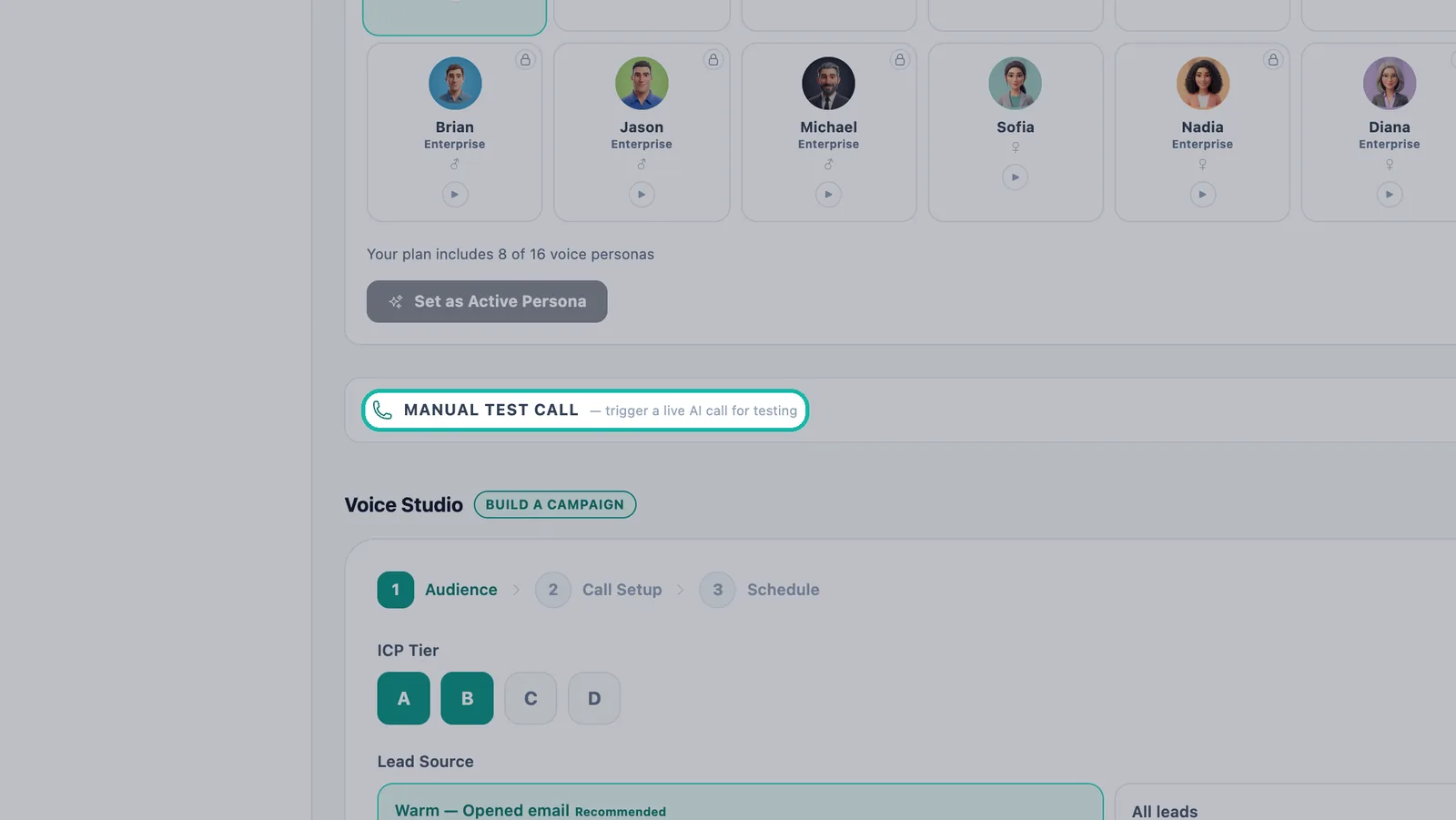
Call yourself first with a test call.
Build a campaign in Voice Studio
Voice Studio has three steps: Audience, Call Setup and Schedule.
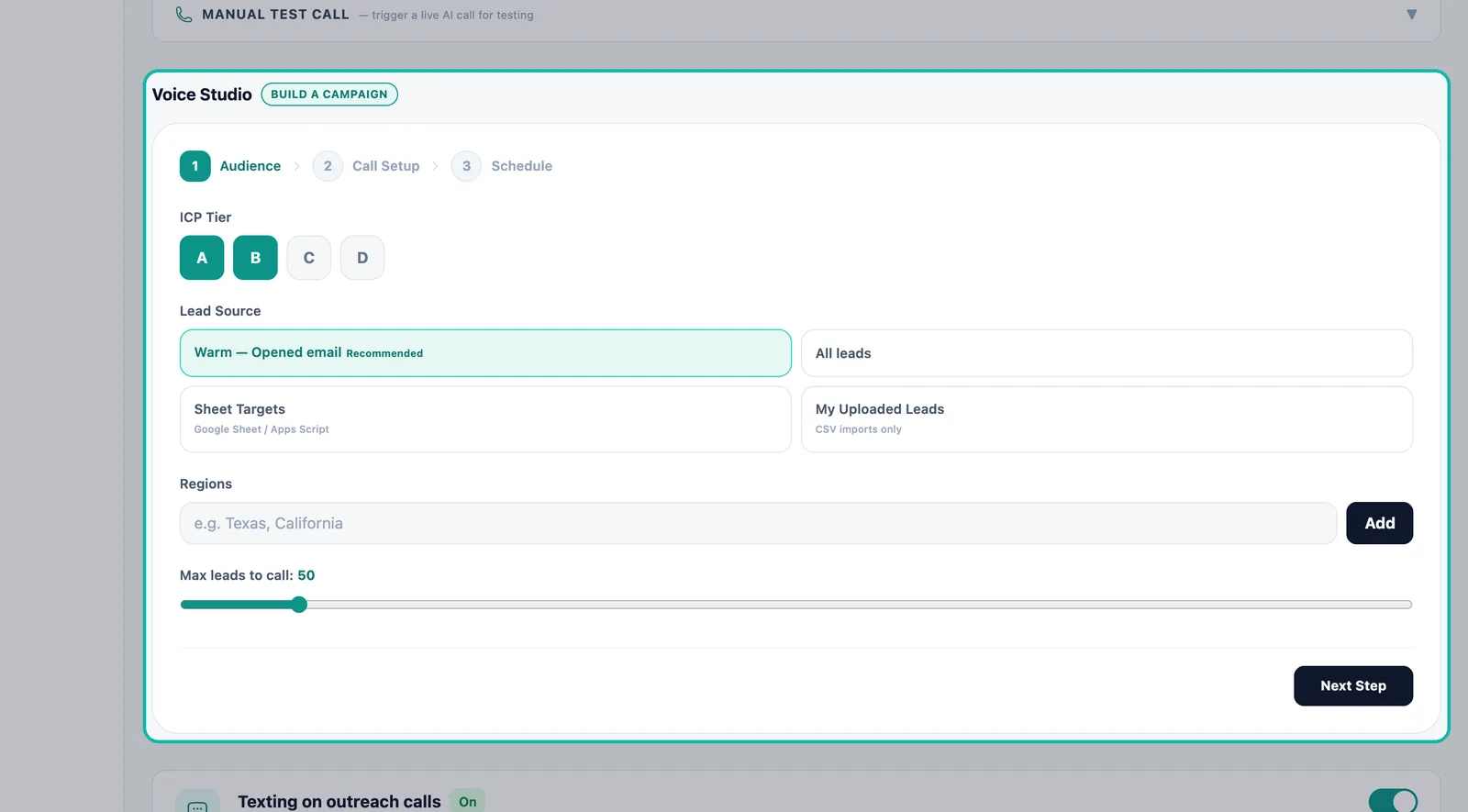
Step 1 — Audience
| Setting | What it does |
|---|---|
| ICP Tier | Pick one or more tiers: A, B, C, D. Tier A leads are your best fit. |
| Lead Source | Warm — Opened email (Recommended): leads who opened your email. All leads: your whole pipeline. Sheet Targets: your Google Sheet. My Uploaded Leads: CSV imports only. |
| Regions | Type a state or region (for example Texas, California) and click Add. Call one region, several, or everywhere you sell. |
| Max leads to call | The most leads this campaign will call. |
Tip:Start with warm leads. A person who opened your email already knows your name, which makes for a better first call.
Click Next Step.
Step 2 — Call Setup
- Value Proposition (optional): what you offer, in one sentence.
- Call Goal: Book a Demo (schedule a live demo or meeting), Qualify Interest (assess fit and buying intent) or Collect Pain Points (gather needs and challenges).
Step 3 — Schedule
Set the Timezone, Call Window, Days of Week, Start Date, End Date and Daily Call Cap. The step also shows how many calls remain this month.
Every campaign runs with Brand Protection:
- DNC check before every call
- 4-day cooldown between attempts
- Business hours only, in the lead's timezone (calls are placed Mon–Fri, 10 AM–4 PM local time)
- Max 3 attempts per lead
Click Start Voice Campaign.
Manage active campaigns
Your campaigns appear under Active Voice Campaigns with the persona, tier, whether they target warm leads or cold outreach, and progress such as "12 of 50 leads called". Each card shows Calls, Connected, Positive and VM (voicemail). Use Pause, Resume or Delete to control it, or New Campaign to start another.
Important:If your credits run out, campaigns pause and the wallet shows NO CREDITS — Campaigns Paused. Top up to continue.
Read your results
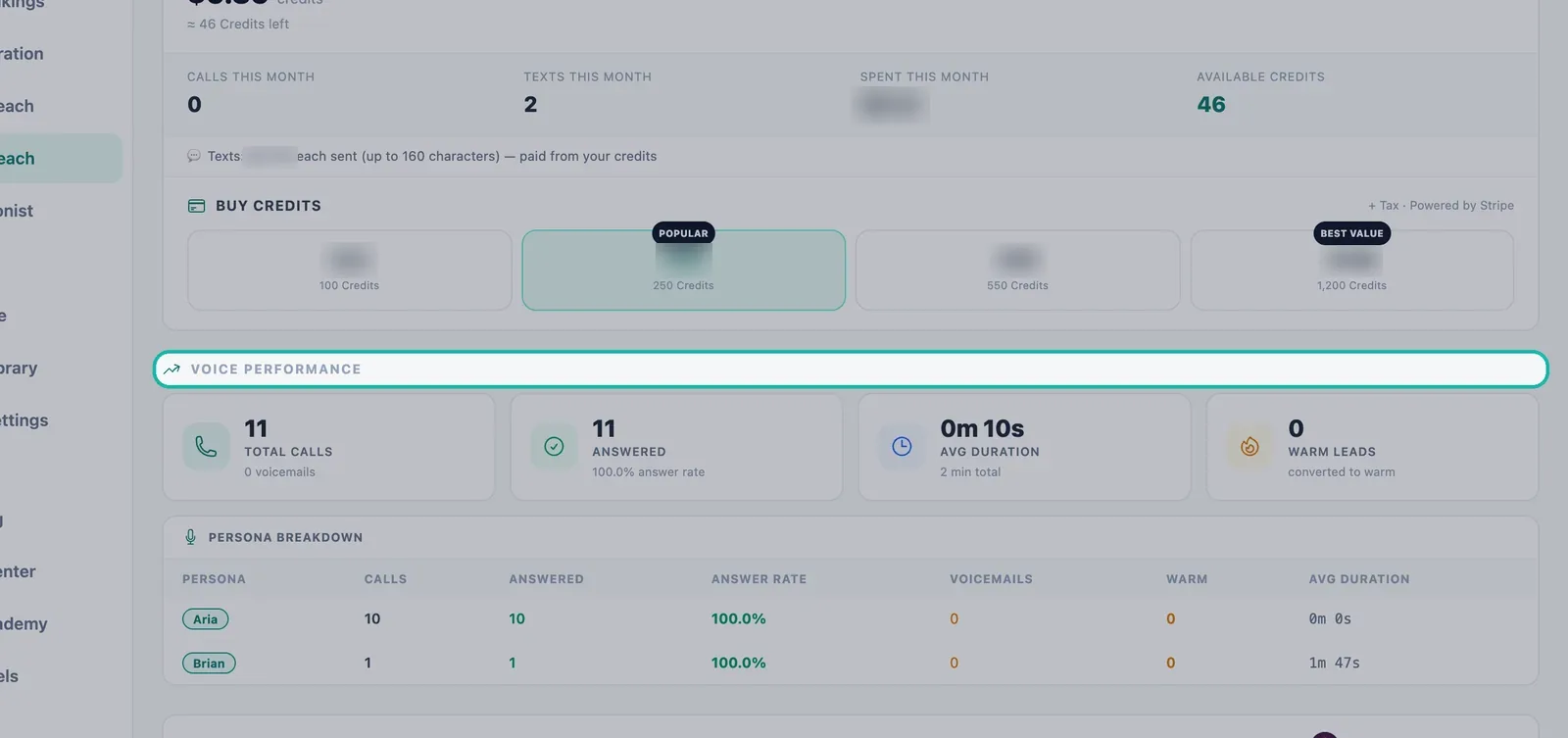
Voice Performance
Shows Total Calls (with voicemails), Answered (with answer rate), Avg Duration (with total minutes) and Warm Leads (calls converted to warm), plus a Persona Breakdown table with calls, answered, answer rate, voicemails, warm leads and average duration for each persona.
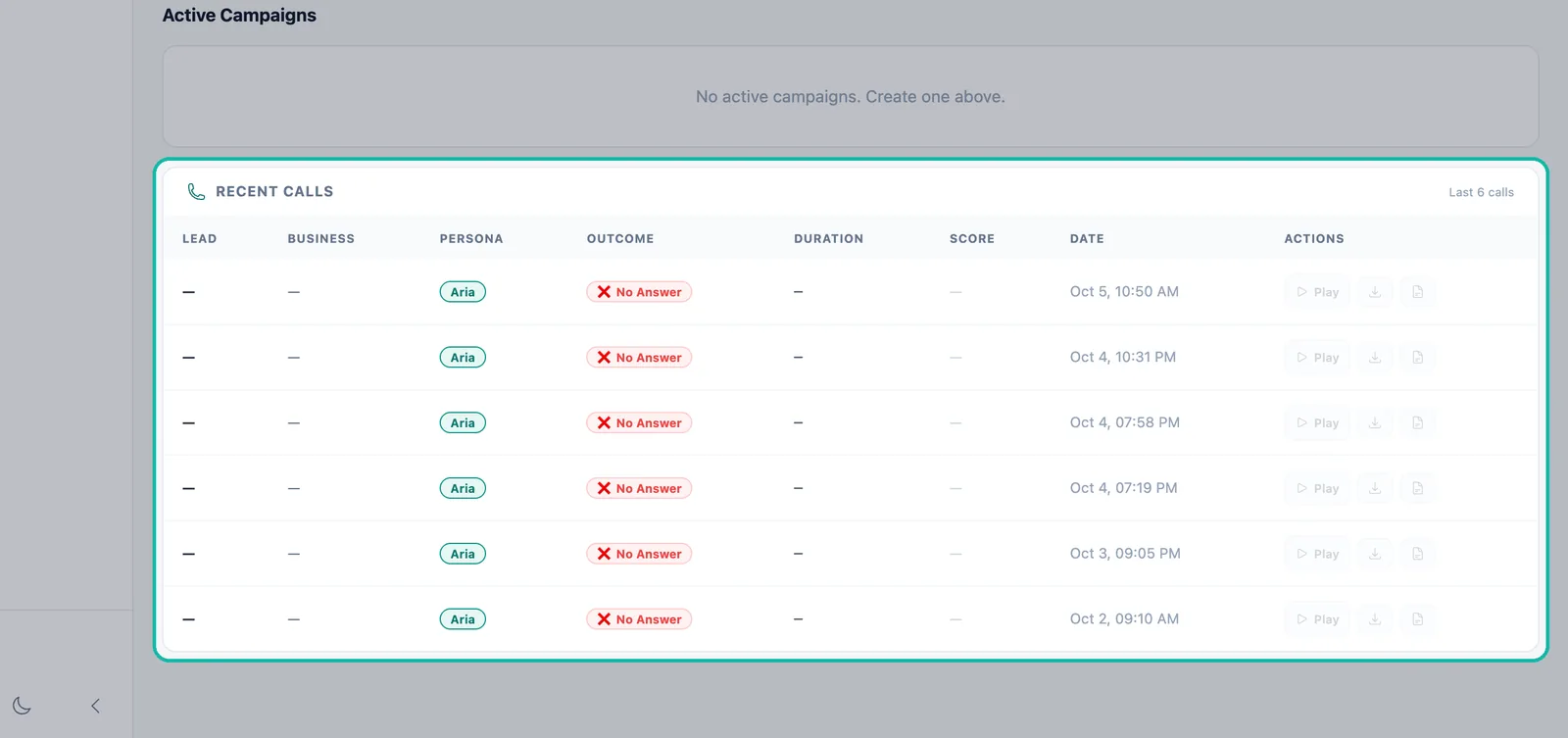
Recent Calls
Every call with its Lead, Business, Persona, Outcome, Duration, Score and Date. Under Actions you can Play Recording, Download MP3 or Download Transcript. Call outcomes include Booked, Interested, Not Interested, Voicemail and No Answer.
Troubleshooting
- "Ready to Make Your First Call" means your number is active but you have no campaign yet. Click Create Your First Campaign.
- The test call will not start. You need enough voice credits in your wallet. Top up with Buy Credits.
- No calls are going out. Check the campaign is not paused, the time is inside the call window and business hours, and your credit balance is not empty.
Next steps
Frequently asked questions
Which leads should my AI call first?+
In Voice Studio the recommended lead source is Warm — Opened email: leads who opened one of your outreach emails. You can also call all leads, your Google Sheet targets or your uploaded CSV leads.
When does the AI place calls?+
Campaign calls are placed Monday to Friday, 10 AM to 4 PM in the lead's local timezone. Each lead is checked against Do Not Call before every call, with a 4-day cooldown between attempts and a maximum of 3 attempts per lead.
What does 'Safe calls/day' mean on my number?+
Your Swashi number has a safe daily call limit, shown on the number card with its status (Warming Up or Active) and the day count. It keeps your calling volume at a level that protects your number.
Can I listen to the calls?+
Yes. Recent Calls lists every call with its persona, outcome, duration and score, and you can play the recording, download it as an MP3 or download the transcript.
Which plan do I need for outbound AI calling?+
Outbound AI Voice Campaigns are included from the Growth plan and paid from your voice credits. Starter is voice-ready: you can activate a number at any time. See the pricing page for current details.