How to choose an AI voice persona for your calls
Meet Swashi's 16 AI voice personas, hear voice previews, set the active persona for your AI calls, and see how many voice personas each plan includes.
- 1Open Voice Outreach. Click Voice Outreach in the sidebar.
- 2Find Active Voice Persona. Scroll to the Active Voice Persona section to see every persona and its tone.
- 3Preview the voices. Click any avatar to hear a voice preview.
- 4Set your active persona. Select the persona you want and click Set as Active Persona; new campaigns will use it by default.
- 5Test it on a real call. Use Manual Test Call, choose the persona under AI Persona and call yourself.
Prefer to watch? This tutorial walks through the same steps in the live app. All tutorials →
A voice persona is the AI caller your leads hear: a name, a voice and a speaking style. Swashi offers 16 voice personas (8 female, 8 male); you preview them in Voice Outreach and set one as your active persona, which new calling campaigns use by default.
Before you start
- You need access to Voice Outreach. See Voice Outreach campaigns.
- The number of personas you can use depends on your plan (see the table below).
The 16 voice personas
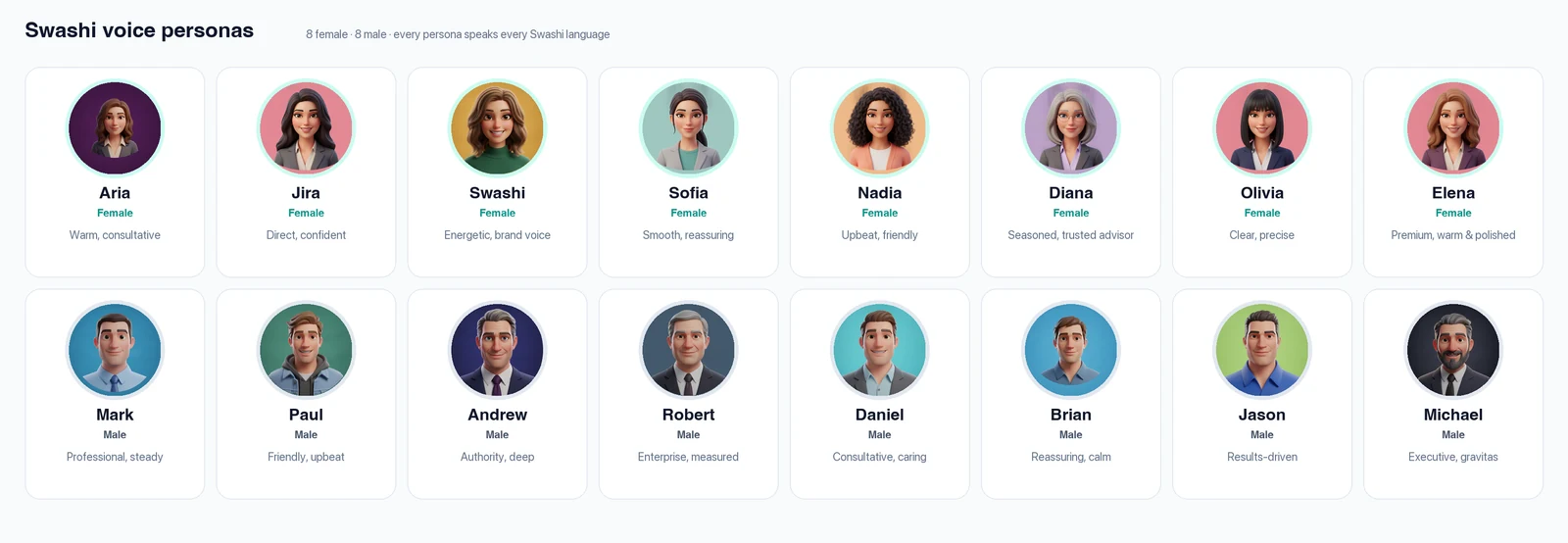
Each persona has its own voice and tone. The tone is shown under the name in the app.
| Persona | Voice | Tone |
|---|---|---|
| Aria | Female | Warm, consultative |
| Jira | Female | Direct, confident |
| Swashi | Female | Energetic, brand voice |
| Sofia | Female | Smooth, reassuring |
| Nadia | Female | Upbeat, friendly |
| Diana | Female | Seasoned, trusted advisor |
| Olivia | Female | Clear, precise |
| Elena | Female | Premium, warm & polished |
| Mark | Male | Professional, steady |
| Paul | Male | Friendly, upbeat |
| Andrew | Male | Authority, deep |
| Robert | Male | Enterprise, measured |
| Daniel | Male | Consultative, caring |
| Brian | Male | Reassuring, calm |
| Jason | Male | Results-driven |
| Michael | Male | Executive, gravitas |
Aria is the default persona. Every persona speaks every supported Swashi language. During a call the AI follows the person's language: they can ask for another language or simply start speaking it. See Languages.
Preview a voice
Click Voice Outreach in the sidebar.
Find Active Voice Persona. The persona currently in use is shown first with its tone, for example "Aria · Warm, consultative".
Click any avatar (or its play button) to hear a preview.
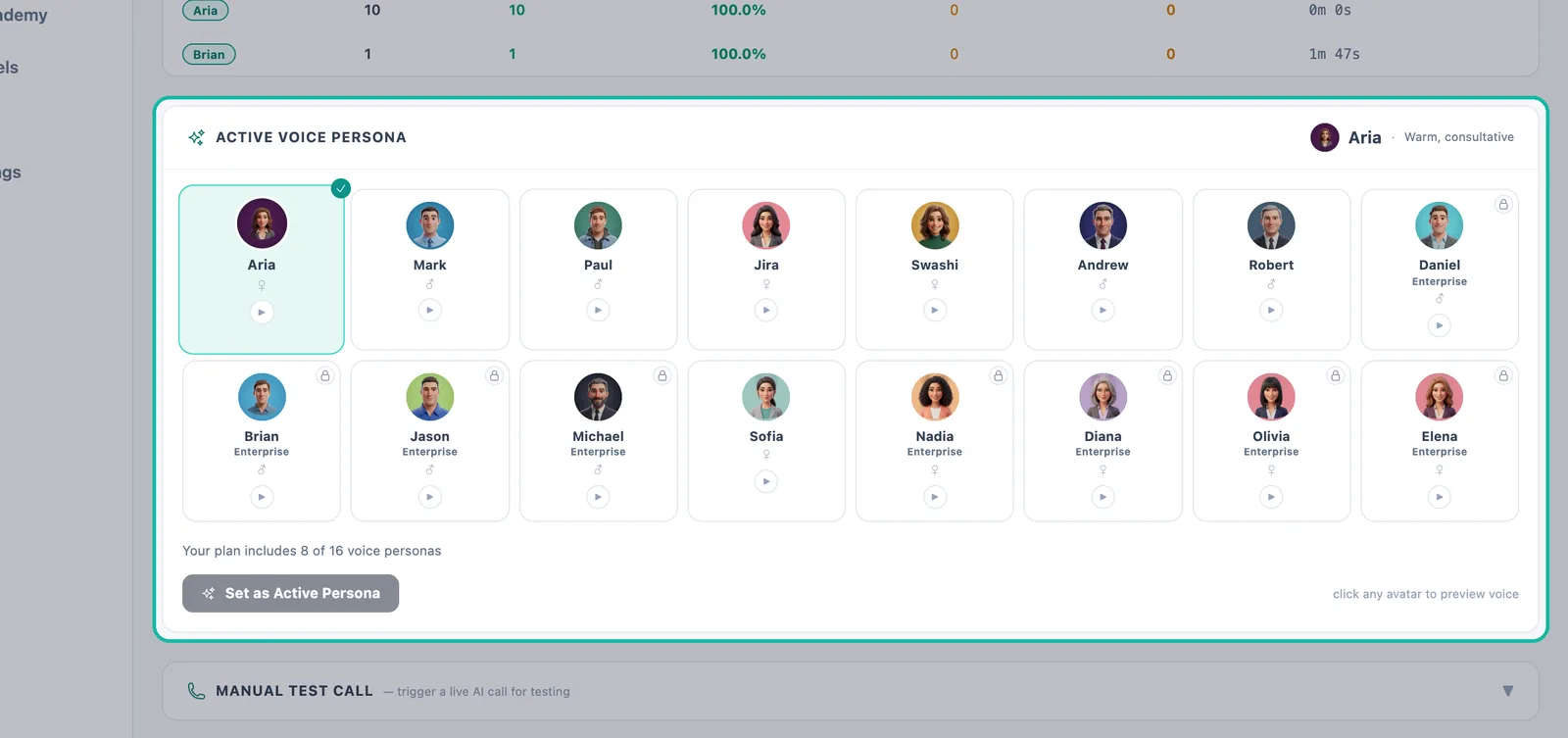
Click an avatar to hear a preview.
Note:If a preview shows "Real voice unavailable — browser voice used", the preview fell back to your browser's built-in voice for a moment. Try again shortly to hear the real persona.
Set your active persona
- Select the persona you want.
- Click Set as Active Persona. The button shows Saving... and then Saved!.
New campaigns use this persona by default. Each campaign card under Active Voice Campaigns shows its Persona, and the Persona Breakdown table in Voice Performance compares calls, answer rate, voicemails, warm leads and average duration for each persona you have used.
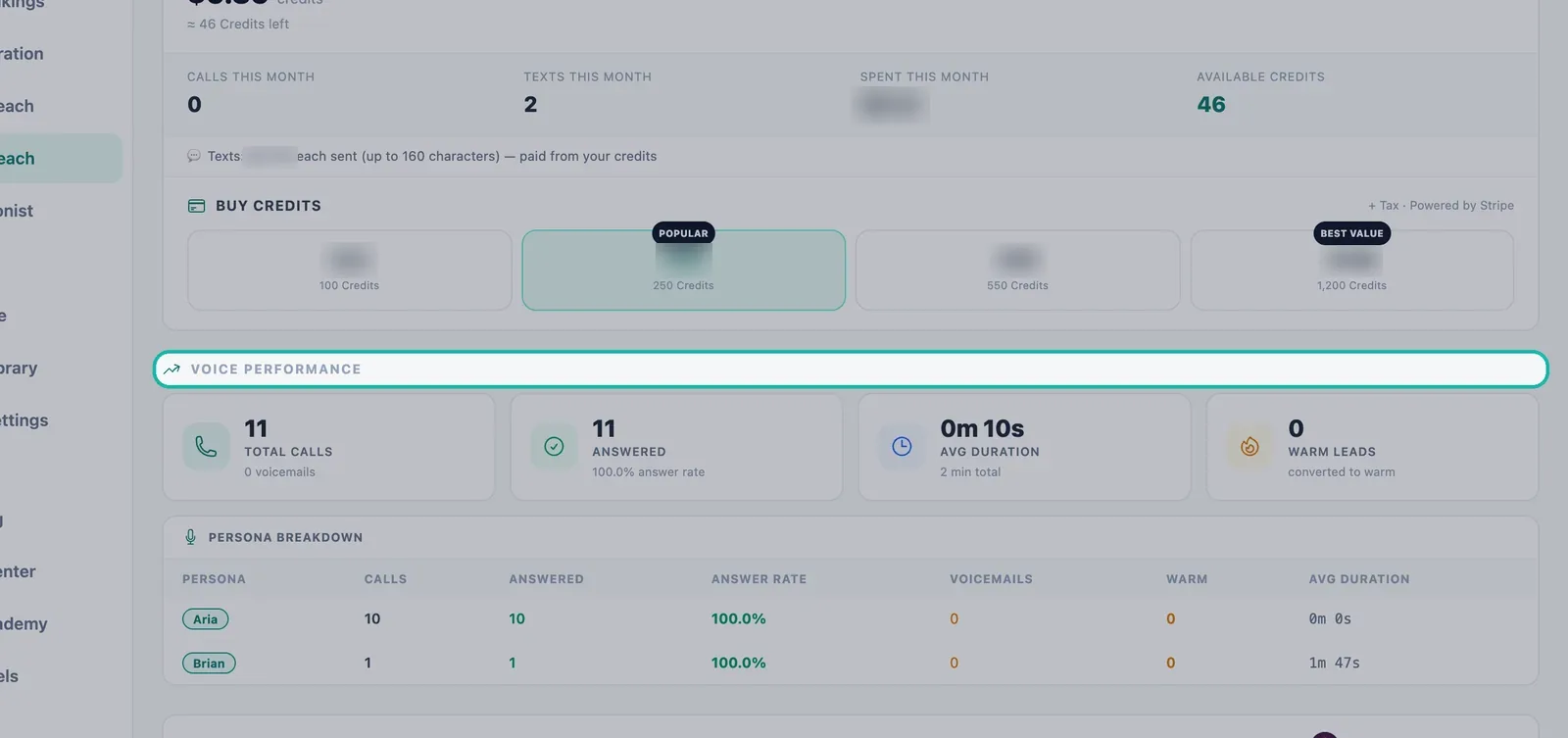
Tip:Try two personas on similar audiences, then compare their answer rate and warm leads in the Persona Breakdown before you settle on one.
Test a persona on a real call
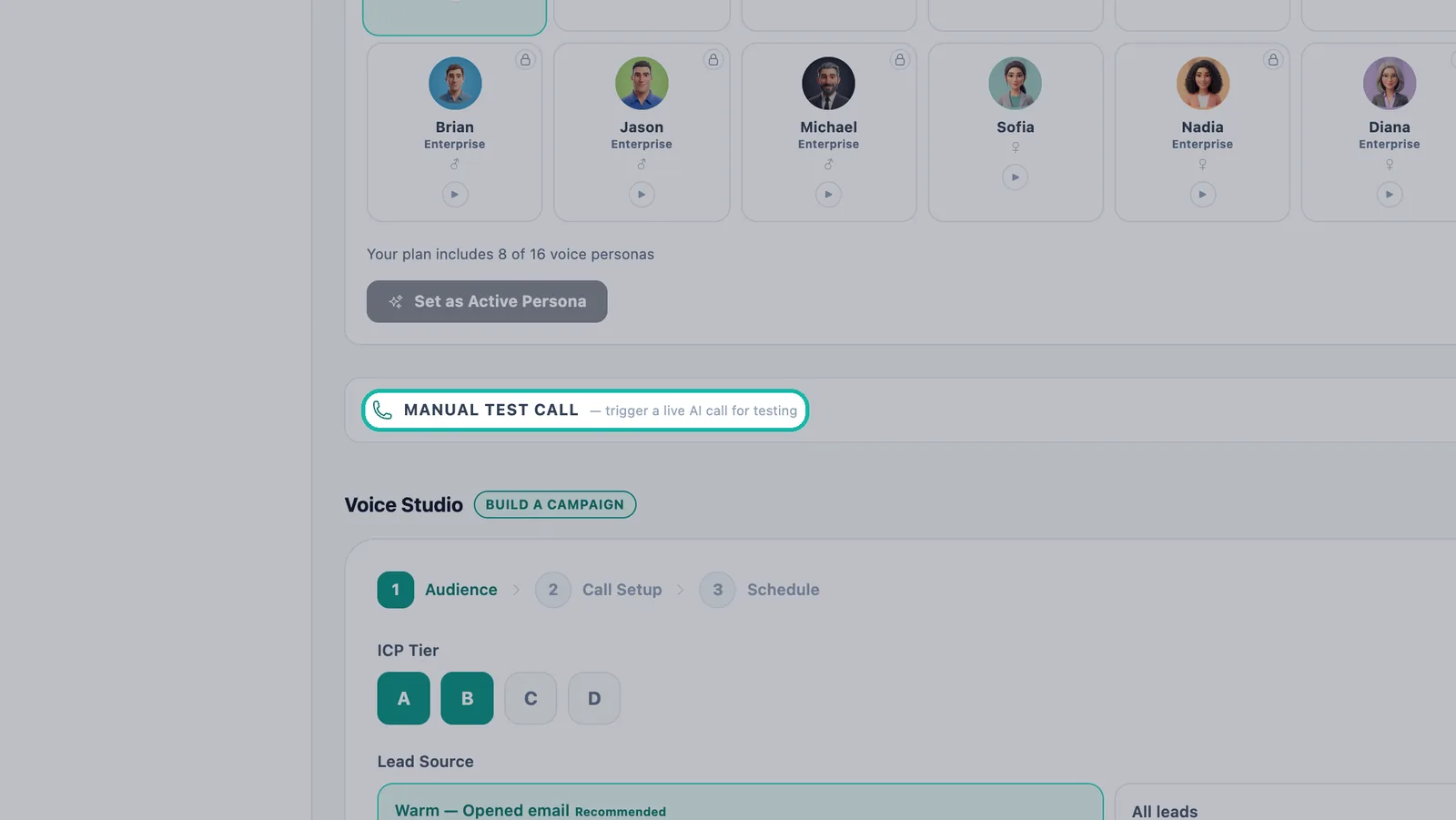
In Manual Test Call, enter your Phone Number and Contact Name, choose the persona under AI Persona and click Trigger Call. Hearing a full conversation tells you more than a short preview. Test calls use your voice credits.
Personas included in each plan
Your plan unlocks a set number of personas. The app shows "Your plan includes N of 16 voice personas".
| Plan | Voice personas included |
|---|---|
| Starter | 2 (1 female, 1 male) |
| Growth | 4 (2 female, 2 male) |
| Agency | 8 (4 female, 4 male) |
| Enterprise | All 16 |
Personas outside your plan carry a badge such as Agency+ or Enterprise and show "Requires [plan] plan". You can still preview them, but saving one shows "This persona is not included in your plan." To unlock more, upgrade your plan. See Plans and billing and the pricing page.
How the persona sounds on your business
The persona supplies the voice and the style. What it says about your business comes from your Business Brain: your offers, facts and tone. Keep the Brain up to date so every persona describes your business accurately.
Troubleshooting
- The Set as Active Persona button does nothing. The persona may not be included in your plan. Check for a plan badge on the avatar.
- The preview is silent. You may see "Voice preview is unavailable right now — please try again in a moment." Wait and try again.
Next steps
- Build a calling campaign
- Set up the AI Receptionist
- Learn more about Swashi Voice AI
Frequently asked questions
How many voice personas does Swashi have?+
Swashi has 16 voice personas, 8 female and 8 male, each with its own voice and tone. Aria is the default persona.
Do the personas speak other languages?+
Yes. Every persona speaks every supported language, and the AI can switch language during a call if the person asks for another language or starts speaking it.
Why can't I save a persona I like?+
Each plan unlocks a set number of personas. Personas outside your plan show a plan badge such as Agency+ or Enterprise, and saving one shows 'This persona is not included in your plan.' Upgrade to unlock more.
Does changing my active persona change running campaigns?+
The active persona is the default for new campaigns. Each campaign card shows the persona it uses.
What if the voice preview doesn't play?+
If the real voice is temporarily unavailable, the preview may fall back to your browser's voice and say so. Try again in a moment to hear the real persona.