Lead Generation filters reference
A complete reference to every Swashi lead filter: ICP tier, sort, contact, company size, seniority, revenue, contact quality, ICP tags, freshness and more.
Prefer to watch? This tutorial walks through the same steps in the live app. All tutorials →
The Filters panel on the Lead Generation page controls which leads a search returns and in what order. This page lists every filter, what each option means, and when to use it, so you can turn a broad search into a short list of the right people.
Product: Lead Gen & Outreach Automation
Open it by clicking Filters next to the search bar. You can combine as many filters as you like. Click ✕ Reset all filters to start over, or Clear to reset a single filter.
Before you start
- Run your first search by role or industry and location. See How to find high-ticket leads.
- Your ideal customer profile (ICP) comes from your Business Brain. Several filters, such as ICP Tier and ICP Tags, depend on it.
Filters at a glance
| Filter | Options | What it does | When to use it |
|---|---|---|---|
| ICP Tier | A — Perfect, B — Strong, C — Average, D — Low, Any | Limits results to leads in the fit tiers you choose. Tiers come from each lead's ICP score. | Start with A. Add B to widen the net. Use Any for exploratory searches. |
| Sort By | Top Value (and other ranking options shown in the menu) | Sets the order of your results. Top Value puts the biggest opportunities first. | Use Top Value when you want the best deals at the top of the list. |
| Has Contact | 📧 Email, 📞 Phone, 🌐 Website, 🏆 No Website | Keeps only leads that have the contact channel you select. No Website finds businesses without a site. | Turn on Email and Phone so every lead can be reached. Use No Website if you sell websites or web services. |
| Leads Volume | A number of leads | Sets how many leads this search returns. If you choose more than your remaining quota, Swashi shows only what your plan has left. | Pick a smaller number for a test, a larger one for a campaign. |
| My Leads | My Leads, Recently searched | Shows leads you already own, or reopens past search results. Always free — no quota used. | Use it to revisit or re-sort leads you already have without spending credits. |
| Freshness | New to me | Shows only leads you have not seen before. | Use it on repeat searches in the same market so you only get new people. |
| Company Size | Employee-count bands, for example 201 and up | Limits results by number of employees. | Choose 201 and up for established businesses with real budgets; choose smaller bands for local or owner-run businesses. |
| Seniority / Title | Levels such as C-Suite, VP, Director | Limits results to people at the level you choose. | Pick the level that signs the deal. For high-ticket offers, that is usually C-Suite, VP or Director. |
| Annual Revenue | Revenue bands, for example 10M and up | Limits results by company revenue. | Use a high band for high-ticket offers so the list contains companies that can afford them. |
| Contact Quality | ✓ Verified Email, in LinkedIn | Verified Email keeps only leads whose email has been checked. LinkedIn keeps leads with a LinkedIn presence. | Turn on Verified Email before any email campaign. See verified leads. |
| ICP Tags | See the table below | Keeps only leads carrying the signals you select. | Add the signals that match your offer, such as Decision Maker and High Ticket. |
Note:The exact bands in Company Size, Seniority / Title and Annual Revenue are listed in the panel itself. The examples above are the ones used in the EP2 tutorial.
ICP Tags
ICP tags are signals Swashi attaches to a lead. Selecting a tag keeps only leads with that signal.
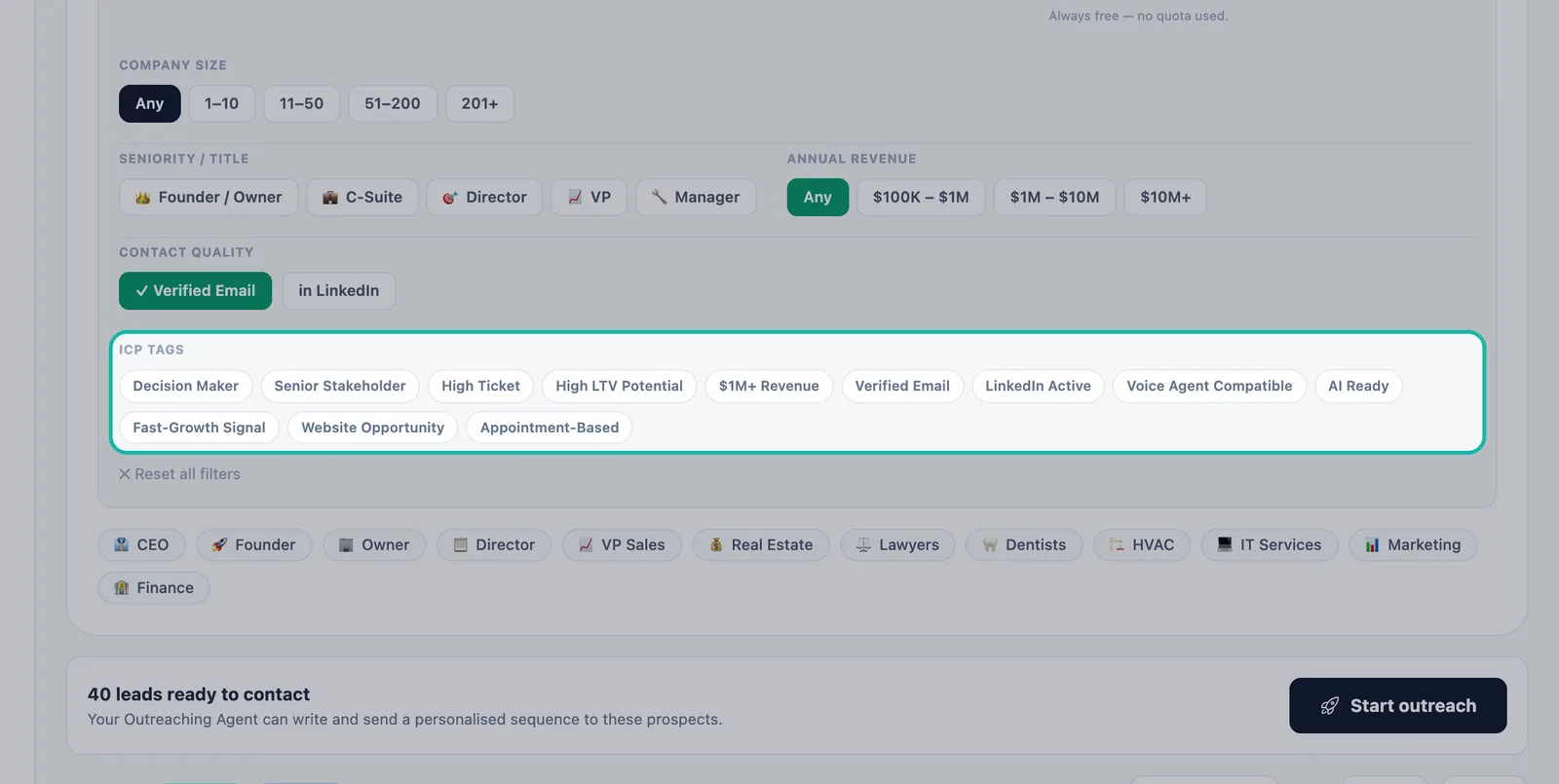
| Tag | Use it to find |
|---|---|
| Decision Maker | People who make the buying decision |
| Senior Stakeholder | Senior people at the company |
| High Ticket | Leads suited to high-value offers |
| High LTV Potential | Leads flagged as potential high lifetime-value customers |
| 1M+ Revenue | Companies in the 1M-and-up revenue range |
| Verified Email | Leads whose email address has been verified |
| LinkedIn Active | People active on LinkedIn |
| Voice Agent Compatible | Leads flagged as a fit for your voice AI calls |
| AI Ready | Leads carrying the AI Ready signal |
| Fast-Growth Signal | Businesses showing a growth signal |
| Website Opportunity | Businesses whose website has room for improvement |
| Appointment-Based | Businesses flagged as appointment-based |
Tip:Tags narrow a list quickly. Add one or two at a time and watch the result count, rather than selecting many at once.
Recipes
High-ticket, enterprise decision-makers (from the EP2 tutorial) ICP Tier A (add B if needed) · Sort By Top Value · Has Contact Email + Phone · Company Size 201 and up · Seniority C-Suite, VP or Director · Annual Revenue 10M and up · ✓ Verified Email · Tags Decision Maker, High Ticket, 1M+ Revenue · Freshness New to me.
Verified contacts only (from the EP6 tutorial) Has Contact Email + Phone · Contact Quality ✓ Verified Email · Tags Verified Email, LinkedIn Active, Decision Maker.
Website or web-services sellers Has Contact No Website, or tag Website Opportunity.
Phone-first campaigns Has Contact Phone · tag Voice Agent Compatible. Then see voice outreach.
Quota messages you may see
| Message | Meaning |
|---|---|
| More than your remaining quota | The Leads Volume you picked is higher than the leads your plan has left this month. |
| Your plan has n leads left — we will show n | Swashi caps the search at what you have left. |
| You have used your lead quota for this month. | New searches are paused until your allowance refreshes with your billing cycle. My Leads stays free. Click Get more leads → to see options. |
Troubleshooting
- No results. Too many filters are on. Click ✕ Reset all filters, then add them back one at a time.
- Results keep showing the same companies. Turn on Freshness → New to me.
Next steps
Frequently asked questions
Which filters should I use for high-ticket leads?+
Start with ICP tier A, sort by Top Value, require Email and Phone, choose larger company sizes and C-Suite, VP or Director seniority, a high annual revenue band, Verified Email, and tags such as Decision Maker and High Ticket.
Do filters use up my lead credits?+
Filters only shape the search. Credits are used by the new leads a search returns. Viewing leads you already own under My Leads, or reopening a recent search, is always free and uses no quota.
How do I clear all my filters?+
Open Filters and click Reset all filters. Each group also has a Clear option if you only want to reset one filter.
What does New to me mean?+
New to me, under Freshness, shows only leads you have not seen before, so a repeat search does not return people you already have.