How to track your SEO and AI search rankings in Swashi
Use SEO AI Rankings in Swashi to audit site health, Core Web Vitals and AI readiness, and track search performance, keywords, AI visibility and indexing.
- 1Open SEO AI Rankings. Click SEO AI Rankings in the sidebar.
- 2Add your website URL. In the Setup Checklist, paste your site URL so Swashi can crawl it for issues.
- 3Connect Google Search Console. Connect Search Console once, read-only, to unlock keyword rankings, impressions, clicks and indexing status.
- 4Open Traditional SEO. Choose the Traditional SEO tab from the four views: Traditional SEO, AEO, GEO and Automation.
- 5Review site health and speed. Read the Site Health Audit and Core Web Vitals, and click Re-crawl Site after you make changes.
- 6Check AI readiness. See which AI crawlers your site allows and which machine-readable signals are present.
- 7Track search performance and keywords. Review clicks, impressions, click-through rate, average position and your keyword rankings.
- 8Check AI visibility and indexing. See which AI answer engines mention your brand and which pages Google has indexed.
Prefer to watch? This tutorial walks through the same steps in the live app. All tutorials →
SEO AI Rankings shows how your website performs on Google and in AI search engines, in one place. Connect your website and Google Search Console once, and Swashi audits your site health, speed and AI readiness, then tracks your clicks, keyword rankings, AI visibility and indexing. Every number is measured from real data or shown as "Not measured."
This guide is for business owners and marketers who want to know where they rank and what to fix next. It covers the setup checklist and the Traditional SEO view, following Part 1 of the EP5 video tutorial, "How to Monitor SERP AI For AEO, GEO, SEO with Swashi."
Before you start
- Your website URL. Swashi needs the address of a site you own.
- Google Search Console (recommended). It unlocks your real keyword and indexing data. See connect Google Search Console.
- Your plan.
| Feature | Free | Starter | Growth | Agency | Enterprise |
|---|---|---|---|---|---|
| Site speed audit (Core Web Vitals) | Yes | Yes | Yes | Yes | Yes |
| Search Console rankings | No | Yes | Yes | Yes | Yes |
| AEO and GEO | No | No | Yes | Yes | Yes |
When a feature is not on your plan, the card shows which plan unlocks it.
Set up: the Setup Checklist
- Click SEO AI Rankings in the sidebar.
- Find the Setup Checklist — Real-Time Data Requirements. Every data section depends on these connections, and the checklist shows what each one unlocks. A counter shows how many are complete, for example "2 of 5 complete."
- Your Website URL: paste your site URL. Swashi crawls it for issues. No setup is needed on your side.
- Google Search Console: click Connect →. This is read-only and no password is stored. It unlocks keyword rankings, impressions, click-through rate and indexing status. You must own the Search Console property.
The other checklist items are set up by Swashi by default. You do not need to add anything for them.
To track another site, use + Add site. The Viewing site switcher at the top lets you move between your sites.
The four views
Switch between the four tabs at the top of the page:
| Tab | What it shows |
|---|---|
| Traditional SEO | Site health, speed, AI readiness, Google performance, keywords, AI visibility and indexing |
| AEO | Featured snippets, People Also Ask and FAQ schema. See AEO and GEO. |
| GEO | Whether AI assistants mention your brand. See AEO and GEO. |
| Automation | The checks Swashi runs for you in the background |
The rest of this page covers Traditional SEO.
Site Health Audit
Swashi crawls your site for on-page issues and shows an SEO Score. Findings can include pages with errors, missing meta titles, sitemap status and missing structured data. Click Re-crawl Site at any time, for example after you fix something. The on-page checks apply to the audited page (your homepage).
Core Web Vitals
Speed scores for mobile and desktop, shown separately, plus Performance Opportunities: the changes that would save the most loading time.
- Lab scores are a simulation of a single page load.
- Real users — mobile shows Google's 28-day figures from actual visitors across your whole site.
Note:If you see "Not measured — Google has not collected enough real-user data for this site yet," your site does not have enough visitors in Google's data. The lab figures are a simulation and do not decide your Core Web Vitals grade.
AI Readiness Check
Can AI engines crawl, read and cite your site? The AI Readiness Check gives a score out of 100 and shows:
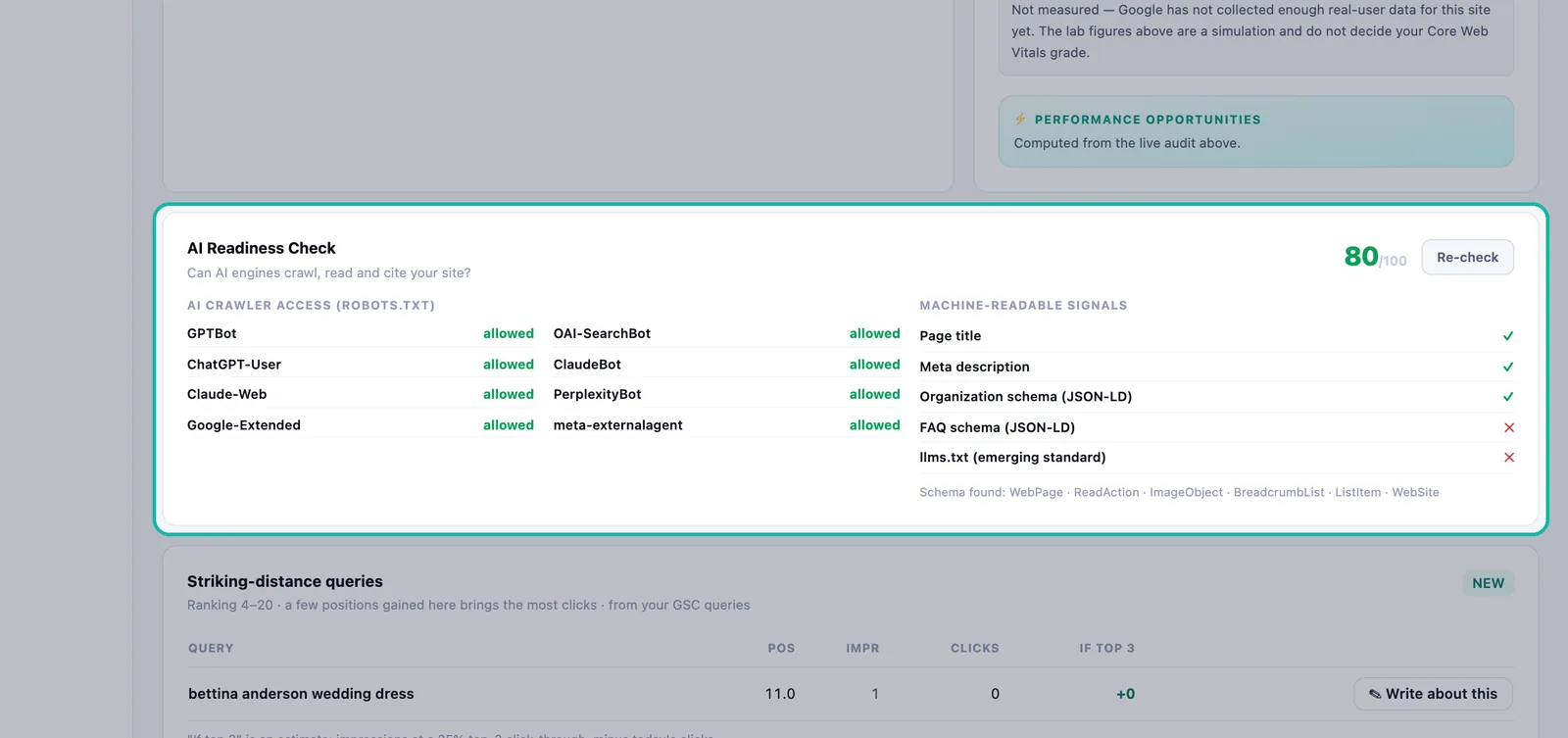
- AI crawler access (robots.txt): which AI crawlers are allowed or blocked on your site.
- Machine-readable signals: whether your page title, meta description, Organization schema, FAQ schema and llms.txt file are Found or Missing.
Click Re-check after you make changes.
Search Performance
With Search Console connected, you see the last 28 days of clicks, impressions, CTR (click-through rate) and Avg position, with your Top pages, Top countries and Devices. The label "Google data through" shows the latest date Google has reported, because Google's data arrives with a short delay. Click Refresh to pull the latest.
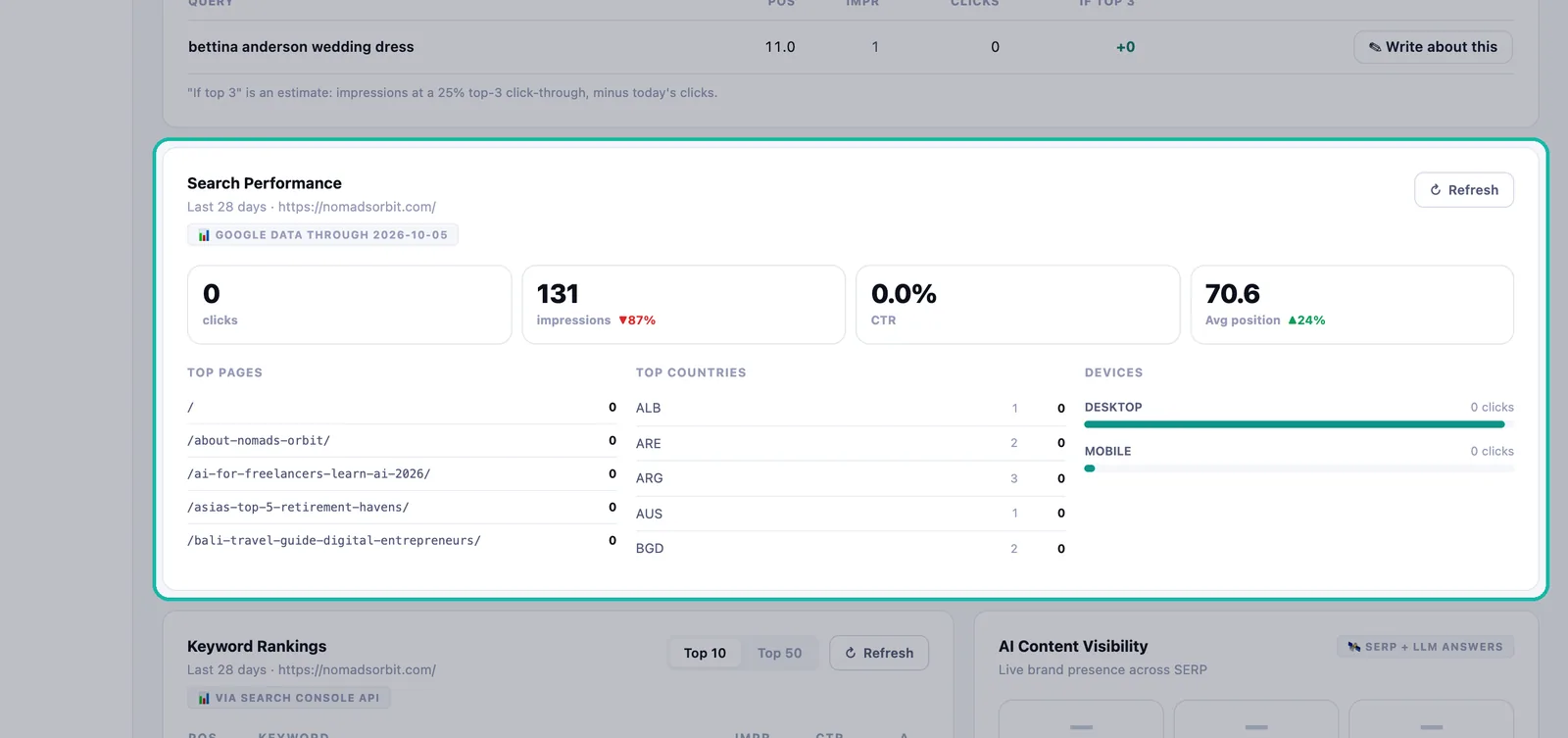
Striking-distance queries
These are searches where you rank between positions 4 and 20. A few positions gained here bring the most new clicks. The If top 3 column is an estimate, and it is labeled as one. Click ✎ Write about this to turn a query into new content.
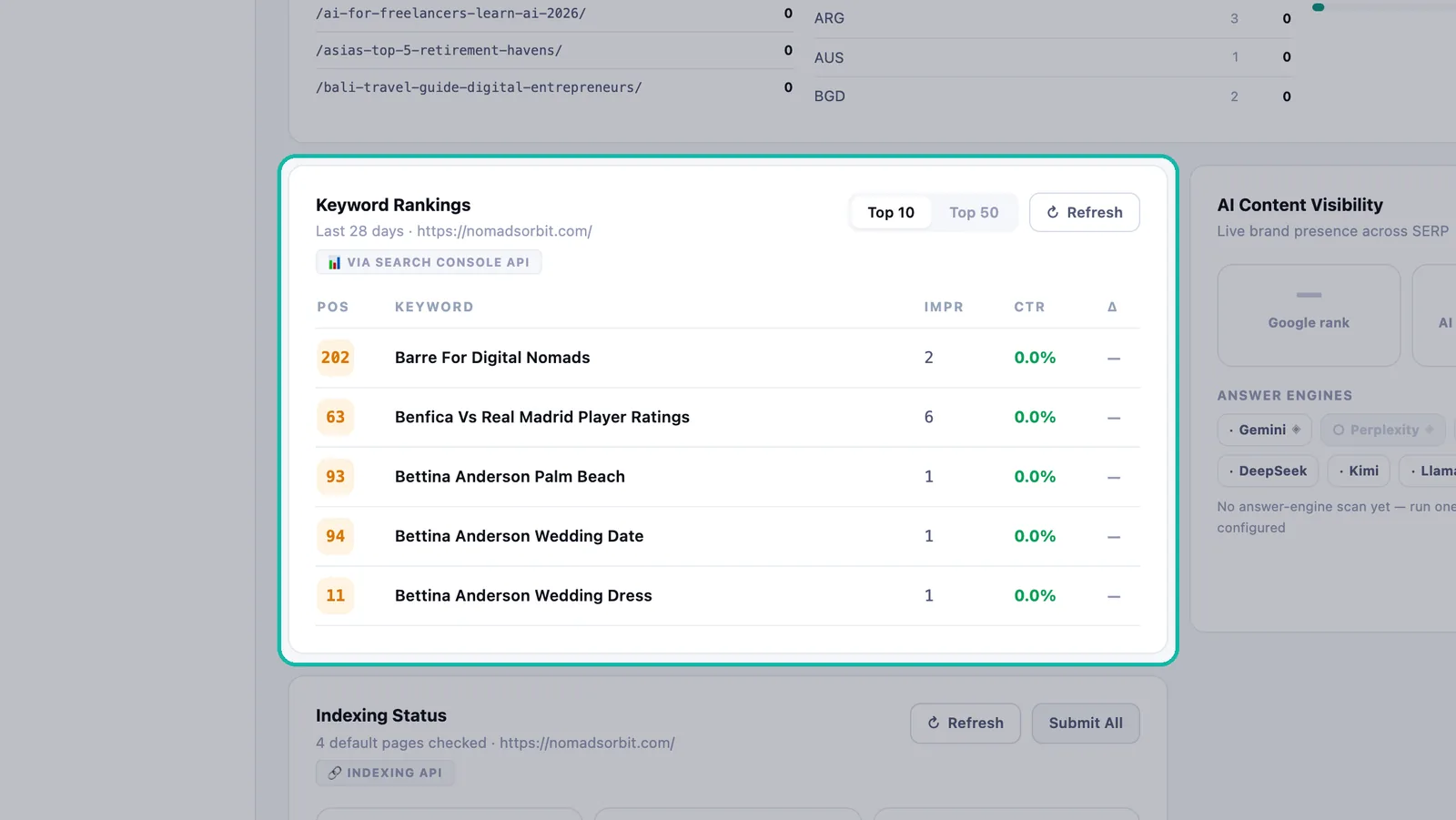
Keyword Rankings
The keywords you rank for, with position, impressions, CTR and how each one moves. Filter by Top 10 or Top 50, and click Refresh to re-pull rankings from Search Console.
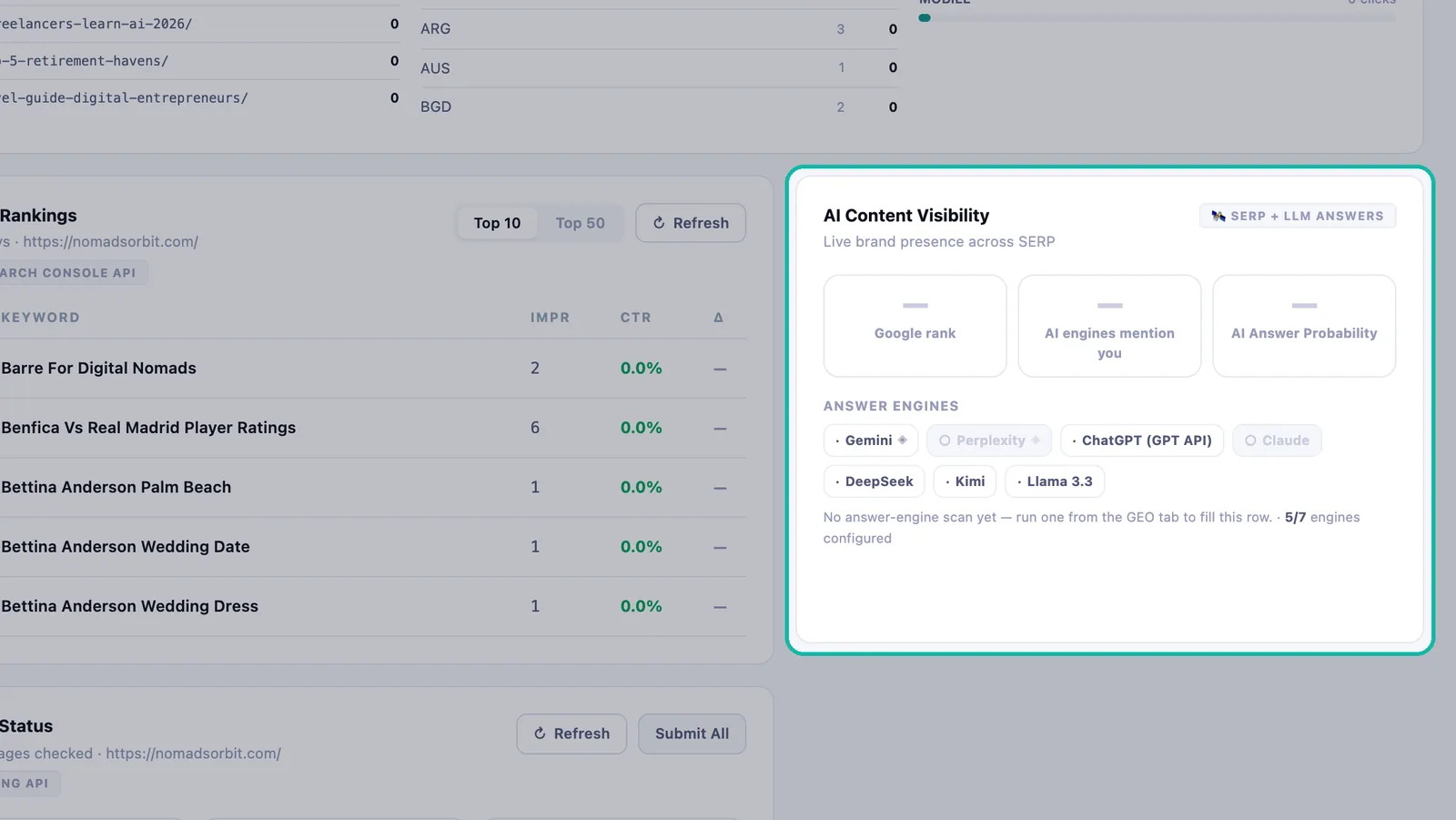
AI Content Visibility
Whether AI answer engines mention your brand, engine by engine. Each engine shows Mentions your brand, Did not mention your brand, Not scanned yet or Not included on your plan. To fill this row, run a scan from the GEO tab.
Indexing Status
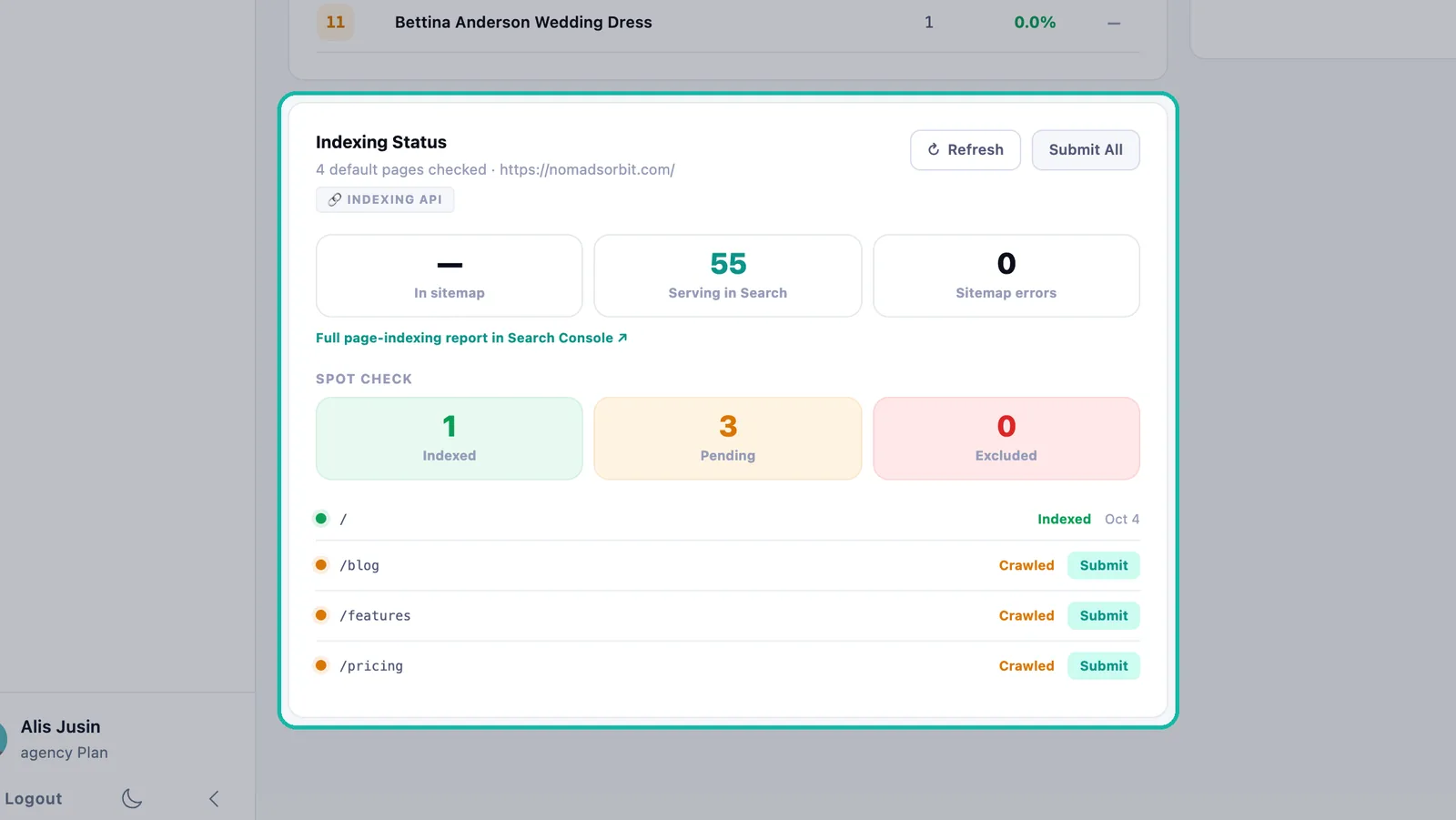
Which pages Google has indexed, which are Pending and which are Excluded. You also see how many pages are In sitemap, how many are Serving in Search, and any Sitemap errors. Use Submit on a page, or Submit All, to ask Google to index your pages. Open the full page-indexing report in Search Console for more detail.
Troubleshooting
- "Connect Google Search Console to see your ranking keywords." Connect Search Console in the Setup Checklist.
- "Please reconnect your Google account to enable Indexing API access." Reconnect Google before using Submit.
- A card shows "— Not measured": the data has not arrived yet. This is not zero. Try Refresh later.
Next steps
- Connect Google Search Console.
- Optimize for answer engines and AI search.
- Publish articles that target your keywords.
- Learn more about SERP AI on the Swashi website.
Frequently asked questions
What is SEO AI Rankings in Swashi?+
SEO AI Rankings is the page where you track how your website performs on Google and in AI search. It has four views: Traditional SEO, AEO, GEO and Automation.
Do I need Google Search Console to use SEO AI Rankings?+
No, but it unlocks the most data. Without it you still get the site health audit and Core Web Vitals; with it you also get keyword rankings, impressions, clicks and indexing status.
Which plan do I need?+
The site speed audit is on every plan, including Free. Search Console rankings are included from Starter, and AEO and GEO from Growth.
Why does a card say Not measured instead of a number?+
Swashi never invents a figure. Not measured means the data source has not answered or nothing has been recorded yet, which is different from zero.
Why are my lab scores different from real-user Core Web Vitals?+
Lab scores are a simulation of one page load. Real-user figures come from Google's data on actual visitors over 28 days, and only those decide your Core Web Vitals grade.