Swashi quick start: your first hour
Get started with Swashi in your first hour: create your account, set up the Business Brain, connect your website, find your first leads and start a campaign.
- 1Create your account. Sign up at app.swashi.io; every new account receives 20 free leads, and the Starter plan can be started as a 7-day free trial.
- 2Set up your Business Brain. Open User Settings, go to Business Brain, click Generate with AI to draft it from your website, review it and click Save Business Brain.
- 3Connect your website. Open Website Settings, add your site and choose whether articles publish as drafts or go live automatically.
- 4Find your first leads. Open Lead Generation, type a role or industry and a market, set your filters and click Find leads.
- 5Connect a sending account. Open Email Outreach and connect Gmail, Brevo, SendGrid or any SMTP mailbox; Swashi starts warming it up automatically.
- 6Start your first campaign. Create a campaign, choose tier A and B leads, describe your offer so AI writes the four-email sequence, then launch it.
- 7Check the Business page. Open Business to see your AI Workforce, what needs your attention and what Swashi did for you today.
This guide takes you from a new account to a running campaign in about an hour. You will teach Swashi your business, connect your website, find your first leads and start your first email campaign.
Each step links to a detailed page if you want to go deeper.
Before you start
Have these ready:
- Your website address, plus any brochure, price list or company profile you want Swashi to learn from.
- For email outreach, a mailbox you can send from. For Gmail, you will need an App Password (created in your Google Account under Security), not your normal password.
- An idea of who you want to reach: the role or industry, and the city, state or country.
Note:Lead Generation and Email Outreach need a paid plan or the Starter trial. On the Free plan you can still use your 20 free signup leads, set up your Business Brain and connect a website. See Plans and billing.
Step 1: Create your account
- Go to swashi.io and start free, or sign in at app.swashi.io.
- Every new account receives 20 free leads at signup.
- To try the paid features, open Billing and click Start Free Trial on the Starter plan. The trial lasts 7 days.
During the trial, limits are deliberately small: 20 leads, 50 outreach sends, 1 mailbox and 10 voice calls. Lead export, Google Sheets sync and Branding Media uploads are turned off until you are on a paid plan.
Step 2: Set up your Business Brain
The Business Brain is what every agent reads before it writes or speaks for you. Do this first.
- Open User Settings and scroll to Business Brain.
- Click Generate with AI. Swashi reads your website and drafts the Brain for you.
- Review the drafted fields, such as What does your business do?, Services and Brand tone of voice, and fix anything that is wrong.
- Click Save Business Brain. Every agent updates at once.
The panel shows Steps to reach 100%, so you can see what is still missing. Read Business Brain for what each field does.
Step 3: Connect your website
- Open Website Settings in the sidebar.
- Add your site. WordPress uses your site address and an Application Password. Shopify, Webflow, Wix, Squarespace and custom webhooks are also supported.
- For each site, choose the publish target (draft or live) and whether auto-publish is on.
Your site's language is detected automatically. Full instructions are in Connect your website.
Step 4: Find your first leads
Open Lead Generation.
Type the role or industry you want, such as a decision-maker title, and choose your market: a city, a state or a whole country.
Click Filters to narrow the list. Start with ICP tier A, then add B if you want more.
Click Find leads. Swashi searches, then checks every email before the lead reaches you.
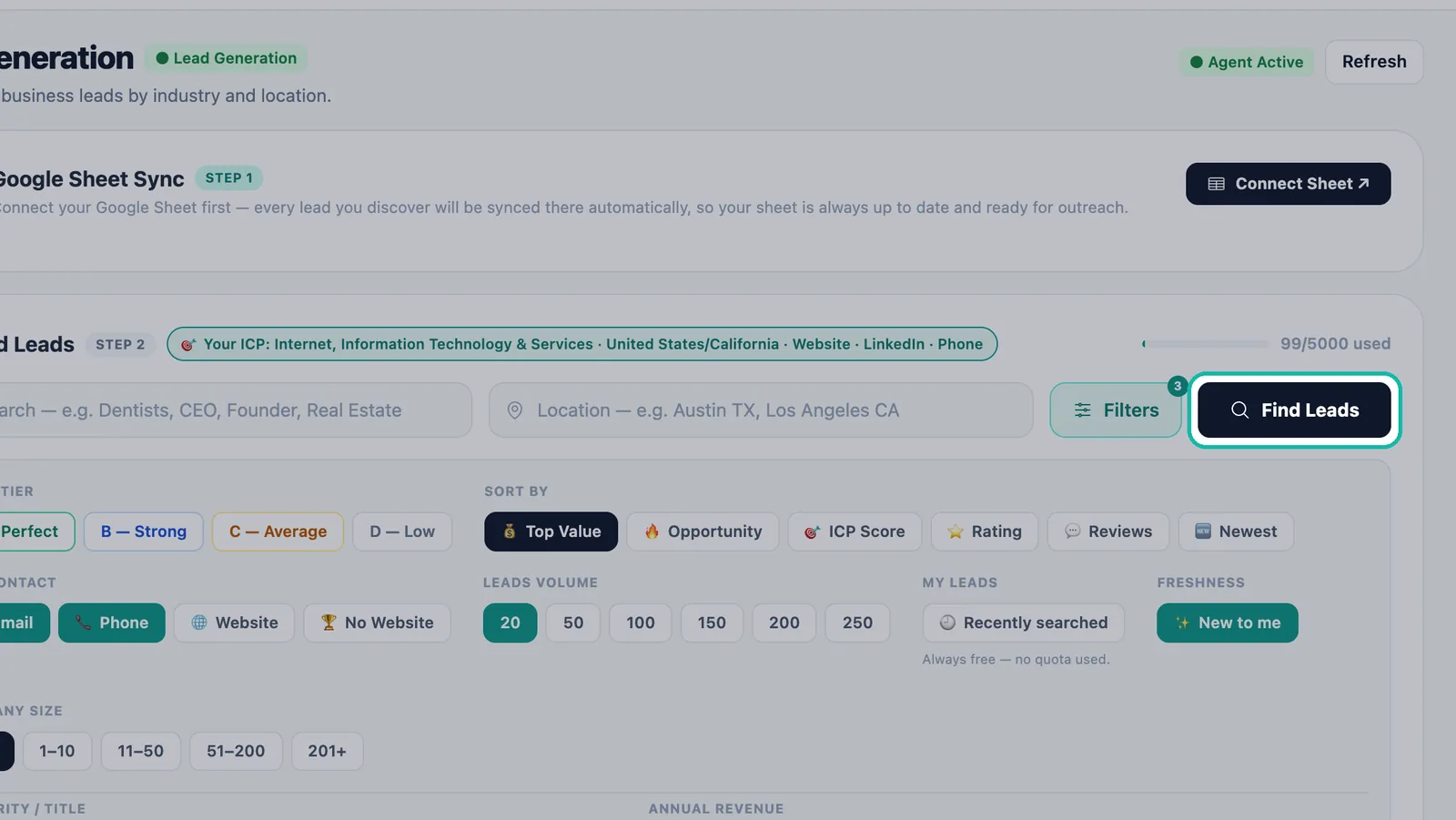
Click Find Leads to run your search.
The credits bar shows how many lead credits you have used this month. See Find leads and ICP tiers.
Step 5: Connect a sending account
Open Email Outreach.
Connect a sending account: Gmail, Brevo, SendGrid or any SMTP server.
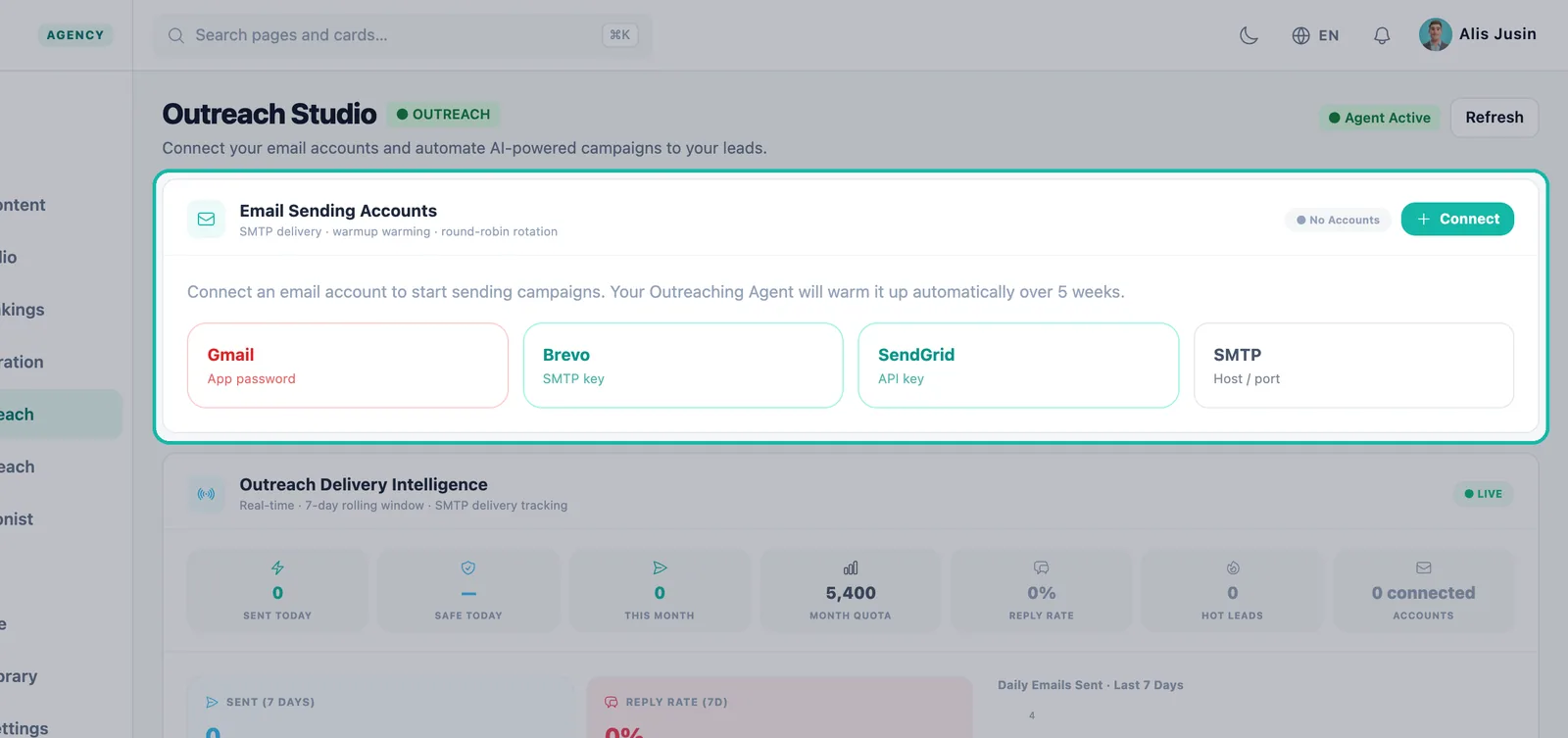
Connect a sending account in Email Outreach. Swashi starts warming the account up straight away. The account card shows the warm-up day and today's safe daily limit, which grows automatically.
Important:Do not try to skip warm-up or push extra volume through a new mailbox. Gradual warm-up protects your sender reputation. See Deliverability and warm-up.
Step 6: Start your first campaign
In Email Outreach, create a new campaign.
Audience: choose who to contact first. Start with tier A, then add B. Pick regions, a niche (optional), how many leads, and the lead source.
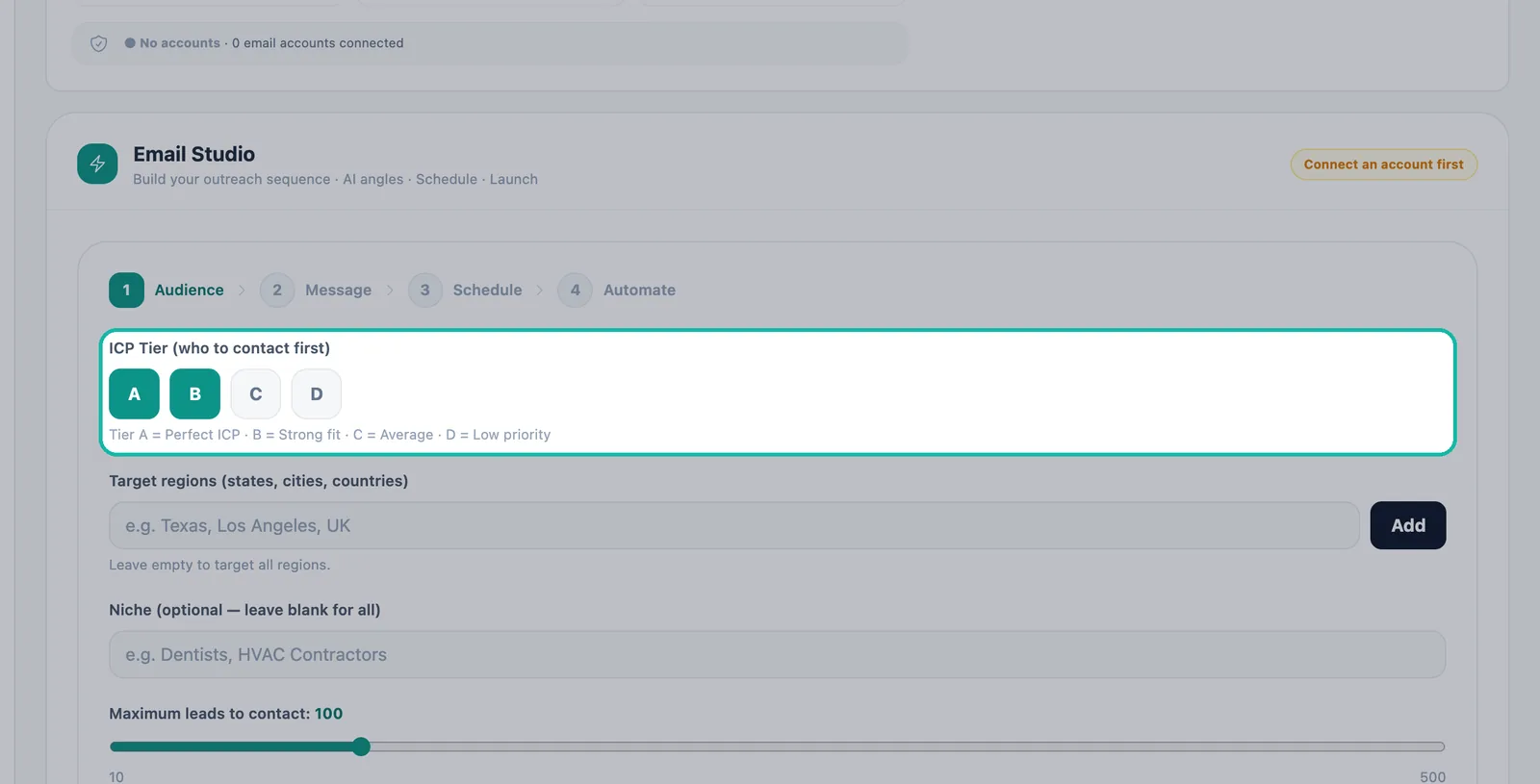
Choose who to contact first in the Audience step. Message: describe your offer in one sentence, choose a persuasion angle, and let AI write all four steps of the sequence: an opener, two follow-ups and a final close.
Check the preview, then launch.
Follow-ups go out on day three, six and nine unless the lead replies. Every email carries an unsubscribe link and is checked against your suppression list. Replies arrive in the Unified Inbox.
Step 7: Check the Business page
Open Business in the sidebar. You will see:
- Your AI Workforce and what each agent is doing.
- Unlock more of Swashi, a checklist of setup steps you have not finished yet.
- Needs Your Attention, where replies and callback requests appear.
Learn more in Business page.
What to set up next
- Social media: connect LinkedIn, Facebook or Instagram in Social Studio.
- Phone: switch on the AI Receptionist so calls are answered around the clock.
- Search visibility: connect Google Search Console in SEO AI Rankings.
- Chat: control Swashi from LINE, WhatsApp or Telegram via Bot Channels.
Next steps
- Business Brain: get your Brain to 100%.
- Find leads: build a list that matches your ideal customer.
- Watch the step-by-step episodes on the tutorials page.
Frequently asked questions
Is there a free trial?+
Yes. The Starter plan includes a 7-day free trial. Growth, Agency and Enterprise are purchased directly without a trial. If you cancel before the trial ends, you are not charged.
Do I get free leads when I sign up?+
Yes. Every new account receives 20 free leads at signup, one time, including Free accounts.
Do I need a Google Sheet before I can find leads?+
No. Connecting a Google Sheet is optional. Without one, your leads stay in your Swashi pipeline.
Why does my new mailbox send so few emails at first?+
Swashi warms up every newly connected mailbox gradually to protect your deliverability. The daily limit grows automatically, and the account card shows the current warm-up day and safe daily limit.