How to manage campaigns and replies in the Unified Inbox
Read and answer every campaign reply in Swashi's Unified Inbox, see AI intent labels, follow the live email sequence and apply weekly AI copy suggestions.
- 1Open Email Outreach. Click Email Outreach in the sidebar and find Campaigns & Unified Inbox.
- 2Open the Inbox tab. Click Inbox to see every reply with its sender, campaign, preview, intent and time received.
- 3Open a message. Click Open message to read the full reply.
- 4Reply. Click Reply, choose the account under Send from, write your answer and click Send Reply.
- 5Organize. Mark important replies as Hot, or Archive handled ones; restore them from the Archive tab with Restore.
Prefer to watch? This tutorial walks through the same steps in the live app. All tutorials →
The Unified Inbox collects every reply to your Swashi email campaigns, from every connected mailbox, in one place. Open Email Outreach and go to Campaigns & Unified Inbox: you can read each reply, see its AI intent label and answer from your own mailbox without leaving Swashi. The same area shows your campaigns, the live sequence they are sending and weekly AI copy suggestions.
Product: Lead Gen & Outreach Automation
Before you start
- Run at least one campaign. See Email Studio.
- Replies are monitored on mailbox providers that support it. SendGrid is a sending-only service, so inbound reply monitoring is not available for SendGrid accounts. See Connect a sending account.
The four tabs
| Tab | What it holds |
|---|---|
| Campaigns | Your campaigns, with their status, next run, sends and reply rate |
| Inbox | Every reply to your campaigns, with AI intent classification |
| Sent | Every email your campaigns sent: business, recipient, subject, campaign, sending account and time |
| Archive | Replies you archived from the Inbox |
The inbox refreshes in real time and only ever shows your own account's replies.
Read and answer a reply
- Click the Inbox tab. Each row shows From, Campaign, Preview, Intent and Received.
- Click Open message to read the full message. Signatures, quoted text and legal notices are shown separately, so the prospect's own words are easy to find.
- Click Reply. The To field is filled in for you.
- Under Send from, choose which connected account to answer from.
- Write your answer and click Send Reply.
Tip:You can attach up to 3 files per reply, under 5 MB in total. The app warns that attachments can reduce inbox placement, so send them only when the conversation genuinely needs one.
Note:For some older messages, only a preview was saved. Messages received from now on are stored in full.
Organize your replies
- Click Hot to flag a reply as a hot lead.
- Archive moves a handled reply to the Archive tab. Click Restore to bring it back.
AI reply classification
Swashi's AI reads each reply and labels its intent. Only the prospect's own words are classified; quoted text is ignored.
| Intent | Meaning |
|---|---|
| Positive | Interested, asking for more info, wants a call |
| Neutral | Acknowledged but non-committal |
| Objection | Raised a concern or resistance |
| Not Interested | Explicit opt-out or rejection |
A reply also stops the rest of that lead's sequence. See Follow-ups and timing.
Live Email Sequence
Live Email Sequence shows what is currently being sent at each step of your outreach pipeline: Cold Intro, Follow-up 1, Follow-up 2 and Closing. Use it to check exactly what a running campaign is sending. Until a campaign is running, it reads "No active campaign. Launch a campaign to see your live sequence here."
Template Performance scores your templates with a composite of reply rate, send share and positive replies across all campaigns.
AI Copy Suggestions
AI Copy Suggestions proposes data-driven improvements to your email copy each week, based on your own results. The analysis runs every Monday; you can also click Get AI Suggestion to generate one now.
- Open This week's AI copy improvement.
- Compare Current with AI Improved.
- Click Apply It to use the new copy, or Skip for now.
Nothing changes without your approval.
Get notified about replies
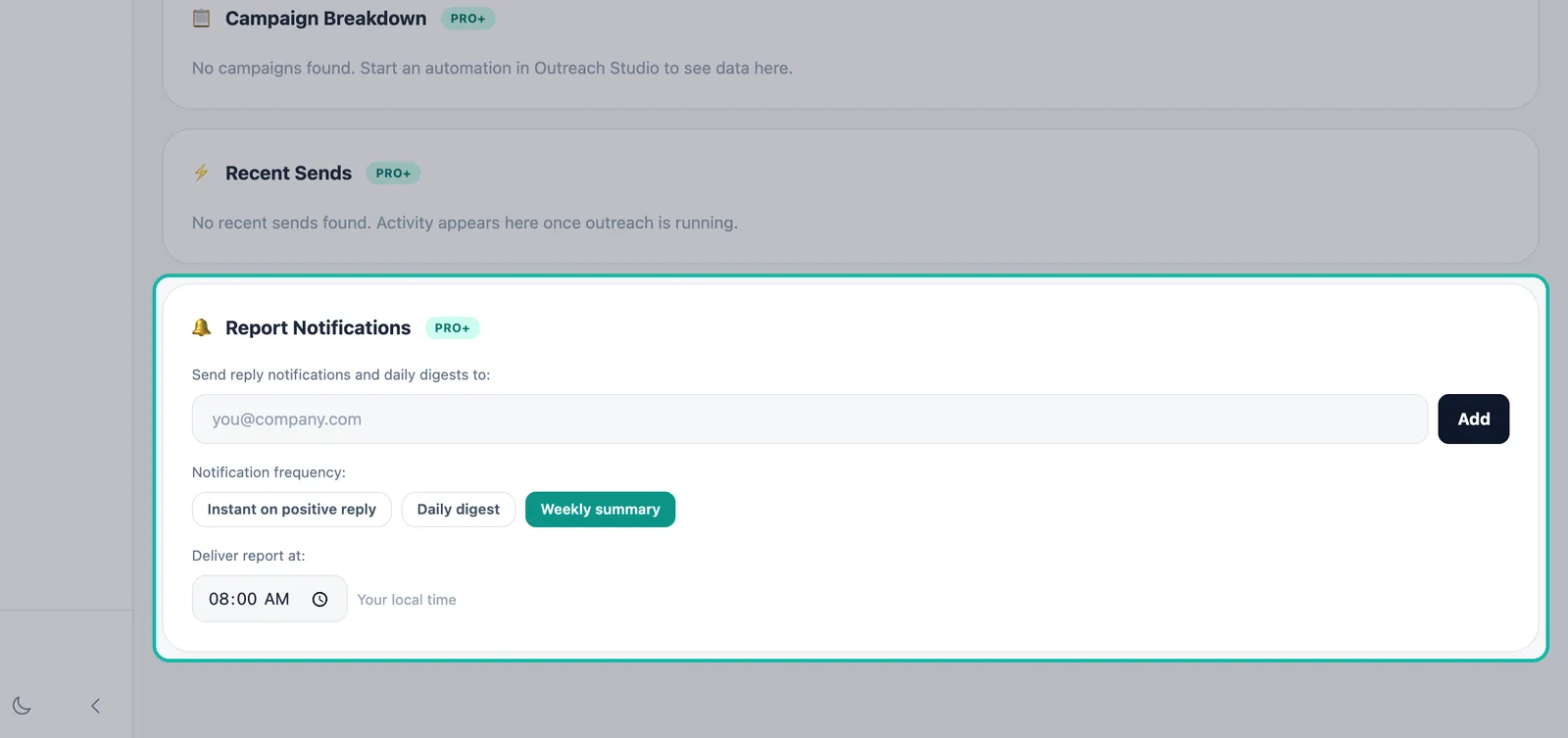
In Reports → Report Notifications you can add email addresses and choose Instant (on every positive reply), Daily digest or Weekly summary. See Notifications and digests.
From a connected chatbot, type check my campaigns to see your active campaigns, or check replies for a breakdown of positive, neutral and objection replies. See Chatbots.
Troubleshooting
| What you see | What to check |
|---|---|
| "No replies yet" | No one has replied to a campaign yet, or your campaigns send only from SendGrid, which has no reply monitoring. |
| "No emails sent yet" in Sent | Your campaigns have not sent yet. Check the campaign's next run and your send window. |
| A reply is missing from Inbox | Look in the Archive tab. |
Next steps
Frequently asked questions
Where do replies to my campaigns go?+
Into the Unified Inbox: Email Outreach → Inbox. Every reply from every connected account lands there, and you can answer without leaving Swashi.
How does Swashi classify replies?+
Each reply is labeled by intent: Positive, Neutral, Objection or Not Interested. Only the prospect's own words are classified; quoted text from your original email is ignored.
Can I attach files to a reply?+
Yes, up to 3 files per reply, under 5 MB in total. The app warns that attachments can reduce inbox placement, so send them only when the conversation genuinely needs one.
Can other Swashi users see my replies?+
No. The inbox only ever shows your own account's replies.
Are AI copy suggestions applied automatically?+
No. Swashi suggests a weekly improvement based on your own results, and it is applied only when you click Apply It.