How to find winning products with AI in Swashi
Use Find Winners with AI to scan a niche for dropship products, read each product score, stage the best ones, compare suppliers and check margins in Swashi.
- 1Open the researcher. On the Ecommerce tab, click Find Opportunities, or Find Winners with AI when the Staging Area is empty.
- 2Scan a niche. Type a niche such as wireless earbuds or fitness gear and click Scan Market.
- 3Read the product cards. Check each card's score, status, trend, competition, retail price and Analysis Breakdown.
- 4Add products to staging. Click + ADD TO STAGING on the products you want; the button changes to ADDED.
- 5Compare suppliers. Back in the Staging Area, click Compare Suppliers, pick the platforms and open a search on each one.
- 6Push or remove. Click Push to Queue to hand a product to the Ecommerce Agent, or Remove to drop it.
Find Winners with AI is Swashi's AI Product Researcher: you type a niche, click Scan Market, and Swashi returns scored product ideas "Scouting winning dropship products in real-time". You add the best ones to your Staging Area, compare suppliers, and push the products you choose to the Ecommerce Agent.
It is for store owners and dropshippers who want a short list of products worth testing, with the numbers behind each one.
Before you start
- You need scans left. The researcher header reads "ECOMMERCE AGENT (N scans left)". When you have none left, Scan Market opens the plans window instead. See Plans and billing.
- To push products to the agent later, connect a website in Website Settings. See Connect your website.
Scan a niche
- Open Ecommerce in the sidebar.
- In the Staging Area, click Find Opportunities (or Find Winners with AI when it is empty).
- Type a niche, for example "wireless earbuds" or "fitness gear".
- Click Scan Market or press Enter. The button shows Scanning... while it works.
You can search in your app language. Product names are shown in your app language too. Results show 12 at a time; click Load More Results for more. When results come from more than one source, filter tabs appear, starting with All Sources. A small bar shows LIVE for a fresh scan or CACHED RESULTS (24H CYCLE) when the same search ran recently.
Tip:If you see "No matches found.", try a broader niche such as "Fitness" or "Kitchen".
Read a product card
| Element | What it tells you |
|---|---|
| SCORE | A score out of 100 for the product. |
| STATUS | Hot Pick (70+), Worth Testing (50–69), Risky (35–49) or Avoid (below 35). |
| Trend tag | RISING or STABLE. |
| Competition tag | LOW COMP, MED COMP or HIGH COMP. |
| RETAIL PRICE | The selling price found, or Check Retailer when there is none. |
| Supplier Cost | Shown when a supplier price is known. |
| BREAKOUT / % OFF | Extra tags when they apply. |
Click ANALYSIS BREAKDOWN to see trend, competition, category and, when available, seller, rating and reviews, number of offers, typical price, shipping time and Est. Margin. The link icon opens the product page in a new tab.
Add products to the Staging Area
Click + ADD TO STAGING on a product. Swashi's AI tidies the product name and writes a short sales line, then the product lands in your Staging Area under the category Dropshipping. The card button changes to ADDED. If you add the same product twice, you see "This product is already in your Staging Area!"
Click Back to Dashboard to return to the Staging Area.
Work in the Staging Area
Each staged product has four actions:
- Push to Queue hands the product to the Ecommerce Agent and removes it from staging. You see "Product pushed to global queue!" and the task appears in Upcoming Queue. A connected website is required.
- Compare Suppliers opens the supplier window (below).
- Promote is marked Soon. Paid ad campaigns are coming soon.
- Remove deletes the product from staging.
Compare suppliers
The Compare Suppliers window searches for the product right away.
- Under Select Platforms, choose any of AliExpress, CJDropshipping, Alibaba and 1688.com. The first two are selected by default.
- Click Search Again after changing platforms.
- Each result shows the platform's Avg. Shipping and Min Order. Click Search to open that platform's results for the product in a new tab.
The window also lists Pro Tips: compare shipping times, check supplier ratings, look for fast shipping options and order samples before buying in bulk.
Research tools in the right column
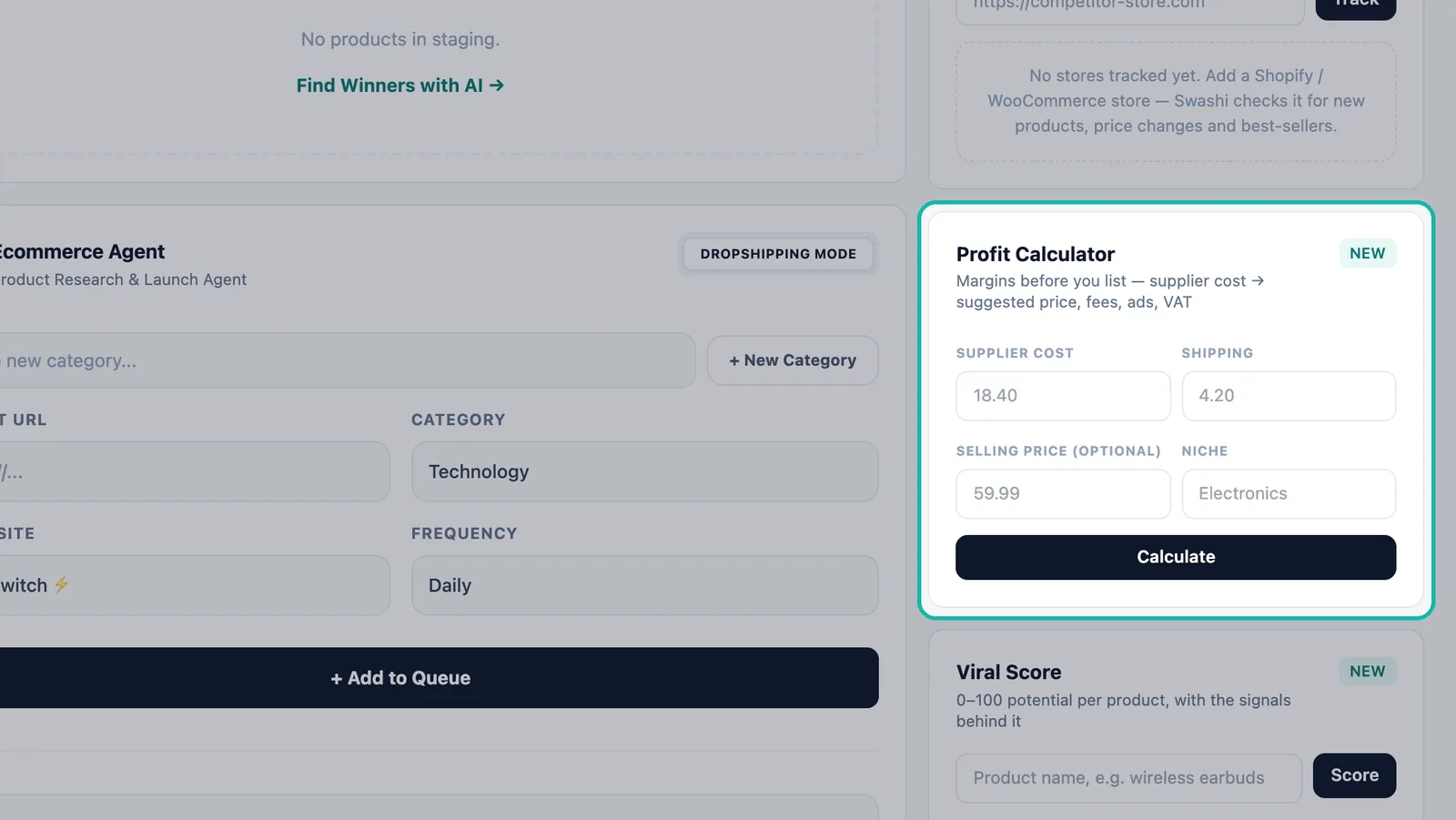
- Profit Calculator. Enter Supplier cost, Shipping, an optional Selling price and a Niche, then click Calculate. You get a Suggested price (Swashi suggests one when you leave the selling price blank), Platform fee, Ad budget, VAT, Total costs, Net profit with its margin, and a short recommendation.
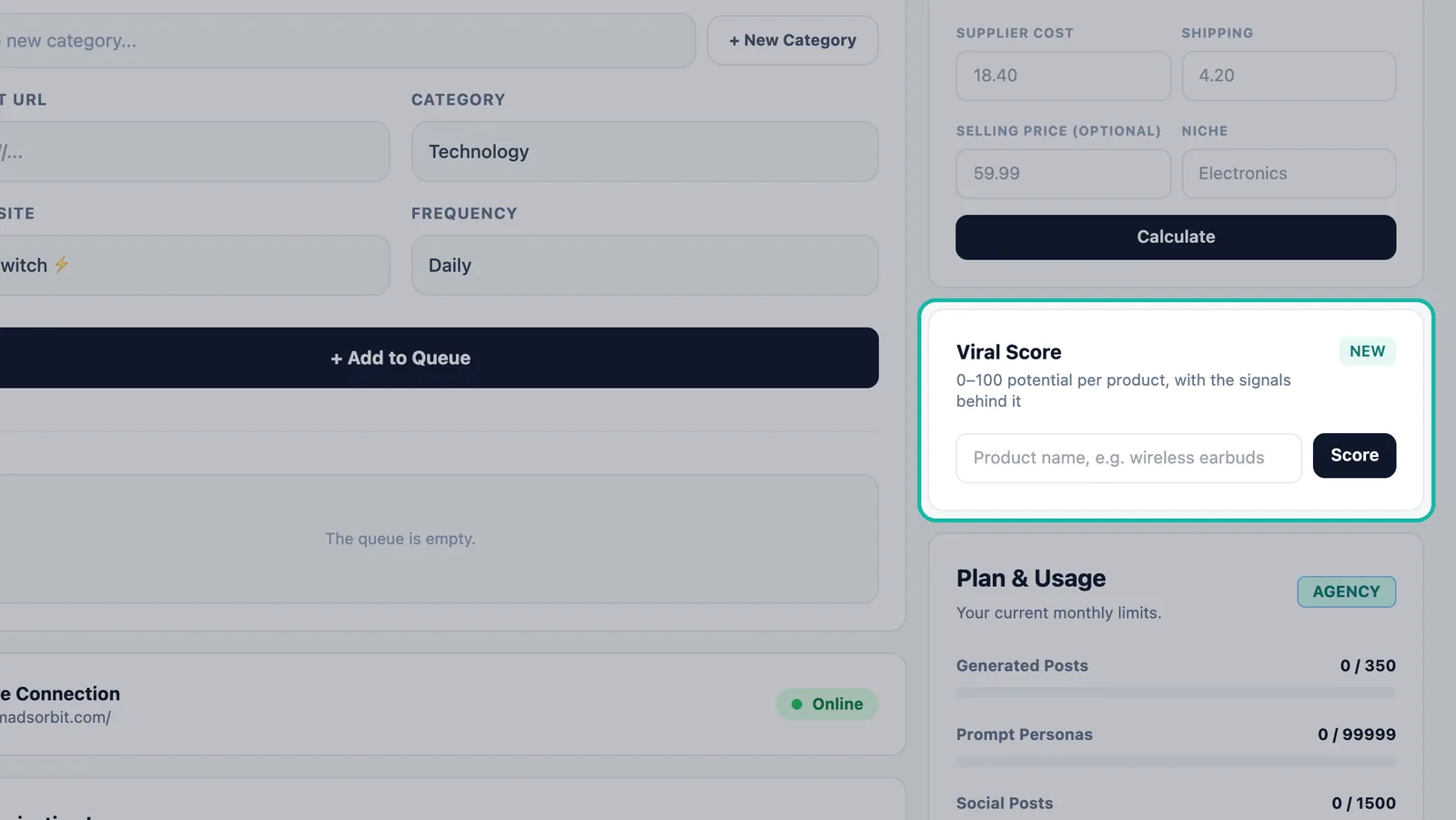
- Viral Score. Type a product name, or click one of your staged products, and click Score to get a score from 0 to 100.
- Competitor Watch. Paste a competitor store address and click Track to add it to your watch list; click ✕ to remove it. Competitor Watch requires the Agency plan or higher. On other plans, the card shows the upgrade message.
Next steps
- Ecommerce Agent
- Dropshipping automation
- See current prices on the pricing page
Frequently asked questions
How many product scans can I run?+
Each scan uses one Viral Research Scan. Free includes 1, Starter 10, Growth 100, Agency 500 and Enterprise 5,000 per month. The researcher shows how many scans you have left.
What do Hot Pick, Worth Testing, Risky and Avoid mean?+
They come from the product's score out of 100: Hot Pick is 70 or more, Worth Testing 50 to 69, Risky 35 to 49 and Avoid below 35.
Does Compare Suppliers buy anything or contact suppliers?+
No. It opens a search for the product on each platform you select, in a new tab, so you can compare suppliers yourself.
Can I run paid ads from the Staging Area?+
Not yet. The Promote button is marked Soon: paid ad campaigns are coming soon.
What does DEMO MODE mean on my results?+
It means product research could not return live results, so sample products are shown. These are not real results. Try your scan again later.