How to find high-ticket leads
Learn how to find high-ticket leads in Swashi: search by role or industry, pick a location, apply your ICP and filters, then review and contact your results.
- 1Open Lead Generation. Click Lead Generation in the sidebar.
- 2Connect Google Sheets (optional). Under Google Sheet Sync, click Connect Sheet so every lead you find is also added to your sheet automatically.
- 3Check your ICP line. Confirm the Your ICP line, which Swashi fills in from your Business Brain, describes the customers you want.
- 4Search by role or industry. Type a decision-maker role or an industry in the Search box, or click a quick pick such as CEO or Real Estate.
- 5Choose your market. Type a city, a state or a whole country in the Location box.
- 6Set your filters. Click Filters and choose ICP tier, sort order, contact requirements, company size, seniority, revenue and tags.
- 7Find leads. Click Find Leads; Swashi searches, then verifies every email before the lead reaches you.
- 8Review and act. Read each lead card, filter by status, export to CSV or PDF, or click Start outreach.
Prefer to watch? This tutorial walks through the same steps in the live app. All tutorials →
To find high-ticket leads in Swashi, open Lead Generation, search for the decision-maker role or industry you sell to, choose a location, and narrow the results with Filters (ICP tier A, Top Value sorting, verified emails, larger companies and senior titles). Swashi starts every search from your ideal customer profile, verifies each email, and returns a ranked list you can contact right away.
This guide is for business owners and sales teams who want a short list of people who can actually sign a deal, not a long list of names. It follows the same steps as the EP2 video tutorial, "How to Generate High Ticket Leads with Swashi."
Before you start
- Plan: every new account gets 20 free leads at signup. After that, Lead Generation is included from the Starter plan up. See plans and billing for what each plan includes.
- Business Brain: Swashi reads your Business Brain to build your ideal customer profile (ICP). The more you teach it about your business, the better your first search fits.
- Google Sheet (optional): if you want every lead copied into a spreadsheet, connect a sheet first. You can also do it later. See export and Google Sheets sync.
Part 1: Set up your search
Click Lead Generation in the sidebar. The page reads "Find verified business leads by industry and location."
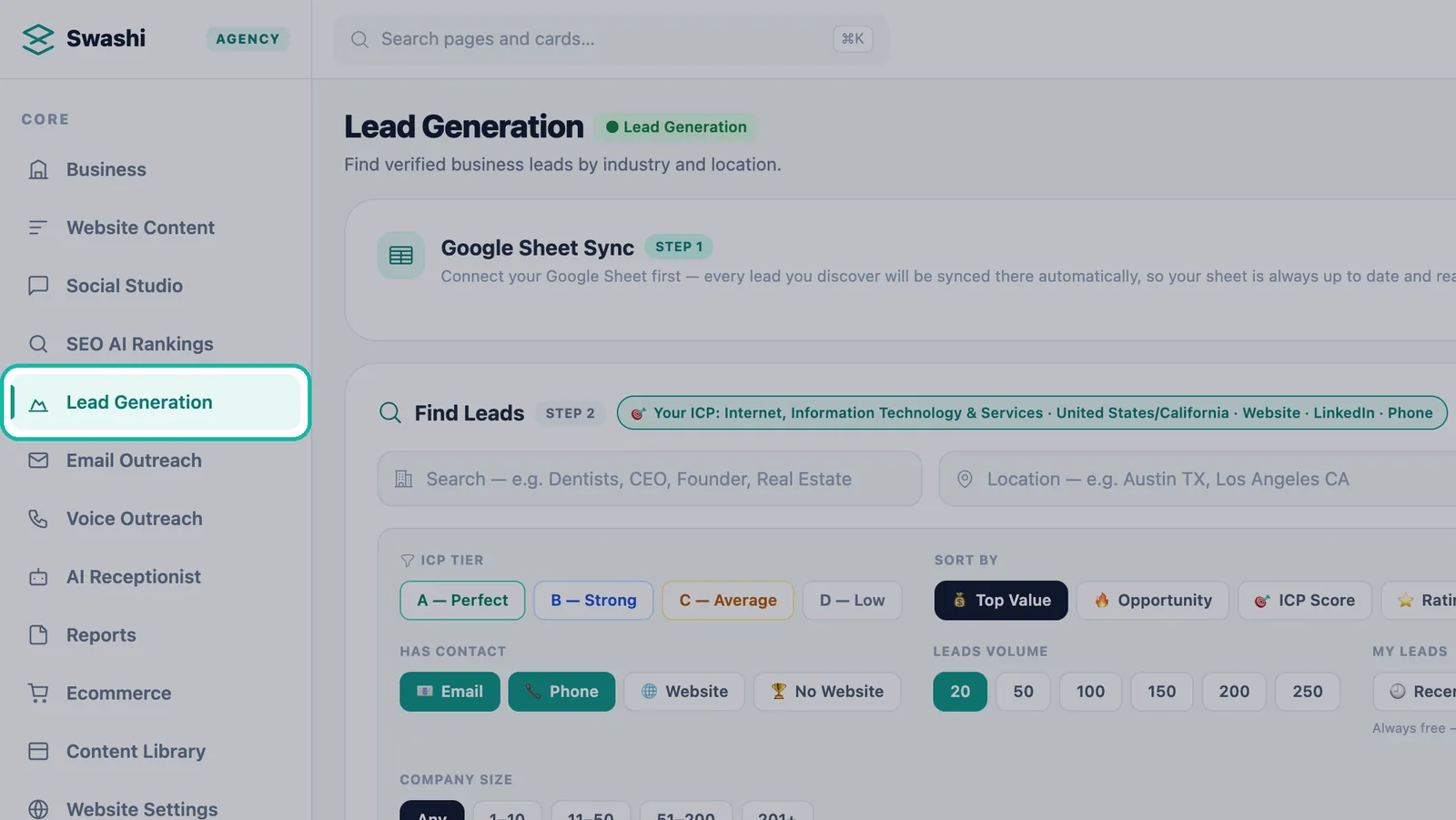
Start in Lead Generation. Connect Google Sheets first (optional). The Google Sheet Sync card is marked STEP 1. Click Connect Sheet ↗ once and every lead you discover lands in that sheet automatically, ready for outreach.
Check your ICP. Below the search bar you will see a line starting with 🎯 Your ICP: that lists the industry, market and contact channels Swashi took from your Business Brain. Every search starts from this profile.
Search by role or industry. Type into the box labeled Search — e.g. Dentists, CEO, Founder, Real Estate. For high-ticket deals, aim at the people who sign: CEO, founder or VP.
Choose your market. Type into Location — e.g. Austin TX, Los Angeles CA. A city, a state or a whole country all work.
Or use a quick pick. One click on a chip fills the search with a common role or industry. The chips are CEO, Founder, Owner, Director, VP Sales, Real Estate, Lawyers, Dentists, HVAC, IT Services, Marketing and Finance.
Know your credits. The usage bar (for example "99/5000 used") shows how many lead credits you have used this month.
Tip:Your recent searches appear under Recent. Use Run this search again to repeat one without retyping it.
Part 2: High-ticket targeting
Click Filters. This is where an ordinary list becomes a high-ticket list. The settings below are the ones used in the EP2 tutorial; the filters reference explains every option.
ICP Tier: start with A (a perfect match for your ideal customer). Add B to widen the net. Read more in ICP and lead tiers.
Sort By: choose Top Value so the biggest opportunities come first.
Has Contact: turn on Email and Phone so every lead can be contacted.
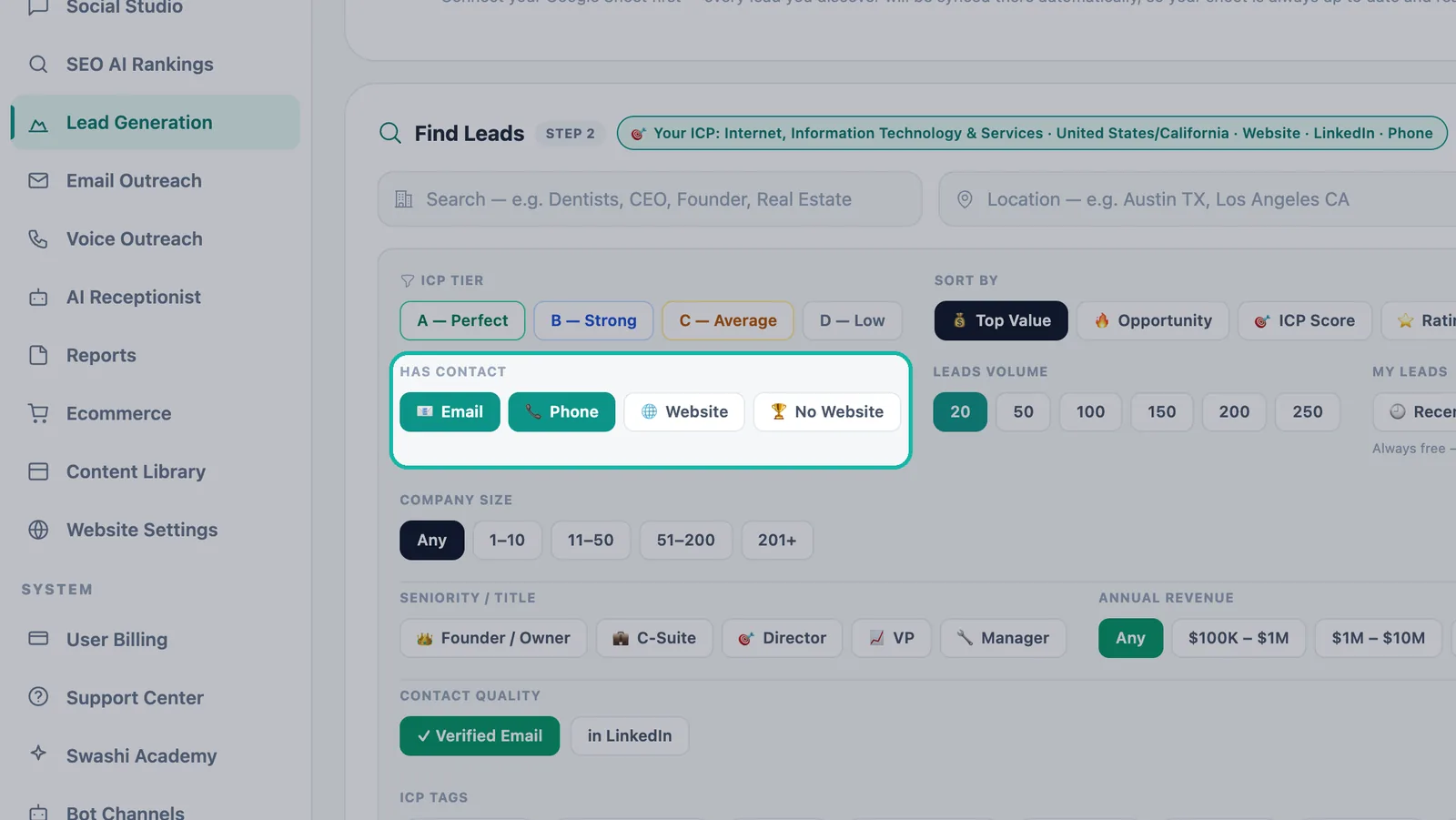
Turn on Email and Phone so every lead can be reached. Company Size: choose 201 employees and up to focus on established businesses with real budgets.
Seniority / Title: choose the level that signs the deal: C-Suite, VP or Director.
Annual Revenue: the tutorial picks the 10M-and-up band, which keeps the list to companies that can afford a high-ticket offer.
Contact Quality: turn on ✓ Verified Email so only leads with a verified email make the list.
ICP Tags: add high-ticket signals such as Decision Maker, High Ticket and 1M+ Revenue.
Leads Volume: pick how many leads you want from this search.
Freshness: choose New to me to see only leads you have not seen before. Recently searched reopens past results for free.
Click Find Leads. Swashi searches, then verifies every email before it reaches you.
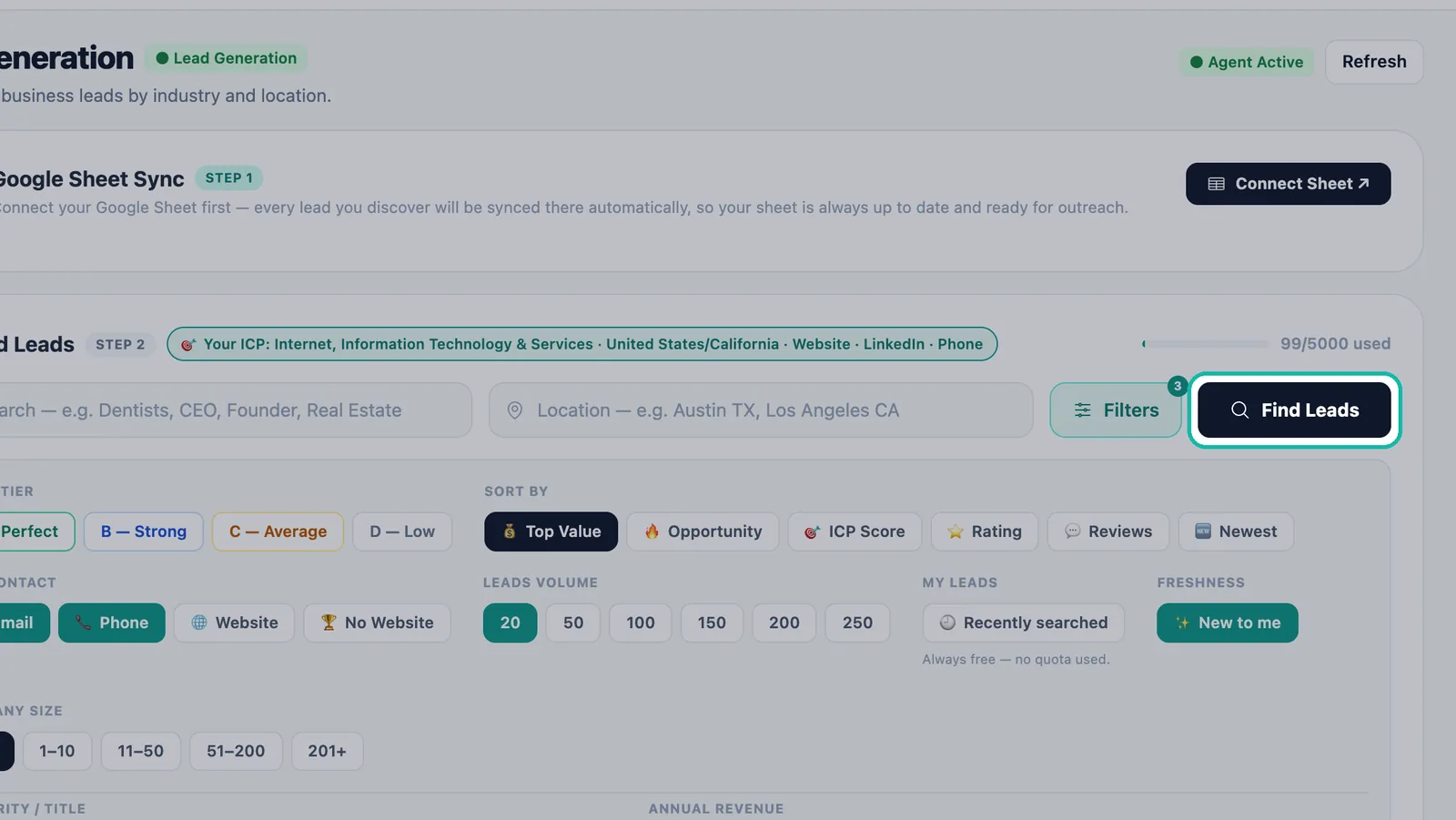
Click Find Leads to search and verify.
Note:If you ask for more leads than your plan has left this month, Swashi tells you how many leads your plan has left and shows that many instead of the number you asked for.
Part 3: Your leads
When the search finishes, a banner shows how many leads are ready, for example "40 leads ready to contact."
Ranked by fit. Counters such as ICP·A: 20 and ICP·B: 20 show how closely the leads match your ideal customer.
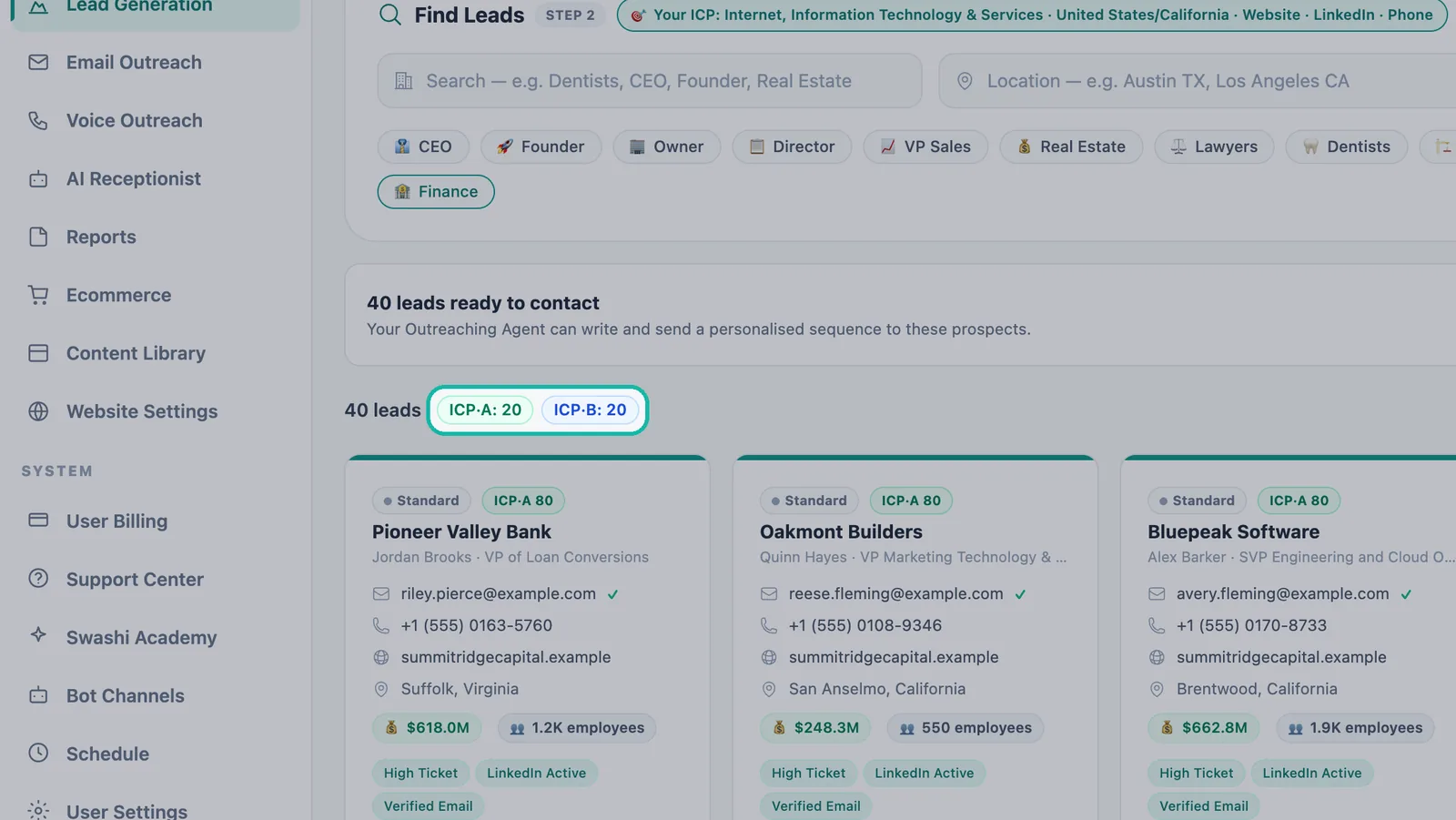
Counters show how your leads split by ICP tier. Everything on one card. Each card shows the decision-maker and their title, a verified email (with a check mark), a direct phone, the website, the location, annual revenue, team size and signal tags such as High Ticket. See how to read a lead card.
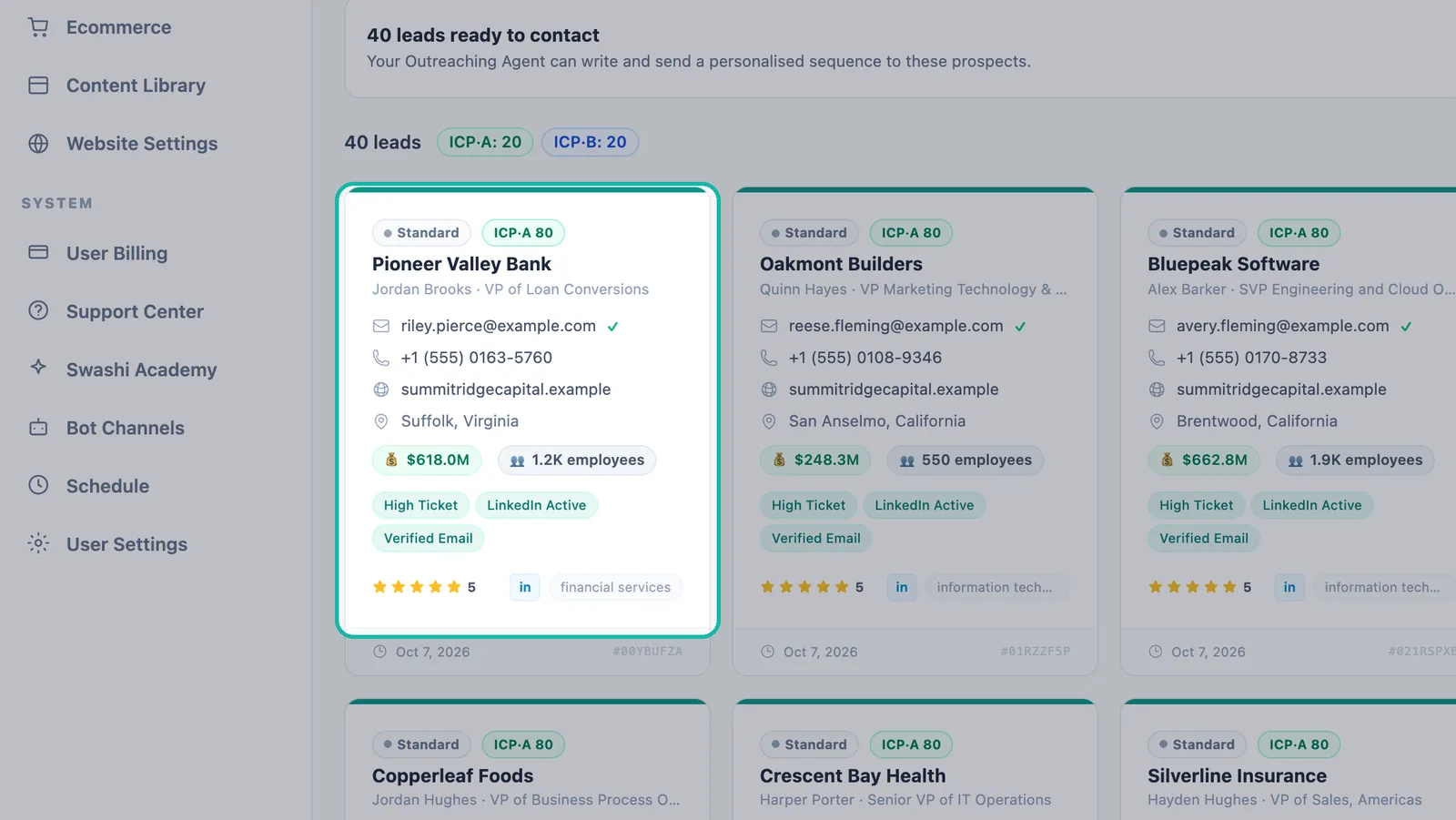
Each card has the decision-maker, verified email, phone and signals. Track every lead. Use the All Statuses menu to filter by NEW, CONTACTED, REPLIED, WARM, HOT, COLD or CLOSED as leads move through your pipeline.
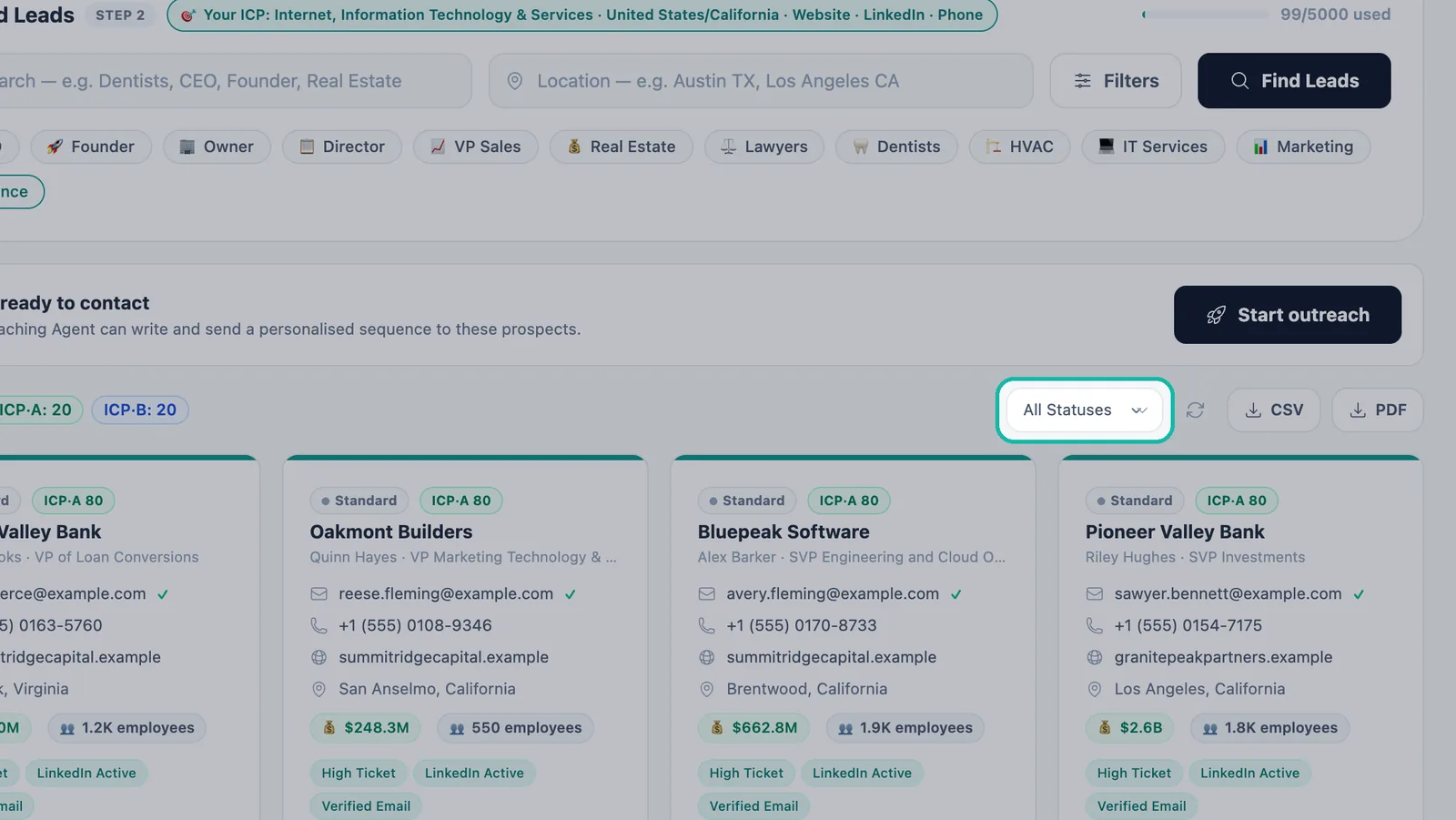
Filter leads by status with the All Statuses menu. Take them anywhere. Click CSV or PDF to export at any time.
Start outreach. Click Start outreach and the Outreach Agent writes a personalized sequence for every lead. Continue in Email Studio.
Important:Leads are deduplicated. A business you already found does not come back as a new lead and does not use your quota again.
Find leads from chat
If you have connected LINE, WhatsApp or Telegram, you can also type a request such as find 20 dentists in Texas. The bot queues the search and messages you when your leads are ready. Type check my leads for a pipeline summary. See chatbots on LINE, WhatsApp and Telegram.
Troubleshooting
- "You've used your leads for this month." Your allowance refreshes with your billing cycle. To get more now, upgrade your plan; see current options on the pricing page.
- "We couldn't load your leads." This is a temporary problem on Swashi's side and your leads are safe. Click Try again or refresh in a moment.
- Too few results. Remove one filter at a time, add tier B, or widen the location from a city to a state.
Next steps
Frequently asked questions
Do I need to connect a Google Sheet before I search for leads?+
No. The Google Sheet is optional. If you connect one, every lead you find is added to it automatically; if you don't, your leads stay in your Swashi pipeline.
How long does a lead search take?+
A search typically takes 60 to 120 seconds. Your results then appear on the Lead Generation page.
Will I pay twice for the same lead?+
No. Leads are automatically deduplicated, so a business you already found in an earlier search is not added again and does not count against your quota. Reopening leads you already own under My Leads is always free.
What happens if I ask for more leads than I have left this month?+
Swashi tells you how many leads your plan has left and shows that many instead. Your allowance refreshes with your billing cycle, or you can upgrade to raise it.
Which plans include Lead Generation?+
Every new account gets 20 free leads at signup. After that, Lead Generation is included from the Starter plan up, with a monthly lead allowance that grows with each plan.