How to get verified leads with verified emails
Learn how Swashi verifies lead emails, how to search only for verified contacts with phones, how imported lists are cleaned, and how to track deliverability.
- 1Open Lead Generation. Click Lead Generation in the sidebar and enter your search and location.
- 2Require email and phone. Open Filters and, under Has Contact, turn on Email and Phone.
- 3Turn on Verified Email. Under Contact Quality, turn on Verified Email so every lead's address has been checked.
- 4Add trusted signals. Under ICP Tags, add tags such as Verified Email, LinkedIn Active and Decision Maker.
- 5Find leads. Click Find Leads; Swashi searches, then verifies every email before it reaches you.
- 6Check the lead cards. Look for the green check next to each email, then export the clean list or start outreach.
Prefer to watch? This tutorial walks through the same steps in the live app. All tutorials →
Swashi verifies the email address of every lead it finds before that lead reaches you, and lets you search only for leads with a verified email and a phone number. Verified emails carry a green check on the lead card. This matters because sending to bad addresses causes bounces, and bounces hurt the reputation of the mailbox you send from.
This guide follows the EP6 video tutorial, "How to Generate Verified Leads with Swashi." It covers four things: asking only for verified contacts, reading a verified lead card, cleaning your own list, and watching your deliverability.
Part 1: Ask only for verified contacts
Click Lead Generation in the sidebar. Verified contacts start with the right search; see how to find leads.
Click Filters.
Require email and phone. Under Has Contact, turn on 📧 Email and 📞 Phone. Only leads with an email address and a phone number make the list.
Verified emails only. Under Contact Quality, turn on ✓ Verified Email. Every lead's address has then been checked before it reaches you.
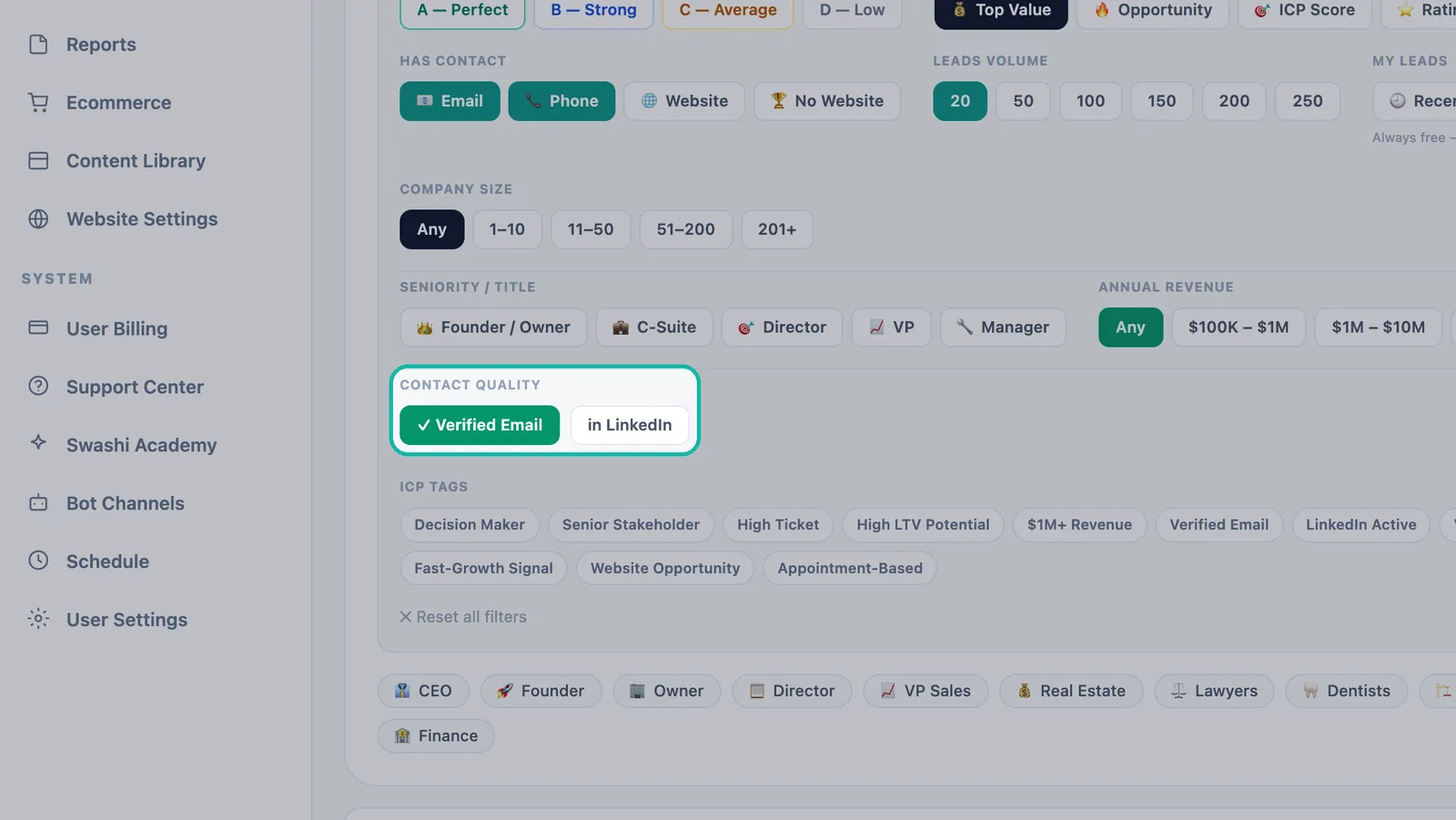
Turn on Verified Email under Contact Quality. Signals you can trust. Under ICP Tags, add tags such as Verified Email, LinkedIn Active and Decision Maker to narrow the list further.
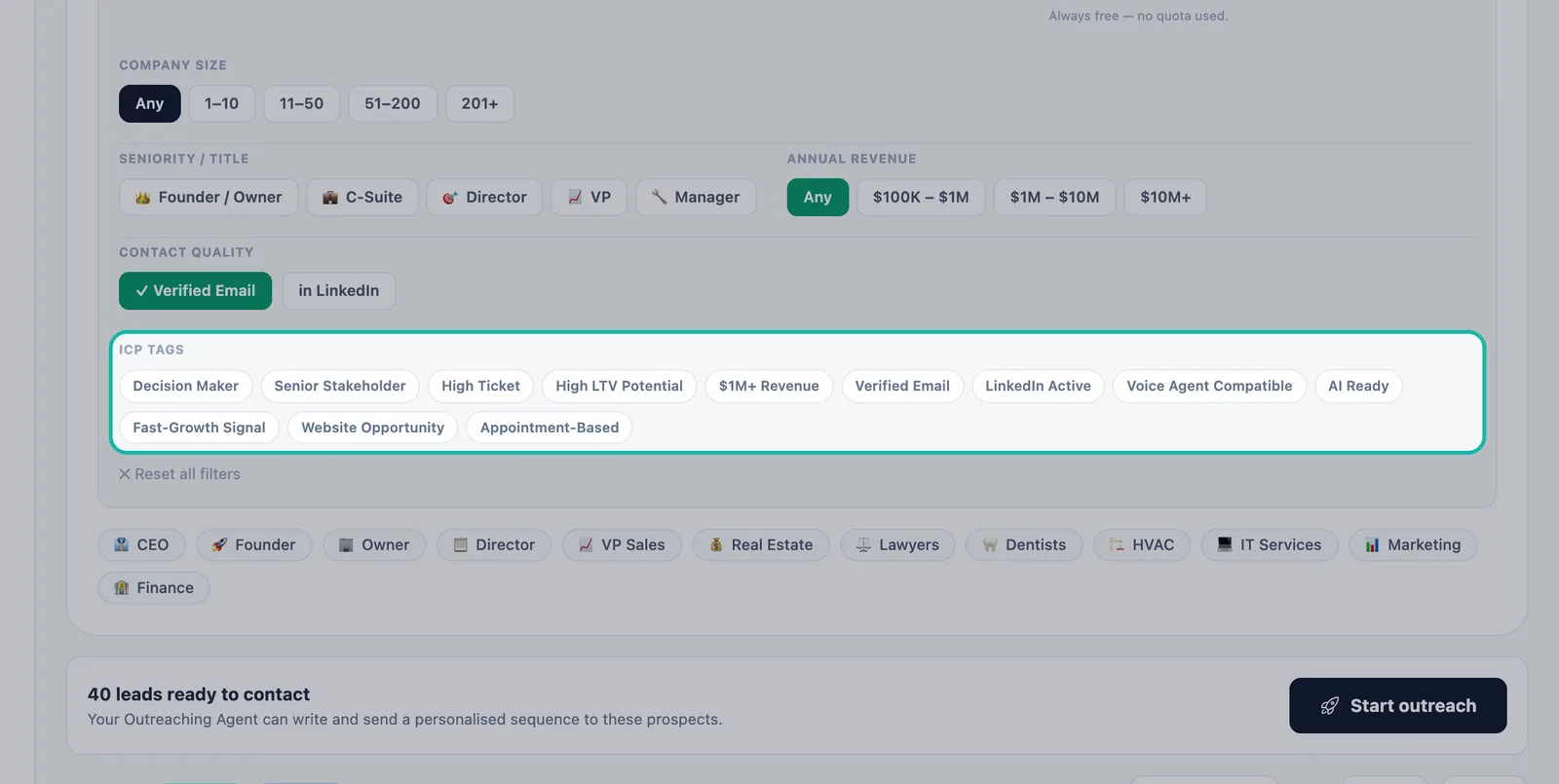
ICP Tags narrow the list to the signals you trust. Click Find Leads. Swashi searches, then verifies every email before it reaches you.
Tip:The in LinkedIn option under Contact Quality keeps only leads with a LinkedIn presence, which is useful when you plan to reach people there as well.
Part 2: Read a verified lead card
Each lead card puts what you need in one place:
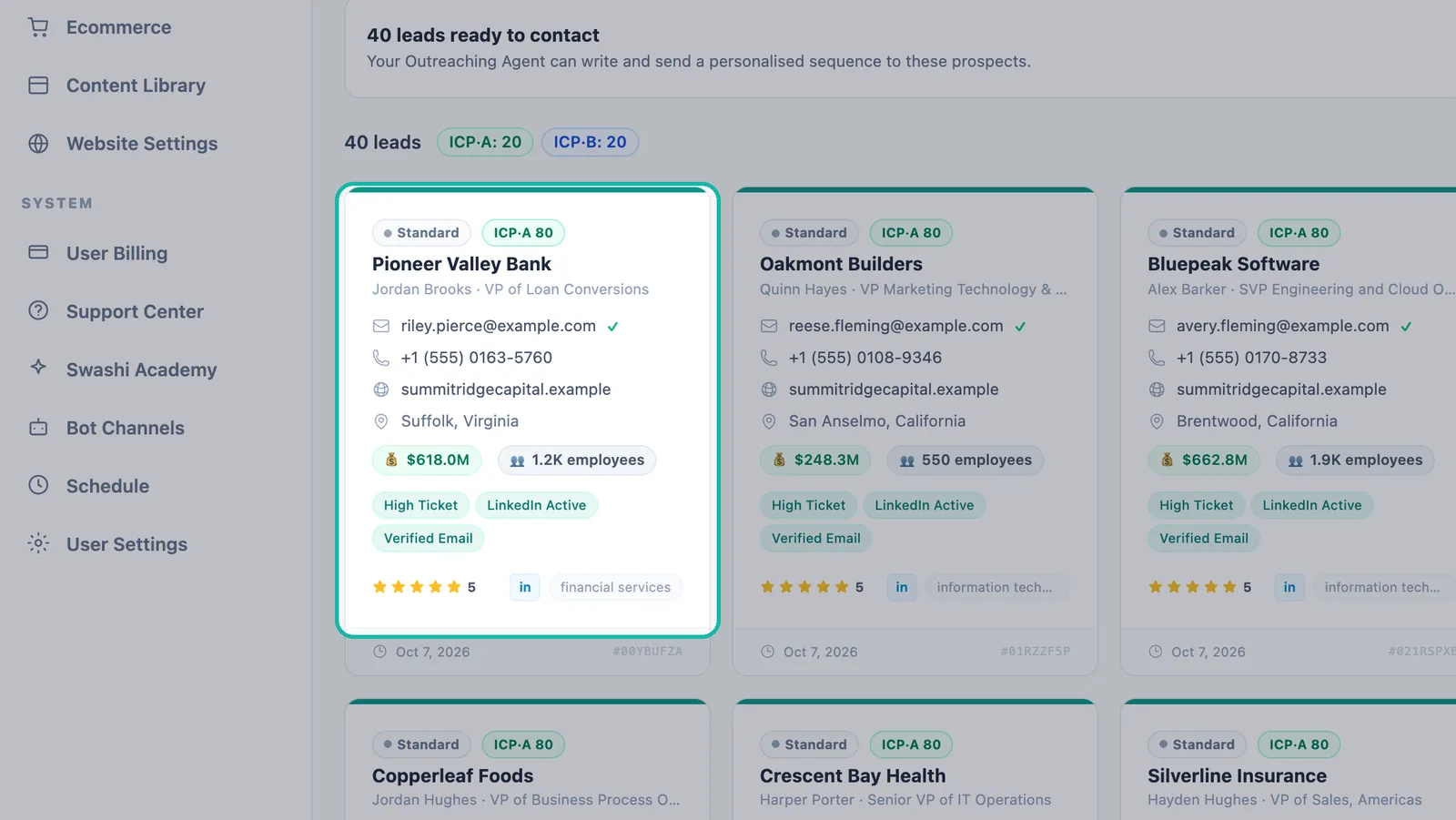
| On the card | What it tells you |
|---|---|
| Decision-maker name and title | The person you will contact, for example a VP |
| Email with a green ✓ | The address has been verified |
| Phone number | A direct phone number for the lead |
| Website | The company's site |
| Tags such as Verified Email and LinkedIn Active | Contact signals attached to the lead |
| ICP·A, ICP·B and so on | How well the lead fits your ideal customer |
Sorted by fit. ICP tiers show how well each verified lead matches your ideal customer. See ICP and lead tiers.
Track every lead. Statuses show which leads are new, contacted, replied or closed. Use the All Statuses menu to filter.
Export the clean list. Download verified leads with CSV or PDF. See export and Google Sheets.
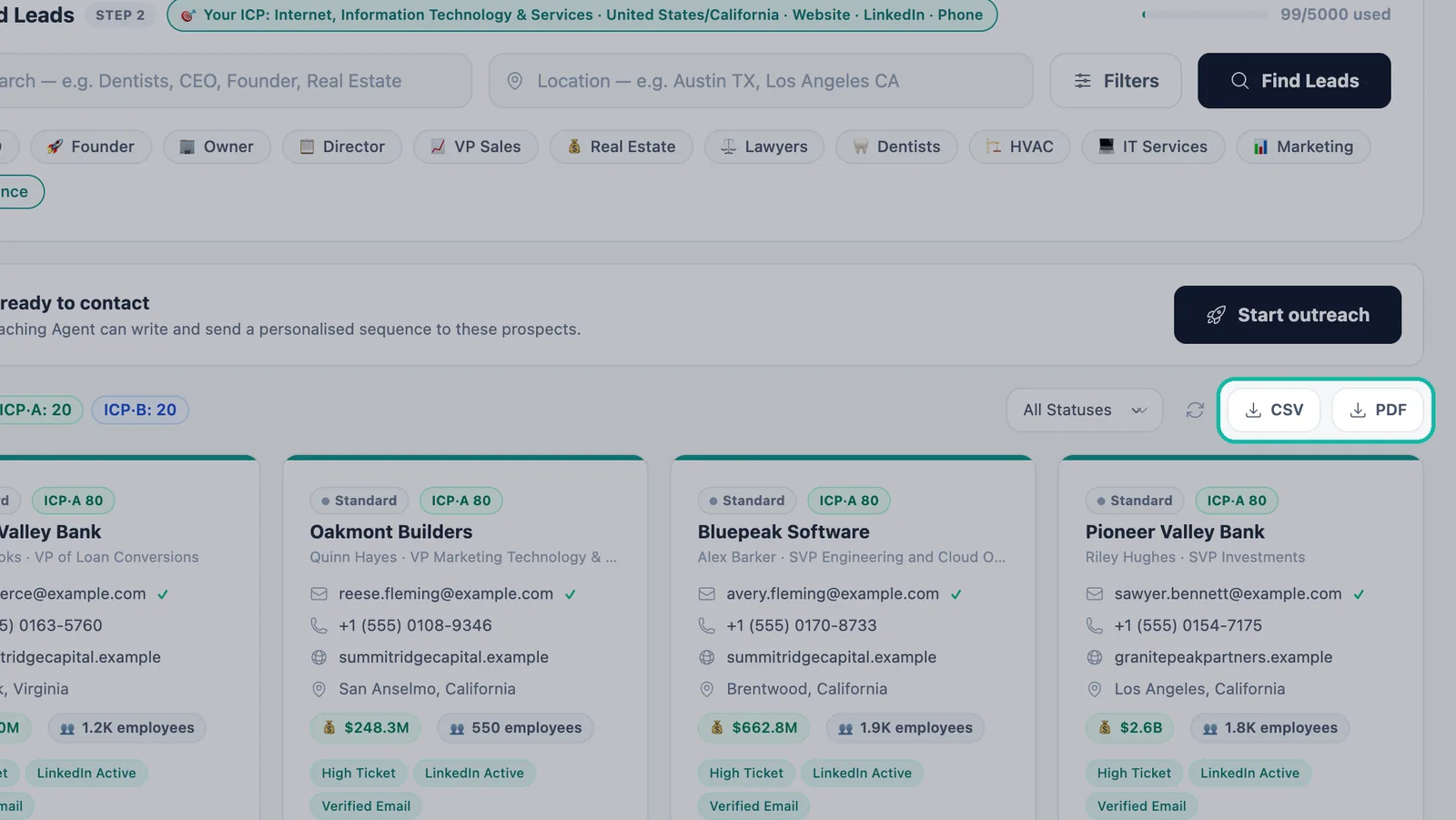
Download your verified leads as CSV or PDF.
For a full guide to every field on a card, see how to read a lead card.
Part 3: Clean your own list
Already have leads? You can import them, and Swashi cleans them on the way in.
Click Email Outreach in the sidebar.
Find the Import Your Own Leads panel. Upload leads from Apollo, Hunter, LinkedIn Sales Navigator, HubSpot or any CSV.
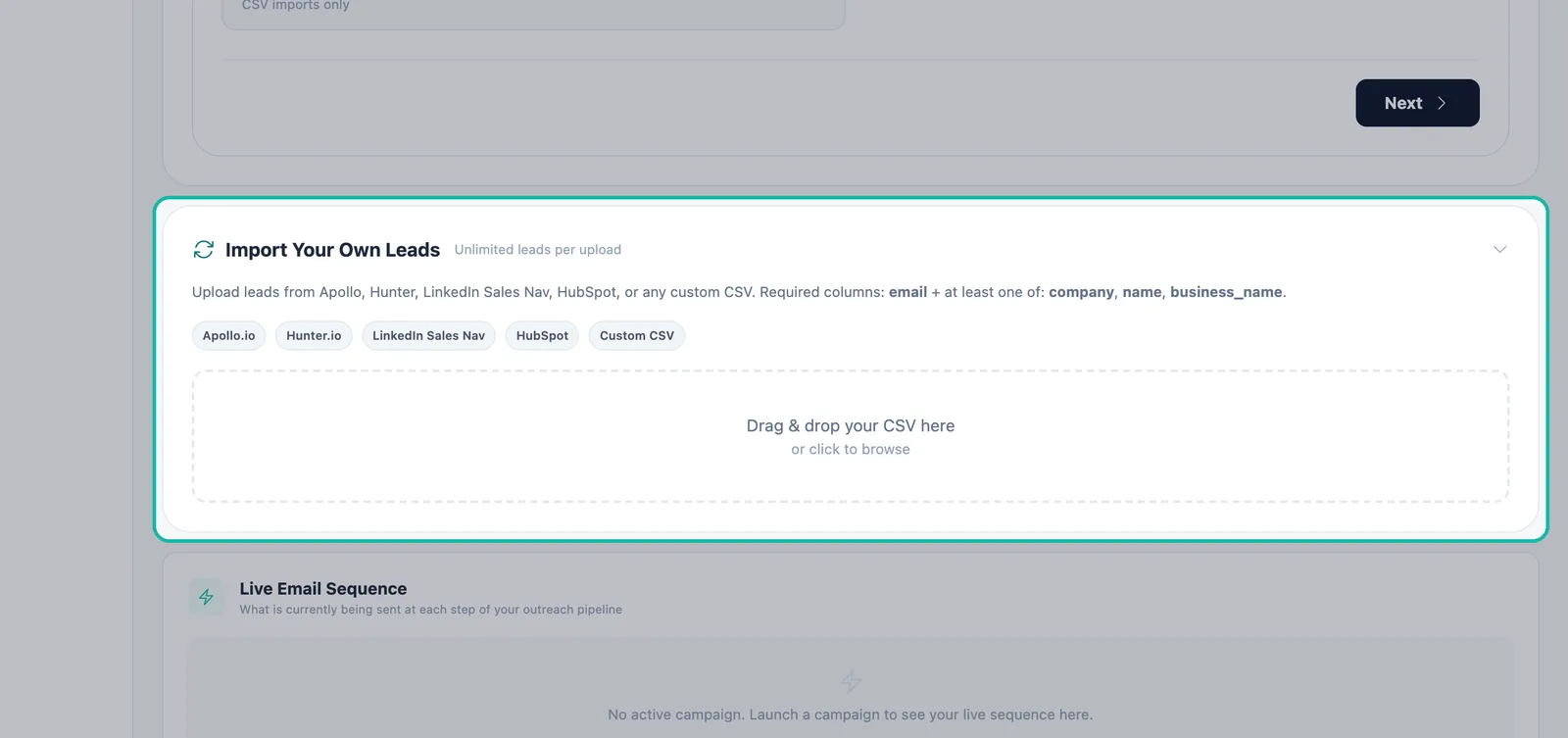
Import your own list in Email Outreach. Your file needs an email column plus at least one of company, name or business_name.
What happens to your rows:
| Row | What Swashi does |
|---|---|
| No valid email | Skipped |
| Duplicate of a lead you already have | Removed |
| New lead with an email | Imported, and the email is validated in the background |
Imported leads are scored like the leads Swashi finds for you. Importing is available from the Growth plan up. The full steps are in import your own leads.
Part 4: Watch your deliverability
Verified data shows up in your results.
Click Reports in the sidebar.
Find 📧 Email Deliverability. It shows your Health Score, Delivery Rate, Bounce Rate, Open Rate, Click Rate and Spam Rate.
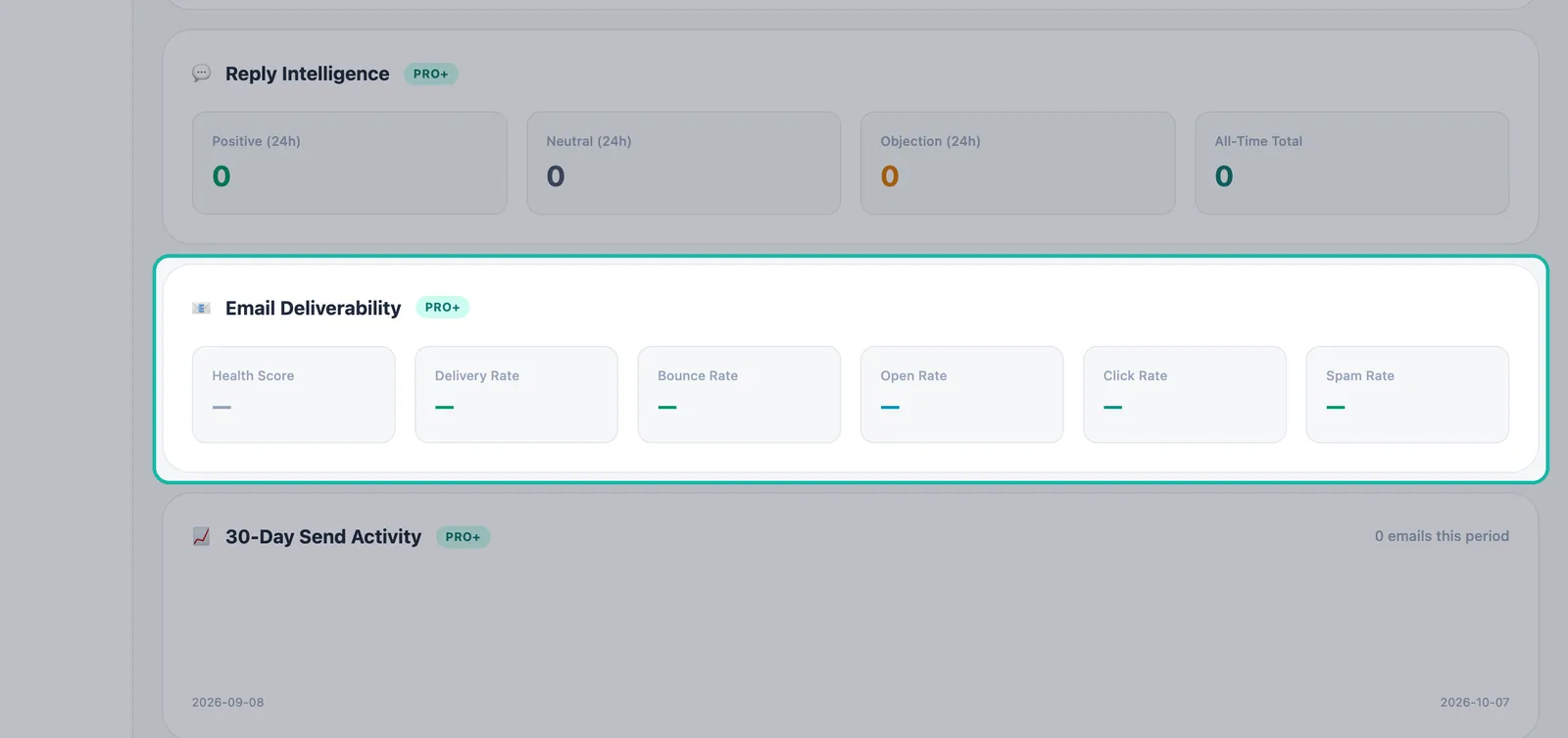
Email Deliverability in Reports shows how clean your list is.
The health score runs from 0 to 100: green at 80 and above, amber from 60 to 79, and red below 60. A low bounce rate is the clearest proof that your list is clean. See deliverability and warm-up for how to keep it that way.
Important:Verification checks addresses; it does not replace careful sending. Keep using warm-up on new mailboxes and never send in sudden bursts.
Troubleshooting
- My search returned fewer leads with Verified Email on. That is expected: leads without a verified address are left out. Widen the location, add tier B, or remove a narrow tag.
- Some rows didn't import. Rows without a valid email are skipped and duplicates of your existing leads are removed. Check that your file has an email column and a company or name column.
Next steps
Frequently asked questions
Does Swashi verify the emails it finds?+
Yes. When you click Find Leads, Swashi searches and then verifies every email before the lead reaches you. Verified emails are marked with a green check on the lead card.
How do I get only leads with a verified email?+
Open Filters and turn on Verified Email under Contact Quality. Only leads with a verified email will make the list.
Are the emails in my imported list verified too?+
Imported lists are cleaned on the way in: rows without a valid email are skipped, duplicates of leads you already have are removed, and every new email is validated in the background.
How can I tell if my list is staying clean after I start sending?+
Open Reports and check Email Deliverability, which shows your health score and your delivery, bounce, open, click and spam rates.