How to create and schedule social media posts with Social Studio
Create social media posts in Swashi Social Studio: enter a topic, add hashtags and an image, let AI Draft write it, then schedule or post now to every network.
- 1Open Social Studio. Click Social Studio in the sidebar.
- 2Pick your networks. Under Connected Networks, click the cards of the connected networks you want this post to go to.
- 3Tell Swashi the topic. Type an idea in the post box, or paste the link to an article you want to share.
- 4Review hashtags. Use the suggested hashtags that Swashi offers for your business.
- 5Add a visual. Click Add Image to upload your own image or video, or Generate Image to create one from your post text.
- 6Let AI write the post. Click AI Draft to write the post in your brand voice from your Business Brain.
- 7Schedule or post now. Click Schedule and pick a date and time, or click Post Now to publish to every selected network immediately.
- 8Check your queue. Review the Upcoming Queue to see every post that is waiting to go out.
Prefer to watch? This tutorial walks through the same steps in the live app. All tutorials →
Social Studio is where you create, schedule and publish social media posts in Swashi. Type a topic or paste a link, let AI Draft write the post in your brand voice, add a visual, then Schedule it or click Post Now to publish to every network you selected.
This guide is for business owners and marketers who want a steady social presence without writing every post from scratch. It follows Part 1 of the EP3 video tutorial, "How to Automate Social Media with Swashi."
Before you start
- Connect your networks. You can post only to networks you have connected. See connect your social networks.
- Teach your Business Brain. AI Draft writes from your Business Brain, so your posts sound like your business and use your real facts.
- Know your allowance. Your plan includes a monthly number of social posts (see the table below).
Create a post
Click Social Studio in the sidebar. Everything social lives here: your networks, new posts and your publishing schedule.
Choose where the post goes. Under Connected Networks, click the cards to toggle where you want to post. A connected network shows Connected.
Tell Swashi the topic. In the box that reads What do you want to post about? Or paste a URL..., type an idea or paste the link to an article you want to share.
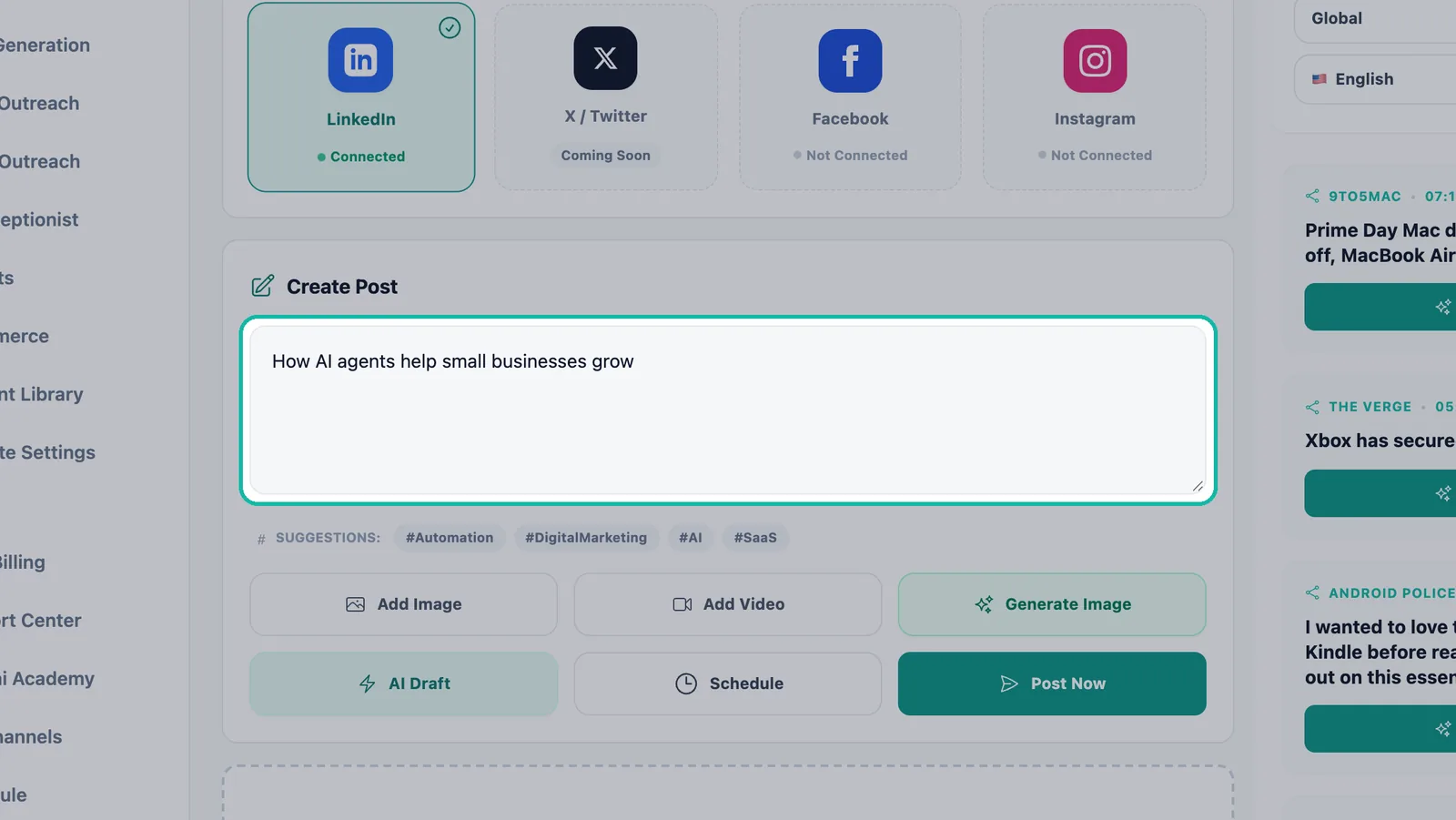
Type an idea or paste a link in the Create Post box. Review the hashtags. Under Suggestions, Swashi offers hashtags that fit your business. Use the ones you like.
Add a visual. Click Add Image to upload your own image, or Add Video for a video. Or click Generate Image and Swashi creates a fresh image from your post text. Generated images follow your brand style from the Business Brain.
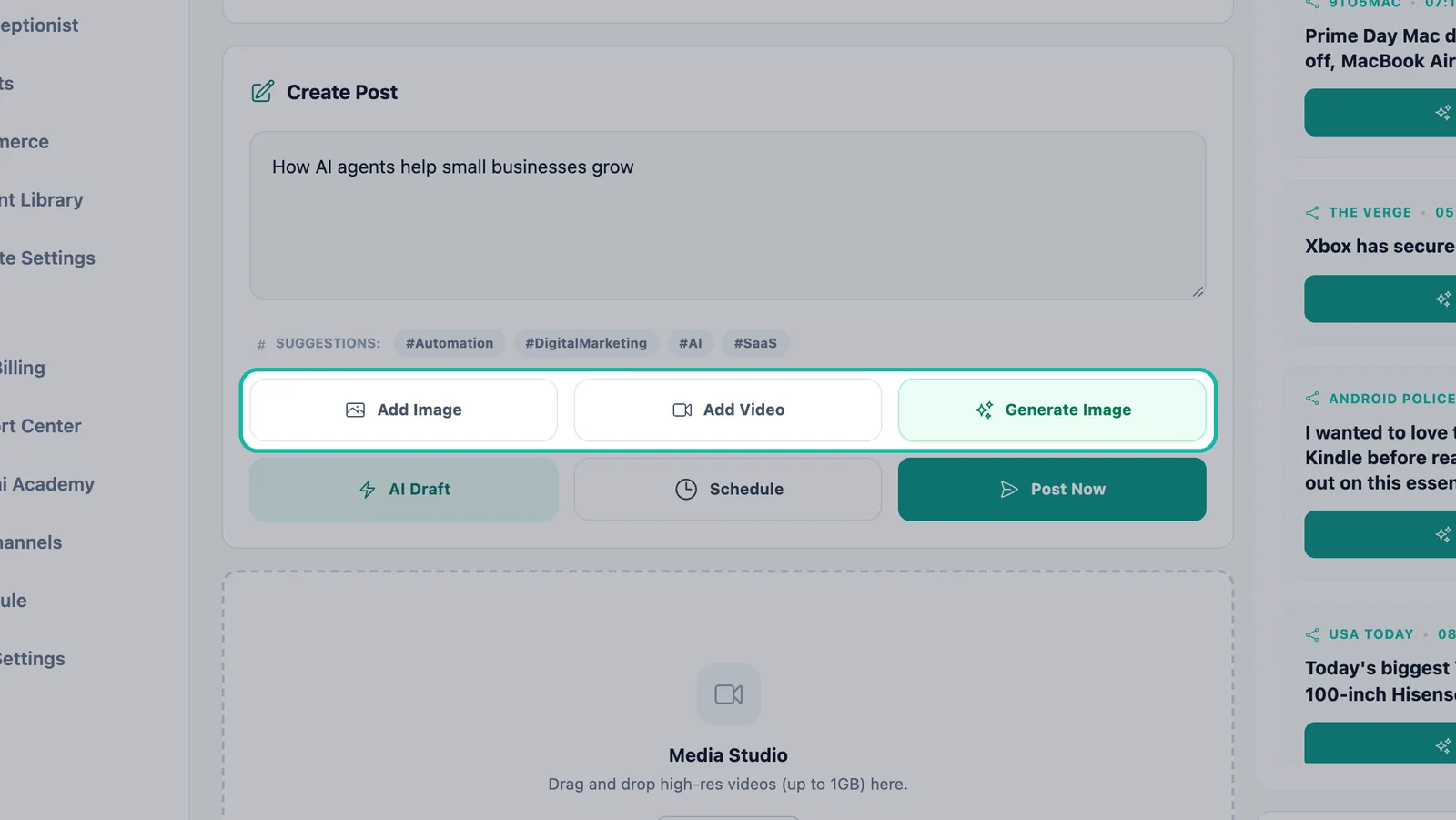
Upload your own image or video, or generate one. Let AI write the post. Click AI Draft. Swashi writes the post in your brand voice. Read it and edit anything you want to change.
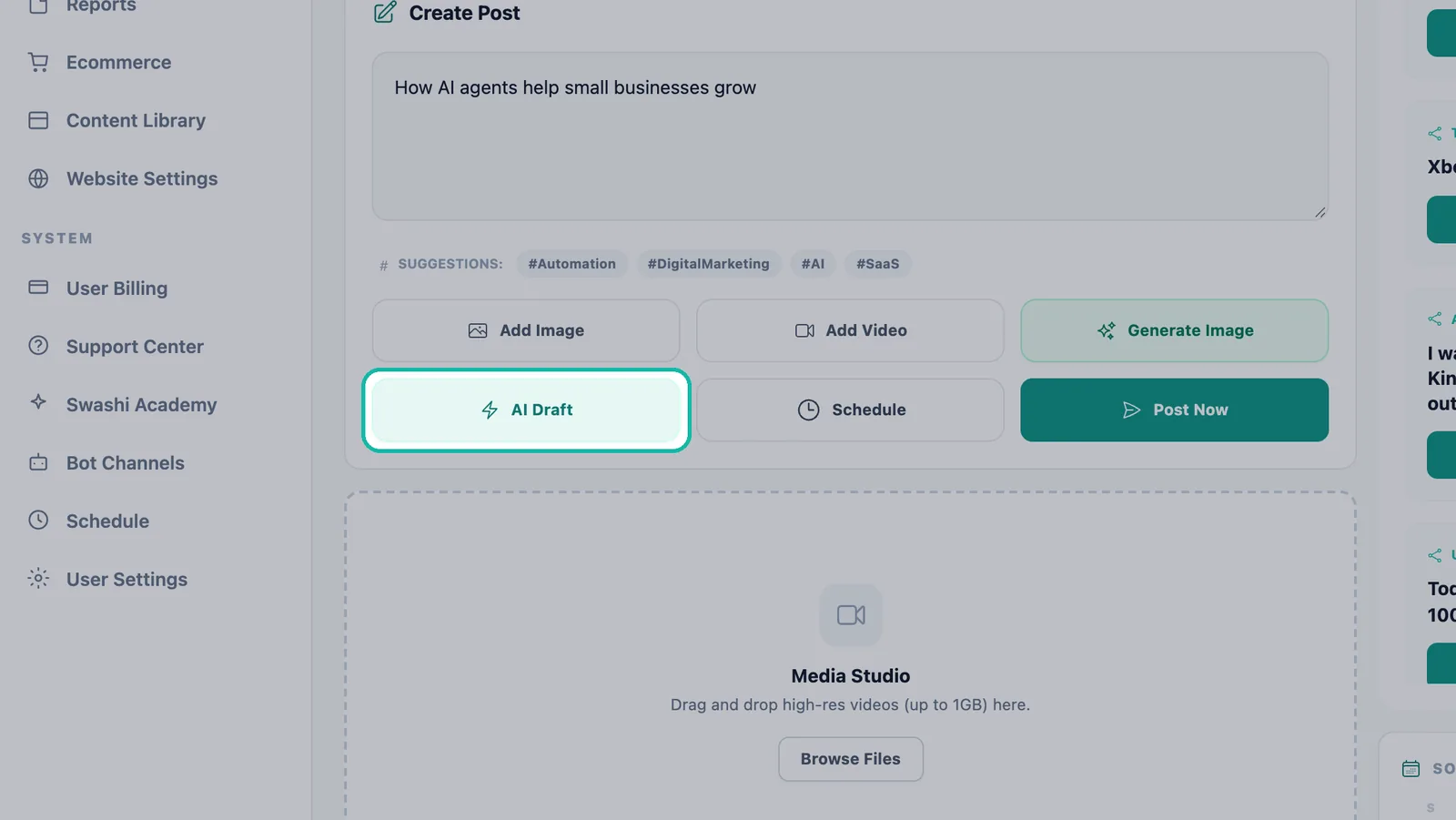
AI Draft writes the post in your brand voice. Schedule or post now. Click Schedule and choose a Date and Time, then Confirm Schedule. Or click Post Now to publish to every selected network immediately.
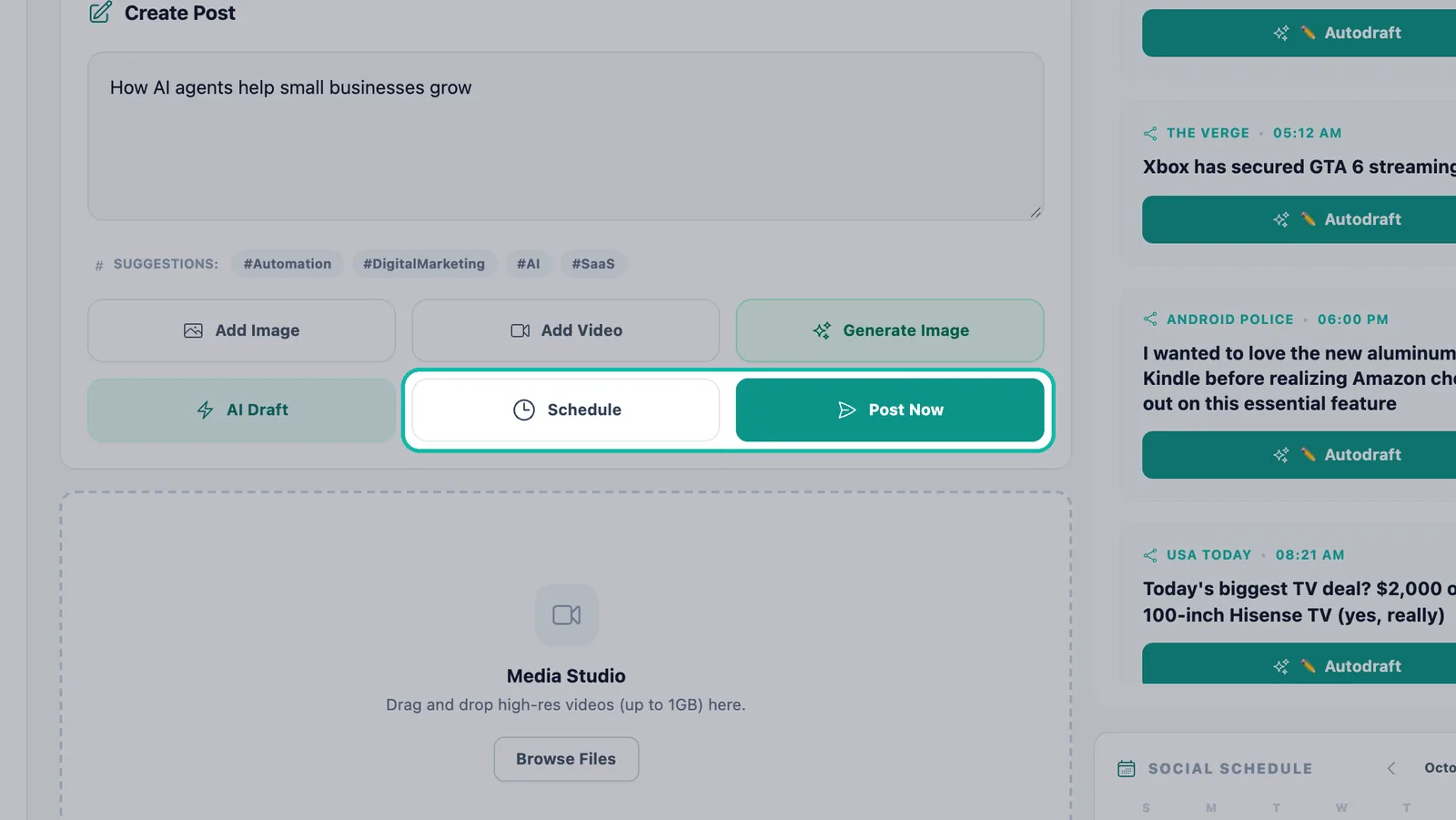
Schedule the post for later or publish it now.
Tip:Write your text first, then generate the image. Generate Image works from your post text, so the visual matches what you say.
Note:Video posts go to Facebook and Instagram for now. If LinkedIn is selected, untick it or attach an image instead.
Creator card images
When you generate an image, Swashi can render a Creator card that shows the hook and an excerpt of your post. Your full post and hashtags still go in the caption. If you prefer a plain image, choose Generate random for a fresh image from your text instead.
Upload videos in Media Studio
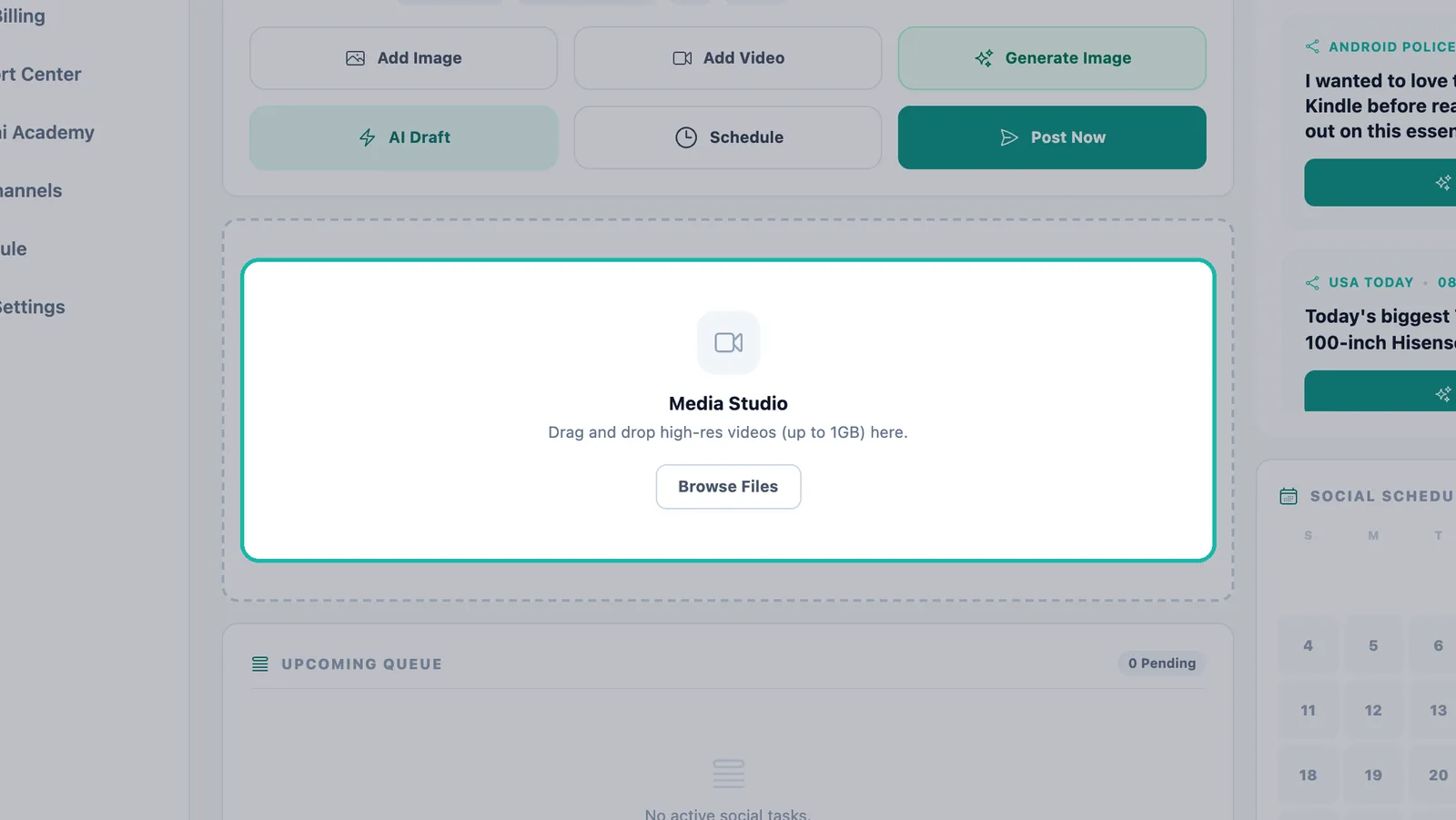
Use Media Studio to add high-resolution videos to your posts. Drag and drop videos of up to 1 GB, or click Browse Files. When the upload finishes you will see Upload Complete.
Manage your Upcoming Queue
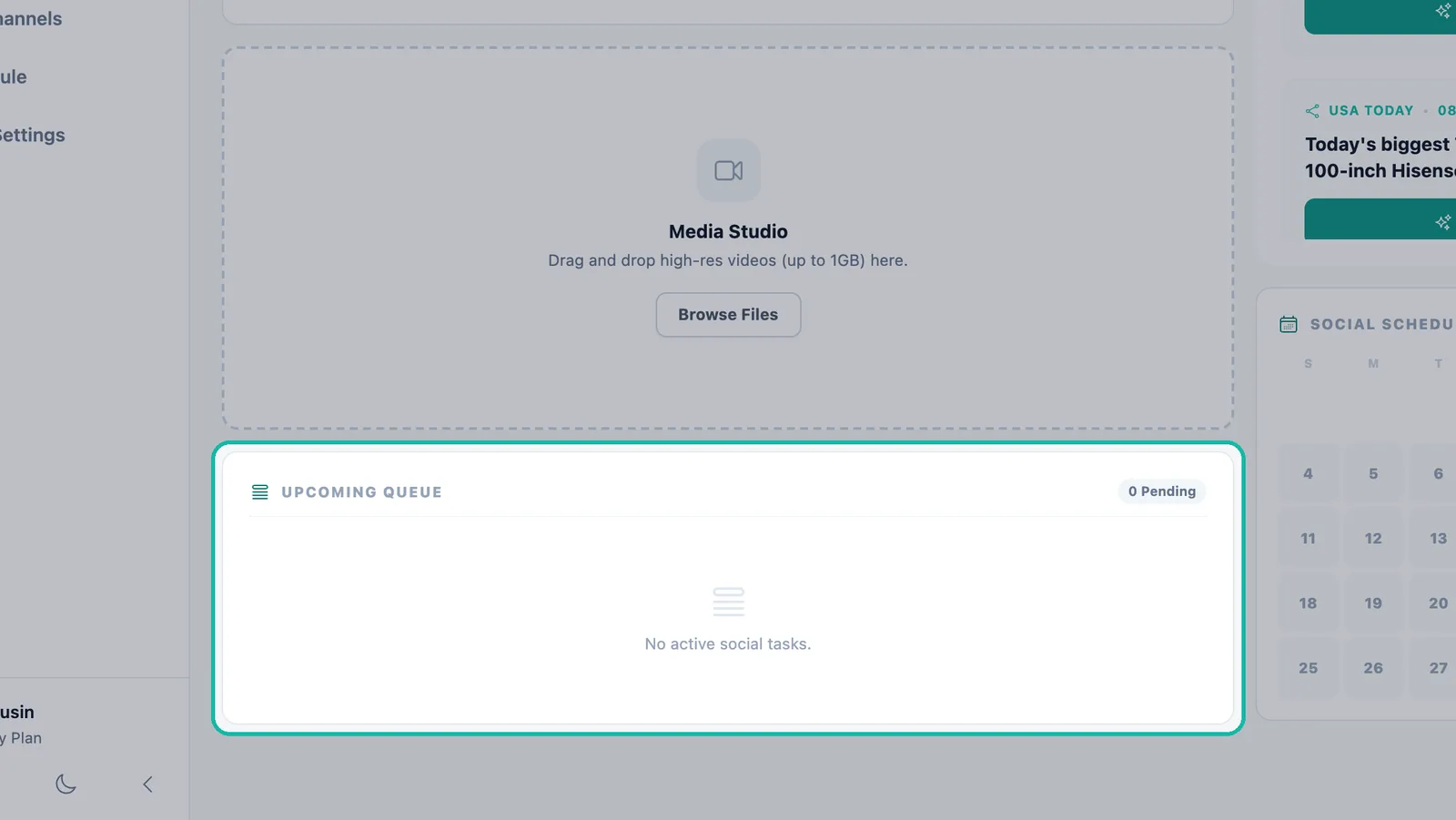
Every scheduled post waits in the Upcoming Queue, so you always know what goes out next. The counter shows how many are Pending. When nothing is scheduled, it reads "No active social tasks."
- Edit a post: choose Edit, change it, then Update Post or Update Schedule.
- Duplicates: if the same post is scheduled more than once at the same time, Swashi marks it as a duplicate. Delete All removes every copy. Edit and save once to keep a single copy.
To see your posts by day, use the Social Schedule calendar further down the page, or open Schedule in the sidebar for all your scheduled posts and articles together. See Trending Articles and Autodraft for the calendar and for posts based on the news.
Social posts by plan
| Plan | Social posts per month |
|---|---|
| Free | 1 |
| Starter | 30 |
| Growth | 350 |
| Agency | 1,500 |
| Enterprise | Unlimited |
Need more? The Social Pack adds extra posts. See current prices on the pricing page.
Post from chat
You can also schedule a LinkedIn post from Swashi's chatbot on LINE, WhatsApp or Telegram. Type "schedule LinkedIn post" and the bot asks what the post should be about. See chatbots on LINE, WhatsApp and Telegram.
Troubleshooting
| Message | What to do |
|---|---|
| "Please select at least one social network to schedule." | Click at least one connected network card before you schedule. |
| "Instagram requires an image or video. Please upload one first." | Add an image or video, or generate an image. |
| "Type or paste your post first, then generate an image." | Write the post text before you click Generate Image. |
| "Publish Failed" | Check that the network still shows Connected. If it shows Reconnect needed, reconnect it and try again. |
Next steps
- Connect LinkedIn, Facebook and Instagram.
- Turn trending news into posts with Autodraft.
- Learn more about Social Studio on the Swashi website.
Frequently asked questions
Which social networks can I post to from Swashi?+
You can connect LinkedIn, Facebook and Instagram in Social Studio. X / Twitter shows as Coming Soon in the app.
Does Swashi write the posts for me?+
Yes. Click AI Draft and Swashi writes the post in your brand voice using your Business Brain. You can edit the text before you schedule it.
Can I post the same content to several networks at once?+
Yes. Click the cards of each connected network you want, then click Schedule or Post Now. The post goes to every selected network.
Why can't I post to Instagram without an image?+
Instagram requires an image or a video on every post. Upload one with Add Image or create one with Generate Image first.
How many social posts does my plan include?+
Free includes 1 social post a month, Starter 30, Growth 350, Agency 1,500 and Enterprise is unlimited. The Social Pack add-on adds more posts.