How to use the Schedule page to track scheduled articles and posts
Use the Swashi Schedule page to see upcoming articles and social posts in one list, cancel a scheduled task, review what ran and check why a task failed.
- 1Open Schedule. Click Schedule in the sidebar. The number beside it shows how many tasks are scheduled or running.
- 2Check what is coming up. Stay on the Upcoming tab to see scheduled and running tasks, soonest first.
- 3Cancel a task you no longer want. On a Scheduled task, click Cancel Task (the X) and confirm.
- 4Review what ran. Open the History tab to see completed tasks, newest first.
- 5Check failures. Open the Failed tab to see failed tasks and the error message for each one.
The Schedule page is one list of everything Swashi is set to do for you: articles waiting to be written and published, social posts waiting to go out, and other automated tasks. Open Schedule in the sidebar to see what is coming up, cancel what you no longer want, and check what already ran or failed. It suits anyone who plans content in more than one place and wants a single view.
Product: Social Studio
Before you start
Tasks appear here once you schedule them elsewhere:
- Articles you add in Website Content.
- Posts you schedule in Social Studio or from Trending Articles and Autodraft.
If nothing is scheduled yet, the page shows "No tasks found" and "You haven't scheduled any tasks yet. Head over to Social, Content, or Ecommerce to get started."
Open the Schedule page
Click Schedule in the sidebar. A green number beside it shows how many tasks are scheduled or running right now (it shows "99+" above 99). The page subtitle reads "Visual timeline for all autonomous tasks and agent missions."
The list updates on its own as tasks run. To reload it yourself, click the refresh icon (the circular arrows) at the top right of the list.
The three tabs
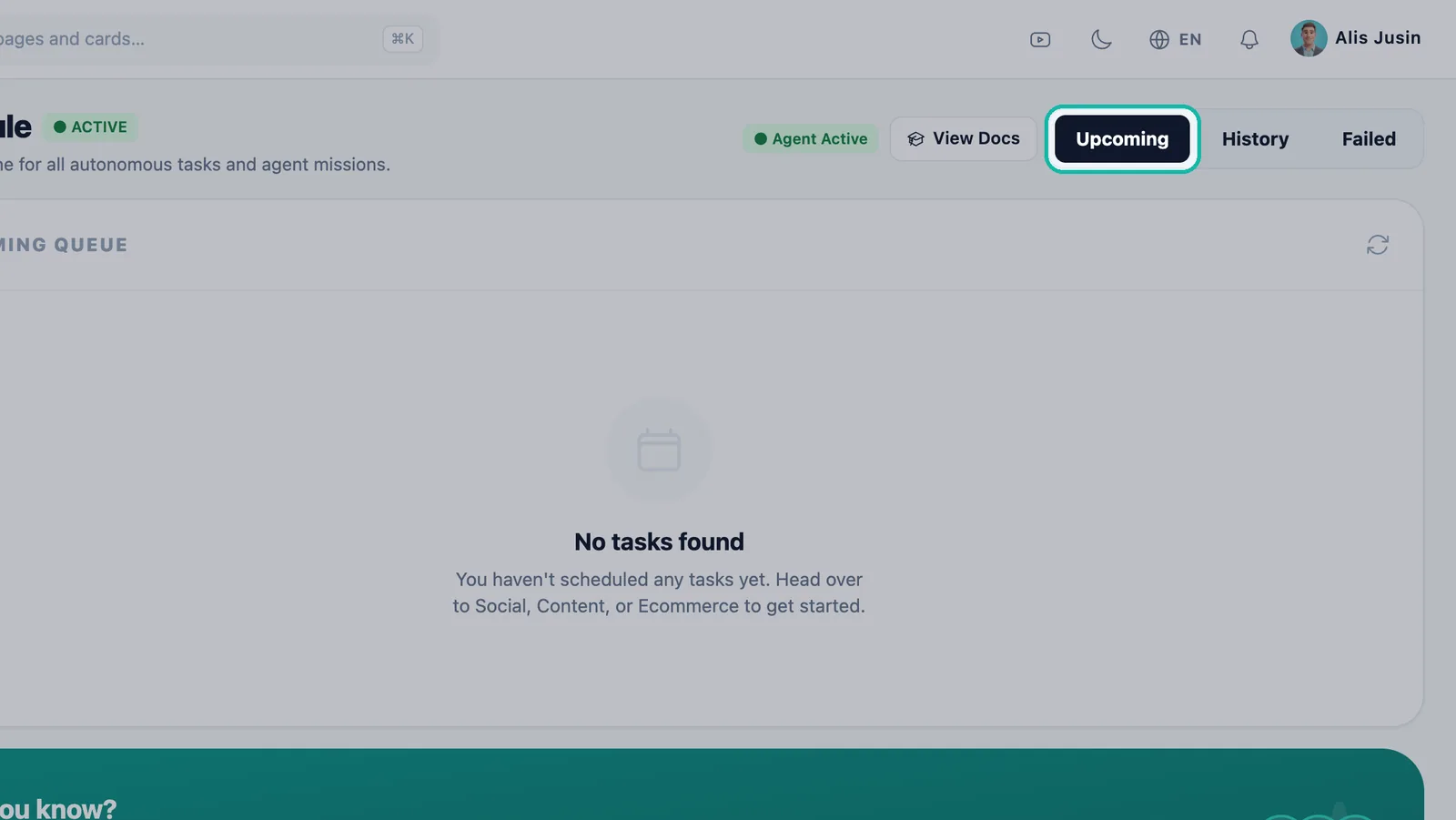
| Tab | List title | What it shows | Order |
|---|---|---|---|
| Upcoming | Upcoming Queue | Tasks that are Scheduled or Processing | Soonest first |
| History | Execution History | Tasks that finished (Completed) | Newest first |
| Failed | Failed Tasks | Tasks that failed, with the error message | Newest first |
Read a task
Each row tells you what the task is, when it runs and where it goes:
- Module label: Social, Content, Ecommerce, Newsroom, Leads or SEO.
- Status: Scheduled, Processing (running now), Completed or Failed.
- Title: the article or post title. An article that has not been written yet shows its topic, for example "Article: best dentist in Austin". A post shows "Post:" and its topic.
- Date and time: when the task runs, shown in your device's local time.
- Repeat badge: a recurring task shows how often it repeats.
- Destination: a social post shows the logo of every network it goes to (LinkedIn, X, Facebook, Instagram). An article shows the name or address of the website it publishes to.
Cancel a scheduled task
- On the Upcoming tab, find the task. Its status must be Scheduled.
- Click Cancel Task (the X on the right of the row).
- Confirm "Are you sure you want to cancel this scheduled task?"
- The app shows "Task cancelled" and the task leaves the list.
Important:You cannot cancel a task marked Processing. It is already running.
Change the date or time
Make changes where you created the item:
- Social posts: edit the post in Social Studio, then choose Update Schedule. See Create and schedule posts.
- Articles: reschedule or delete the queued topic in Website Content. See Website content.
When a task fails
The page notes: "The central scheduling system automatically handles retries and prevents duplicate execution across all your Swashi modules." If a task fails, Swashi tries it again. If it still cannot run after several attempts, it is set back to a draft rather than deleted. A social post set back to a draft appears as Draft in the Upcoming Queue in Social Studio, where you can fix it and schedule it again.
The Failed tab shows each failed task with its error message in red. Read it first. It often names the cause, such as a disconnected site or network.
Troubleshooting
- A post or article is missing from Upcoming: it may have already run. Check History. If you cancelled it, it no longer appears.
- An article failed: check that your site is still connected in Website Settings. See Connect your website.
- A social post failed: reconnect the network. See Connect social networks.
- More fixes are in Troubleshooting.
Next steps
Frequently asked questions
Where can I see all my scheduled articles and social posts together?+
Open Schedule in the sidebar. The Upcoming tab lists every scheduled and running task from Website Content, Social Studio and other modules in one list, soonest first.
How is the Schedule page different from the Social Schedule calendar?+
The Social Schedule calendar in Social Studio and the Website Schedule calendar in Website Content show items by day. The Schedule page is one combined list across modules, with Upcoming, History and Failed tabs.
Why can't I cancel a task?+
Only tasks with the Scheduled status can be cancelled. A task marked Processing is already running, and completed or failed tasks cannot be cancelled.
Can I change the date or time of a task here?+
Change it where you created it. Edit a social post in Social Studio and choose Update Schedule, or reschedule an article from the queue in Website Content.
What happens when a scheduled task fails?+
Swashi retries it automatically and prevents it from running twice. If it still cannot run after several attempts, it is set back to a draft instead of being deleted.