How to turn trending news into posts with Autodraft
Use Trending Articles in Swashi to follow news by topic, region and language, turn a story into a ready post with Autodraft, and plan it on your schedule.
- 1Open Trending Articles. In Social Studio, scroll to the Trending Articles feed, which updates live.
- 2Pick the topic. Choose a topic such as Business, Technology, Marketing or Real Estate.
- 3Set region, network and language. Choose the region of the news, the network your posts go to and the language they are written in.
- 4Set how often. Choose Once, Daily or Weekly for how often posts go out.
- 5Autodraft a story. Click Autodraft on an article to turn it into a ready post with your take on it.
- 6Check your calendar. Open the Social Schedule calendar to see every scheduled post by day.
Prefer to watch? This tutorial walks through the same steps in the live app. All tutorials →
Trending Articles is a live news feed inside Swashi. Pick a topic, a region, a network and a language, and Swashi gives you timely stories from your industry. Click Autodraft on any story to turn it into a ready post with your take on it, then plan it on your Social Schedule.
This guide is for businesses that want to post about what is happening in their industry without searching the news every day. It follows Part 2 of the EP3 video tutorial, "How to Automate Social Media with Swashi."
Before you start
- Connect at least one network. Autodrafted posts go to the networks you have connected. See connect your social networks.
- Teach your Business Brain. Your take on each story comes from your Business Brain, so posts stay on-brand.
- Check your allowance. Every post counts toward your plan's monthly social posts.
Follow trending news
Click Social Studio in the sidebar and scroll to Trending Articles. The feed is marked LIVE. Swashi watches the news in your industry, so you always have something timely to say.
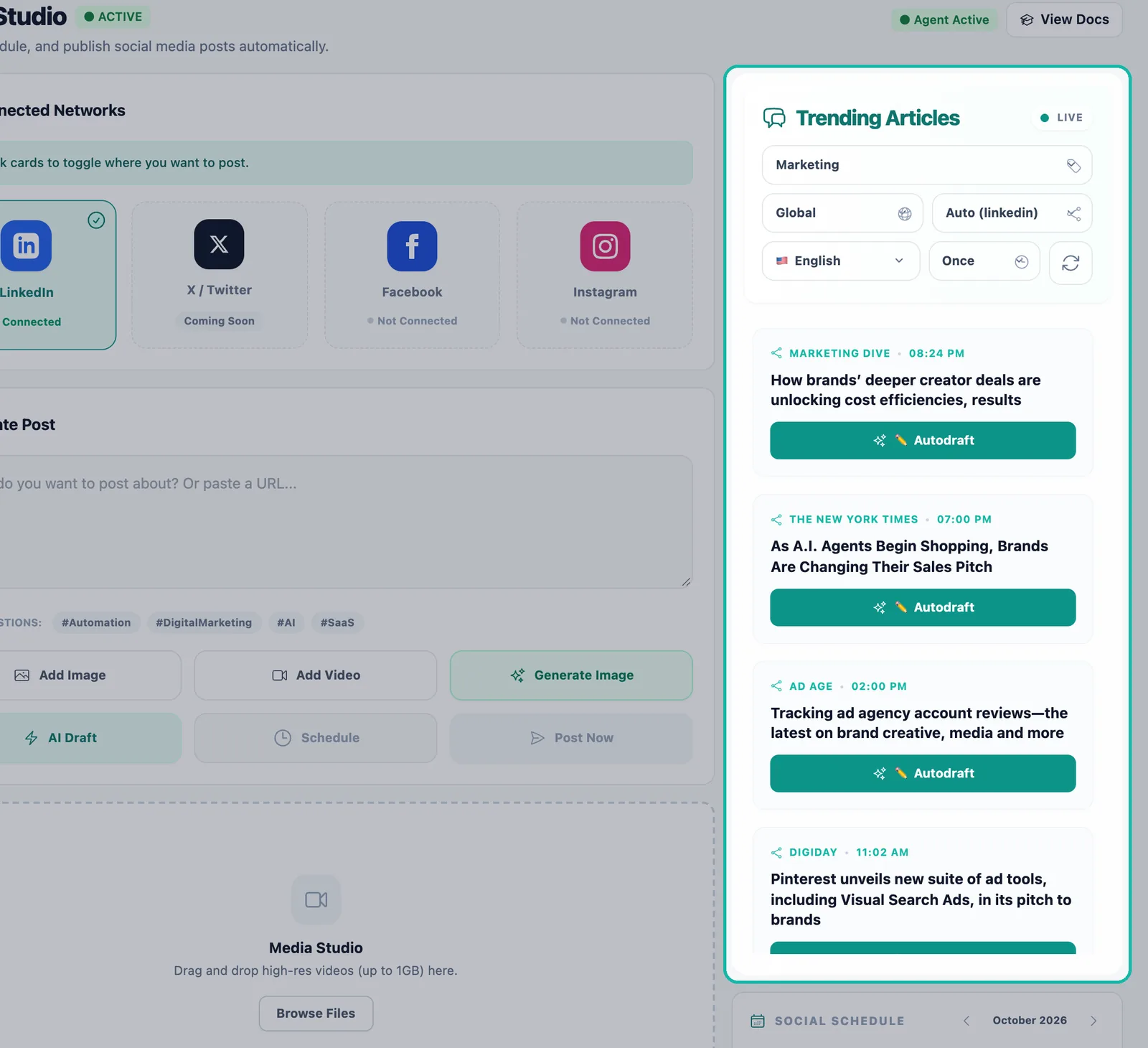
Trending Articles shows live stories from your industry. Pick the topic. Choose from topics such as Top Stories, U.S. (National/Local), World, Business, Technology, AI, Agentic AI, Finance, Venture Capital, Startups, Crypto, Marketing, Ecommerce, Cybersecurity, Health, Science, Energy, Automotive, Real Estate, Construction, Travel, Legal, Education, Lifestyle and Fashion.
Pick the region, network and language. Choose where the news comes from, which network your posts go to, and the language your posts are written in.
Set how often posts go out. Choose Once, Daily or Weekly.
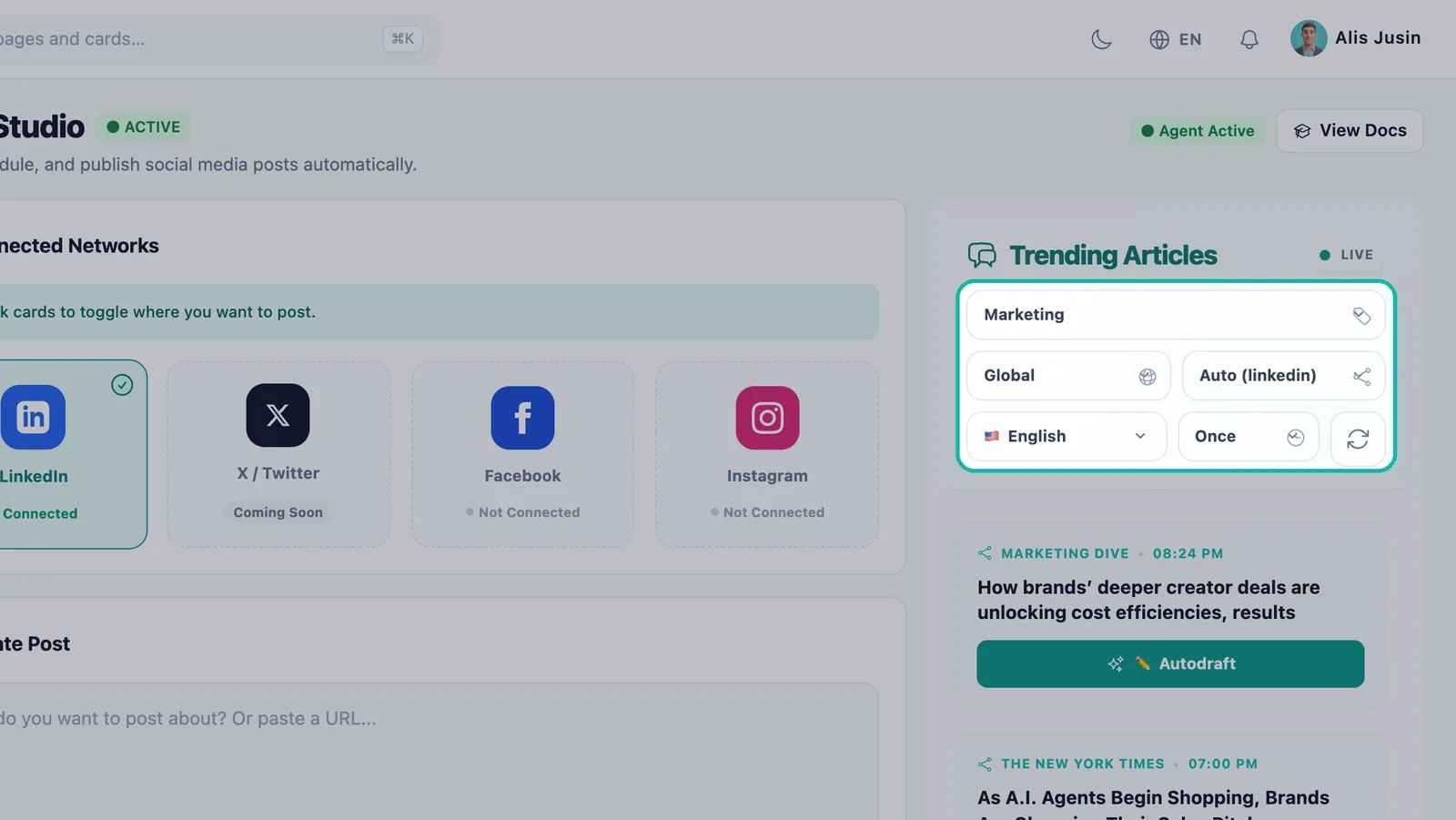
Pick the topic, region, network, language and frequency.
Tip:Pick the topic your customers care about, not just your own industry. A dentist might follow Health; a real estate agency might follow Real Estate and Finance.
Autodraft from the news
When you see a story worth sharing, click ✏️ Autodraft on it. One click turns the article into a ready post with your take on it.
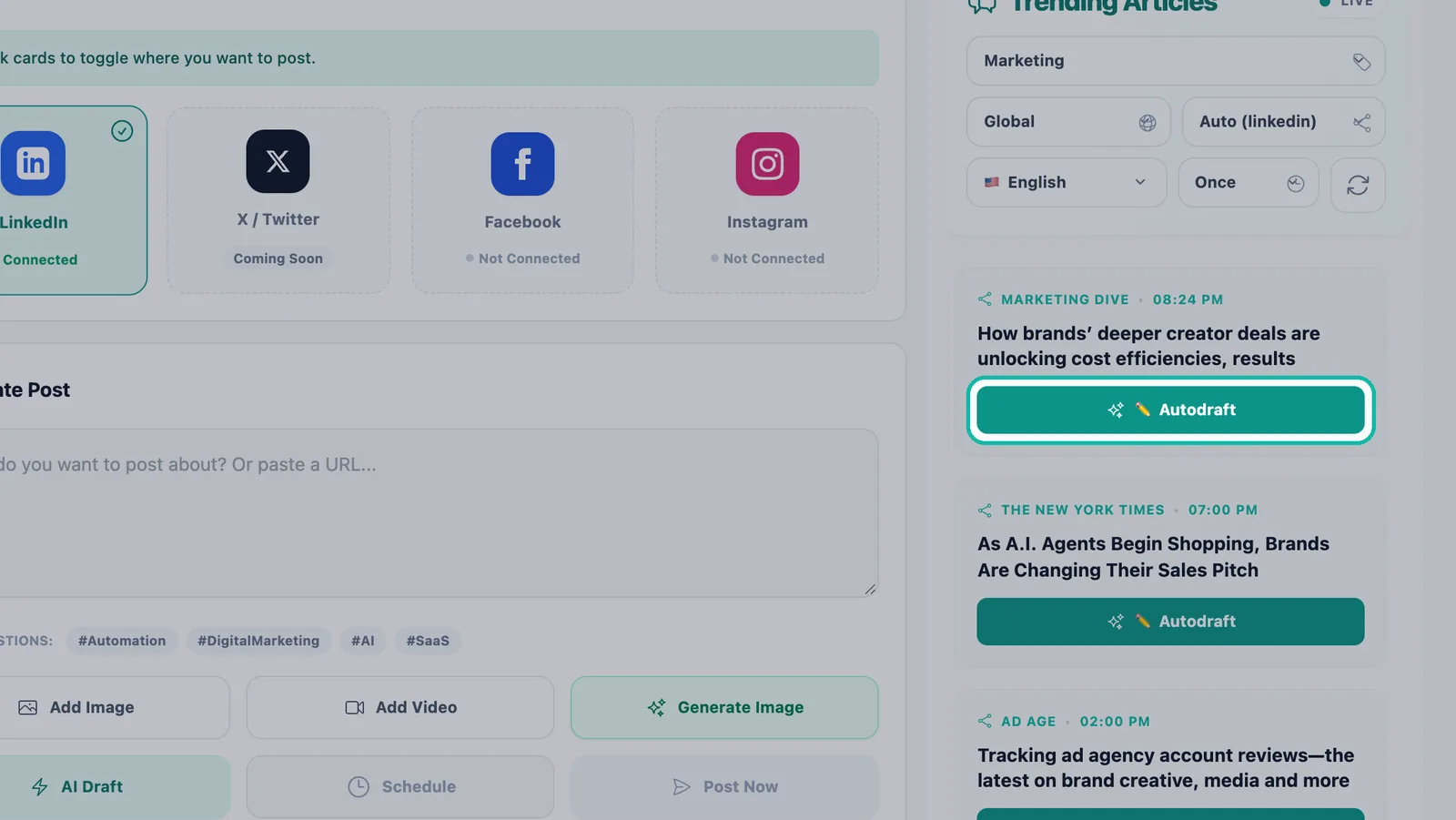
- While Swashi writes, the button shows Drafting....
- When it is done, you see "AI Draft added to Upcoming Queue!"
- If something goes wrong, click Retry Draft.
Open the Upcoming Queue to read the draft, edit it, and choose when it goes out. See create and schedule posts for editing and scheduling.
Note:Autodraft writes the post for you, but you stay in control. Review each draft before it goes live, especially for fast-moving news.
Plan with the Social Schedule
The Social Schedule calendar in Social Studio shows every scheduled post by day, so you can plan your month at a glance. Several posts on the same day all appear.
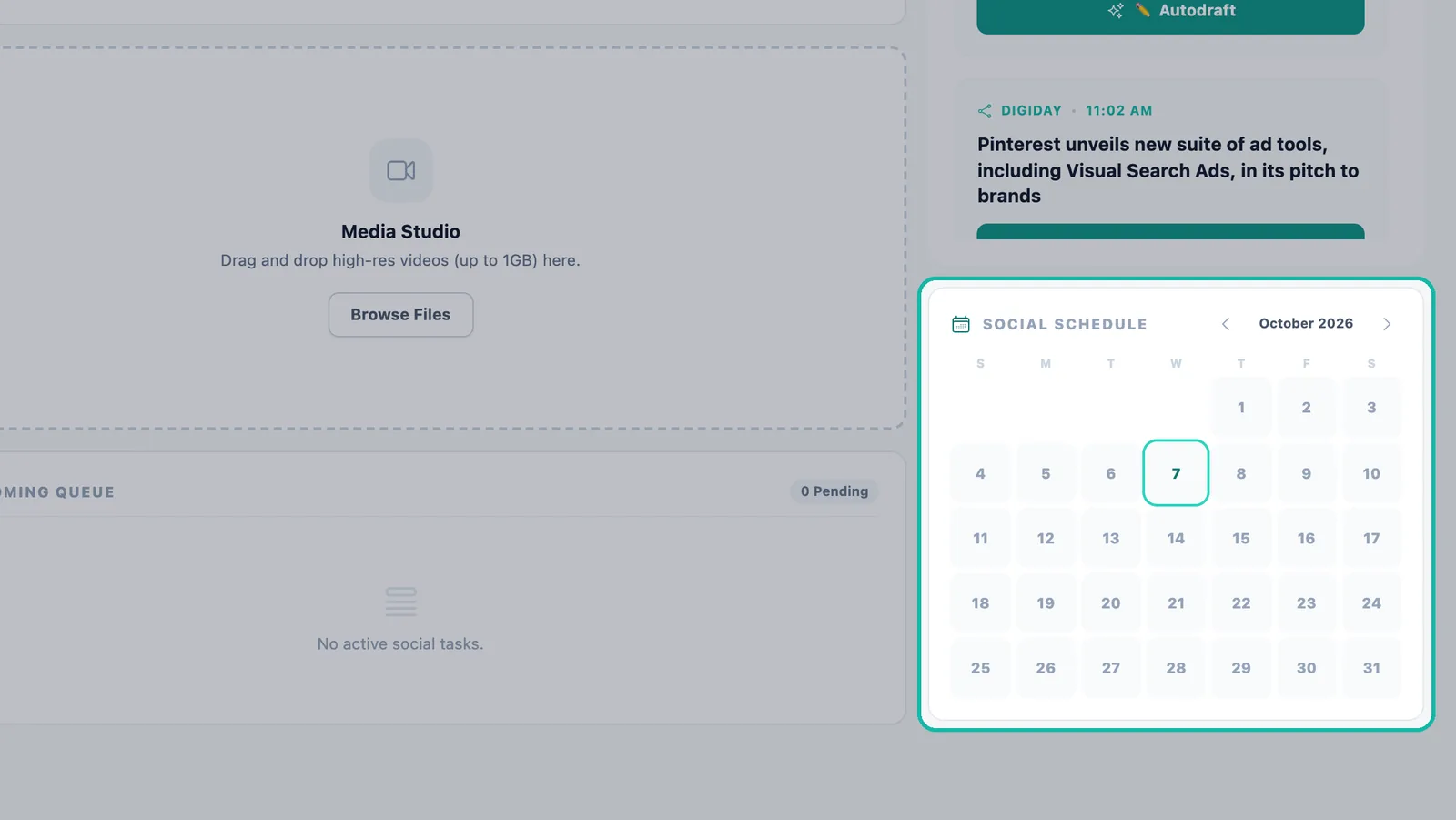
For a combined view of social posts and website articles, open Schedule in the sidebar. It has three tabs: Upcoming, History and Failed. The scheduling system handles retries and prevents the same task from running twice.
Trending Articles for your website
Trending Articles also has its own page in the sidebar, for turning news into website articles instead of social posts.
- Click Trending Articles in the sidebar.
- Choose a category under Select Category, such as AI & Technology, Marketing & Growth, Business & Finance, Ecommerce & Retail or Health & Wellness.
- Choose the Content Language.
- Click Fetch News to load current stories.
- Click Add to Queue on a story. You will see "Added to Queue as Draft!"
You can also set Auto Post with a frequency of Once, Daily or Weekly so Swashi keeps writing from the news for you. If your plan does not include it, the page shows Unlock Autonomous Newsjacking instead. Queued stories follow the same writing settings as the rest of your website content.
Troubleshooting
- No stories appear: try a broader topic, such as Top Stories or Business, or a different region.
- Autodraft failed: click Retry Draft. If it keeps failing, check that you still have social posts left this month in Plan & Usage.
- A draft is not posting: make sure at least one network is selected and shows Connected.
Next steps
- Create and schedule posts by hand.
- Write articles from your own sources with Creative Director.
- See Social Studio on the Swashi website.
Frequently asked questions
What is Autodraft in Swashi?+
Autodraft turns a trending news article into a ready social post with your take on it, in one click. The draft is added to your Upcoming Queue in Social Studio.
Which news topics can I follow?+
The Trending Articles feed includes topics such as Top Stories, World, Business, Technology, AI, Finance, Startups, Marketing, Ecommerce, Cybersecurity, Health, Real Estate, Construction, Travel, Legal, Education and more.
How often can Swashi post from the news?+
You choose Once, Daily or Weekly. Each post still counts toward your plan's monthly social post allowance.
Can I turn a news story into a blog article instead of a social post?+
Yes. The Trending Articles page in the sidebar can add a story to your website content queue as a draft. You can also paste a news link into Creative Director's Source Material to have it rewritten into an original article.
Can I see all my scheduled posts on one calendar?+
Yes. The Social Schedule calendar in Social Studio shows every scheduled post by day, and the Schedule page in the sidebar shows posts and articles together.