How to set up the Swashi AI Receptionist for inbound calls
Set up Swashi's AI Receptionist to answer inbound calls in your language, qualify callers, book meetings, and show callbacks, caller tone and buying signals.
- 1Activate your Swashi number. In Voice Outreach, activate your AI calling number; the receptionist answers calls to the same number.
- 2Open AI Receptionist. Open AI Receptionist to see its status, your call allowance and what callers said.
- 3Choose the answering language. In User Settings → Advanced language settings, choose the language for Voice agent calls; incoming calls are answered in that language.
- 4Fill in Receptionist settings. Enter the Business name the receptionist introduces and your Calendly link, then click Save.
- 5Add Smart FAQs. Click Generate or + Add manually to give the receptionist approved answers to use on calls.
- 6Follow up on callers. Use Callbacks & high-intent callers and click Call back for anyone who asked to be called.
Prefer to watch? This tutorial walks through the same steps in the live app. All tutorials →
The Swashi AI Receptionist answers your business phone automatically, in the language you choose. It answers questions from your Business Brain, qualifies callers, books meetings and takes messages, then shows you who called, what they needed and who wants a callback.
Before you start
- A paid plan. The AI Receptionist is included in every paid plan. See the pricing page.
- A Swashi number. The receptionist answers the same number you use in Voice Outreach. If you have none, the page shows NO NUMBER YET: activate one from Voice Outreach.
- Your Business Brain. The receptionist answers questions from your Business Brain. The more complete it is, the better its answers.
What each plan includes
| Plan | Receptionist capabilities |
|---|---|
| Starter | Answers and routes every call, voicemail with transcript, full transcripts and summaries |
| Growth (Pro) | Everything in Starter, plus appointment booking on the call, CRM sync, AI qualification and lead scoring |
| Agency (Business) | Everything in Pro, plus multilingual answering, calendar orchestration and human transfer |
| Enterprise | Everything in Business, plus custom workflows and SLAs |
Each plan has a monthly call allowance, shown on the page as Calls this month. Calls after the allowance are declined until your cycle resets, and unused calls do not roll over. To raise the ceiling, add the Receptionist Pack (more receptionist calls every month) with Add pack.
Open the AI Receptionist
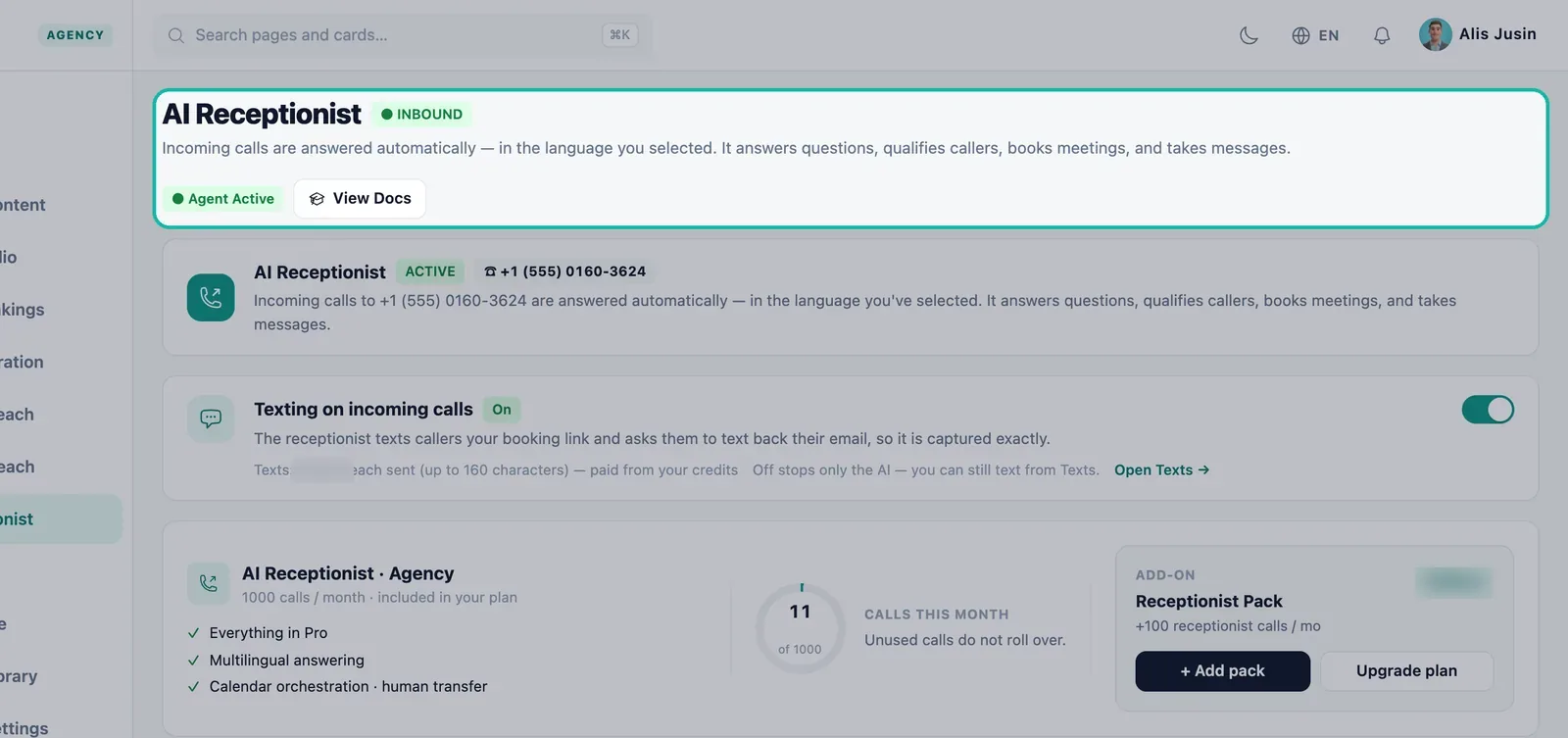
Open AI Receptionist. The header shows INBOUND and Agent Active when it is running: incoming calls are answered automatically, in the language you selected.
Choose the answering language
Your calls follow your account language. To run voice calls in a different language from your dashboard, open User Settings → Advanced language settings and choose a language for Voice agent calls. The receptionist greets callers in that language and follows them if they switch language during the call. See Languages.
Receptionist settings
Find Receptionist settings.
Enter your Business name: how the receptionist introduces you.
Enter your Calendly link: texted to callers who want to book.
Click Save.
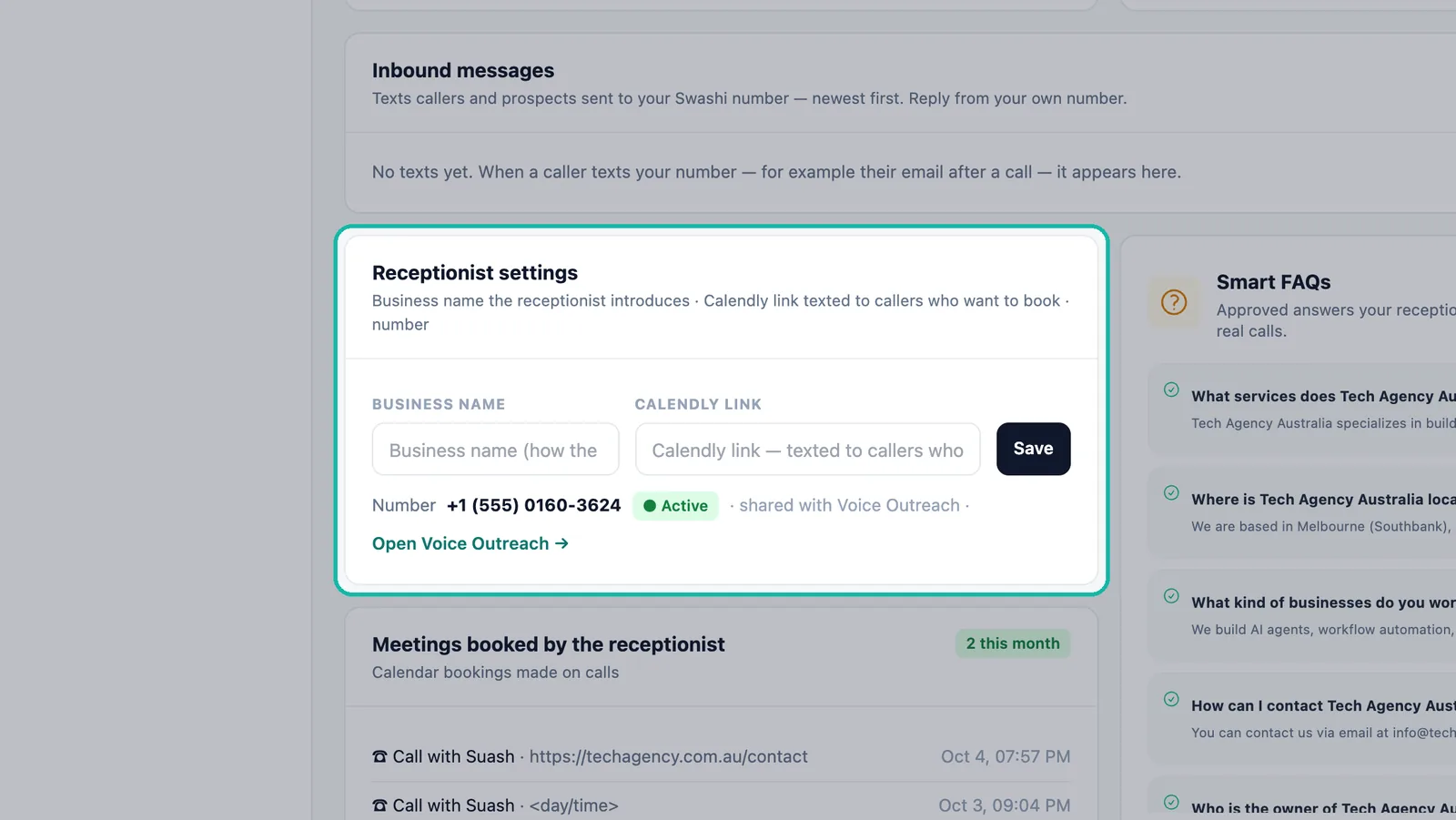
Set the business name and booking link, then Save.
The section also shows your Number, marked "shared with Voice Outreach", with a link to Open Voice Outreach →.
Smart FAQs
Smart FAQs are approved answers your receptionist and every agent use on real calls.
- Click Generate to create answers, or + Add manually to write your own.
- The Callers asked your receptionist list shows real questions from calls, so you can add an answer for each one.
- Click Manage in Settings → to edit them alongside your Business Brain.
Tip:Add an FAQ for every question you hear more than once.
Read what your callers said
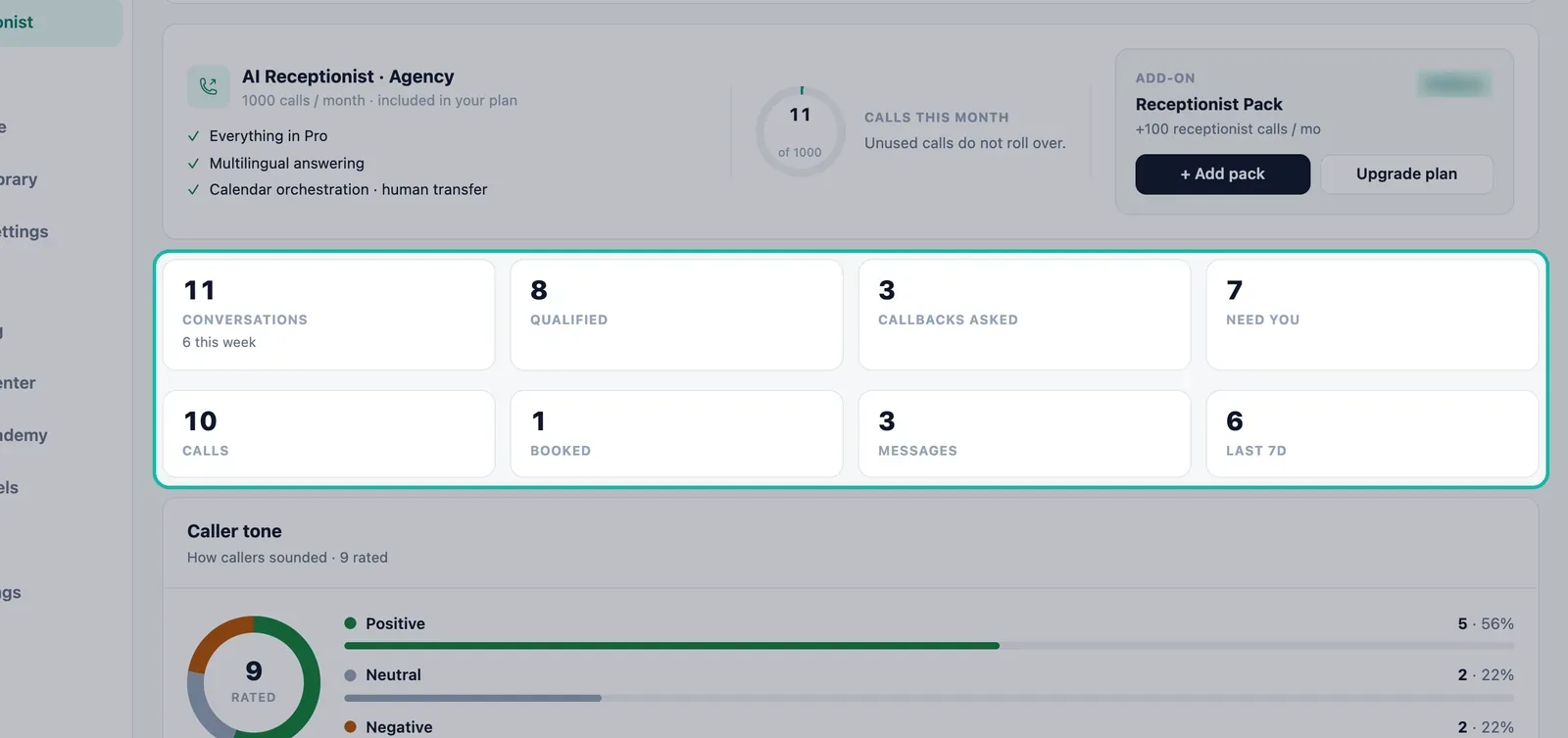
Your week at a glance
Counters for Conversations, Qualified, Callbacks asked and Need you, with this week's count.
Caller tone
How your callers sounded: positive, neutral or negative, with the number of rated calls. Tone appears after the first answered calls.
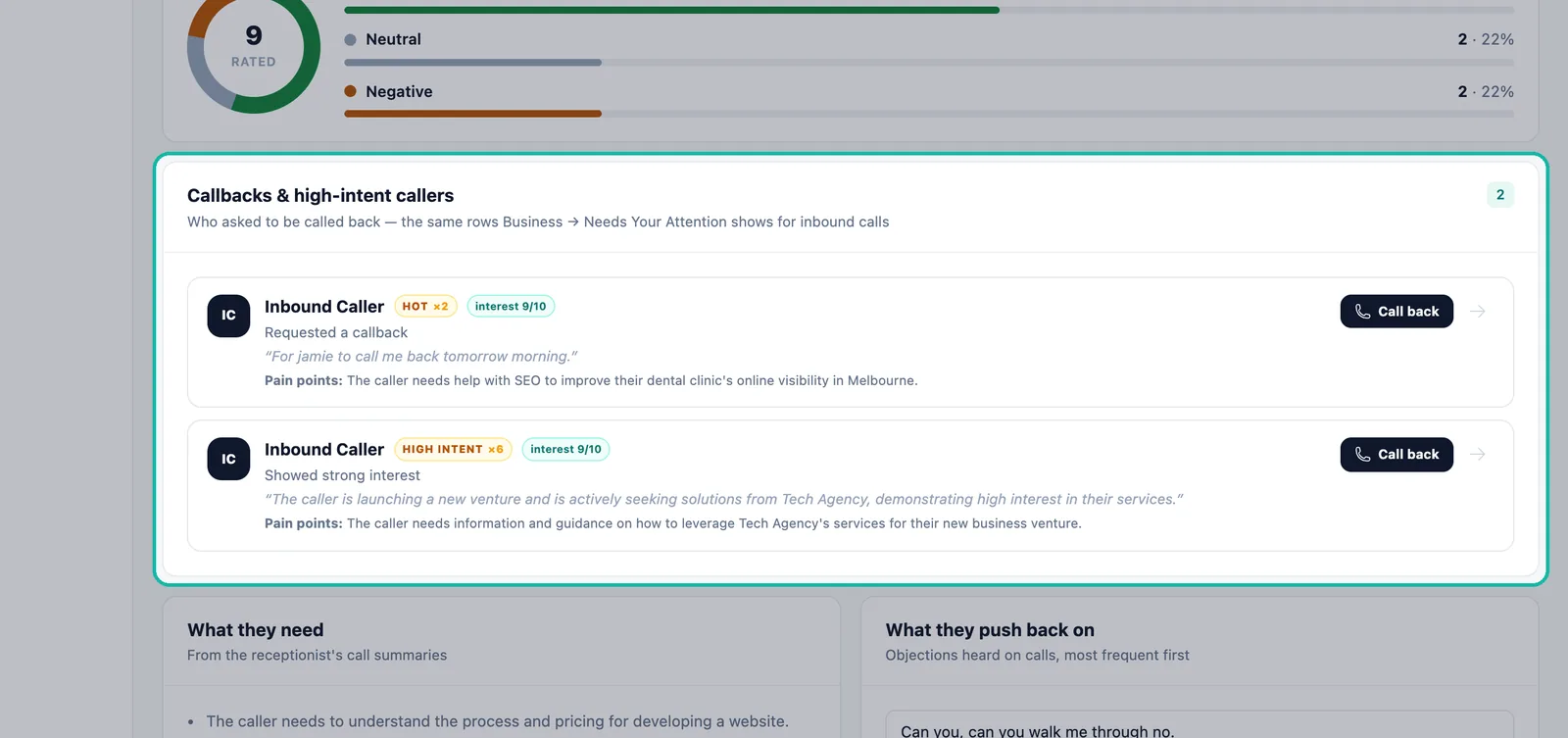
Callbacks & high-intent callers
Everyone who asked to be called back or showed strong interest, with their interest score, what they said and their pain points. Click Call back to return the call in one click. These are the same rows shown in Business → Needs Your Attention.
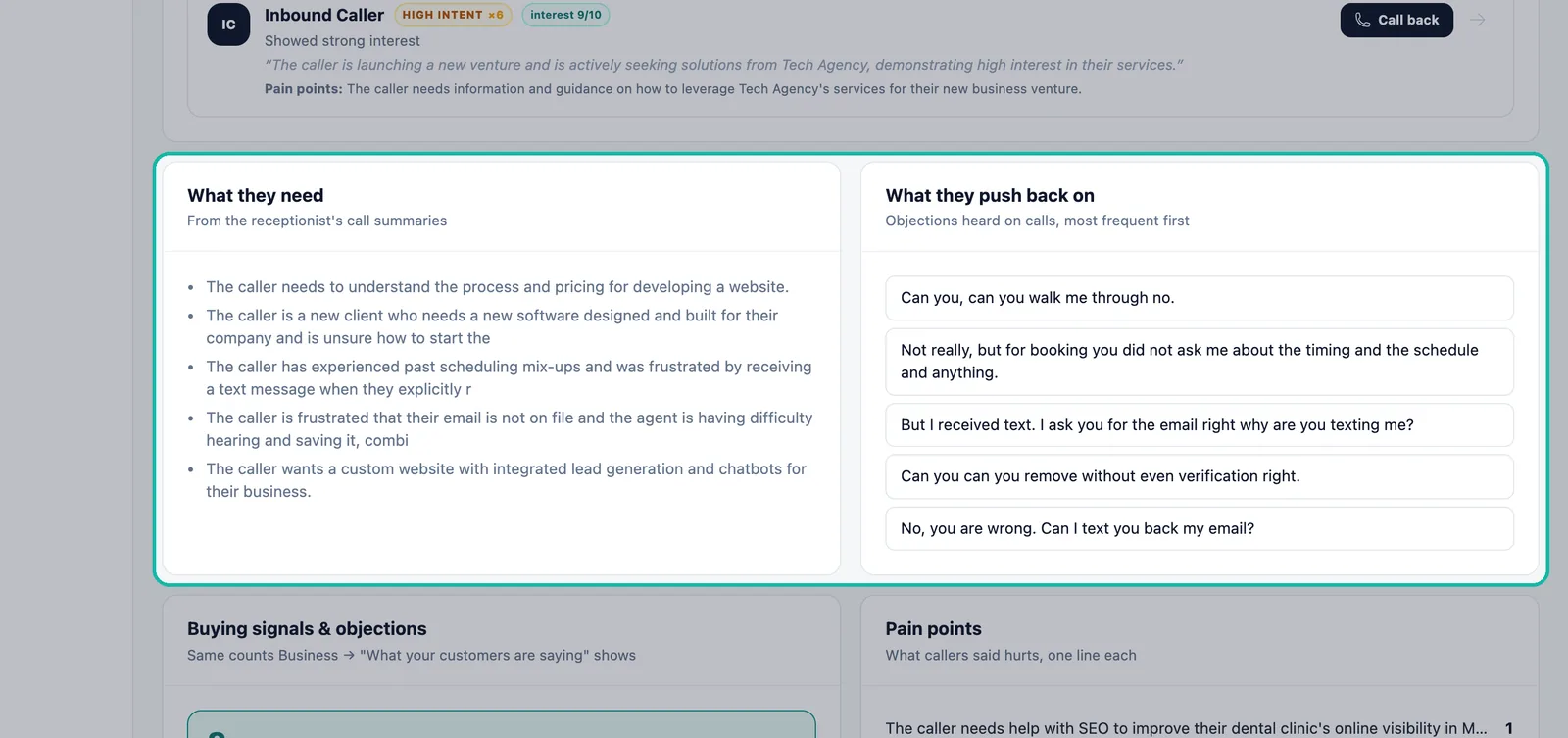
What they need and what they push back on
What they need summarizes callers' needs from the receptionist's call summaries. What they push back on lists objections heard on calls, most frequent first.
Buying signals & objections
Counts of buying signals detected and top objections, the same counts that Business → "What your customers are saying" shows.
Recent conversations
A transcript excerpt, the caller, their needs, objection and buying signals for every answered call.
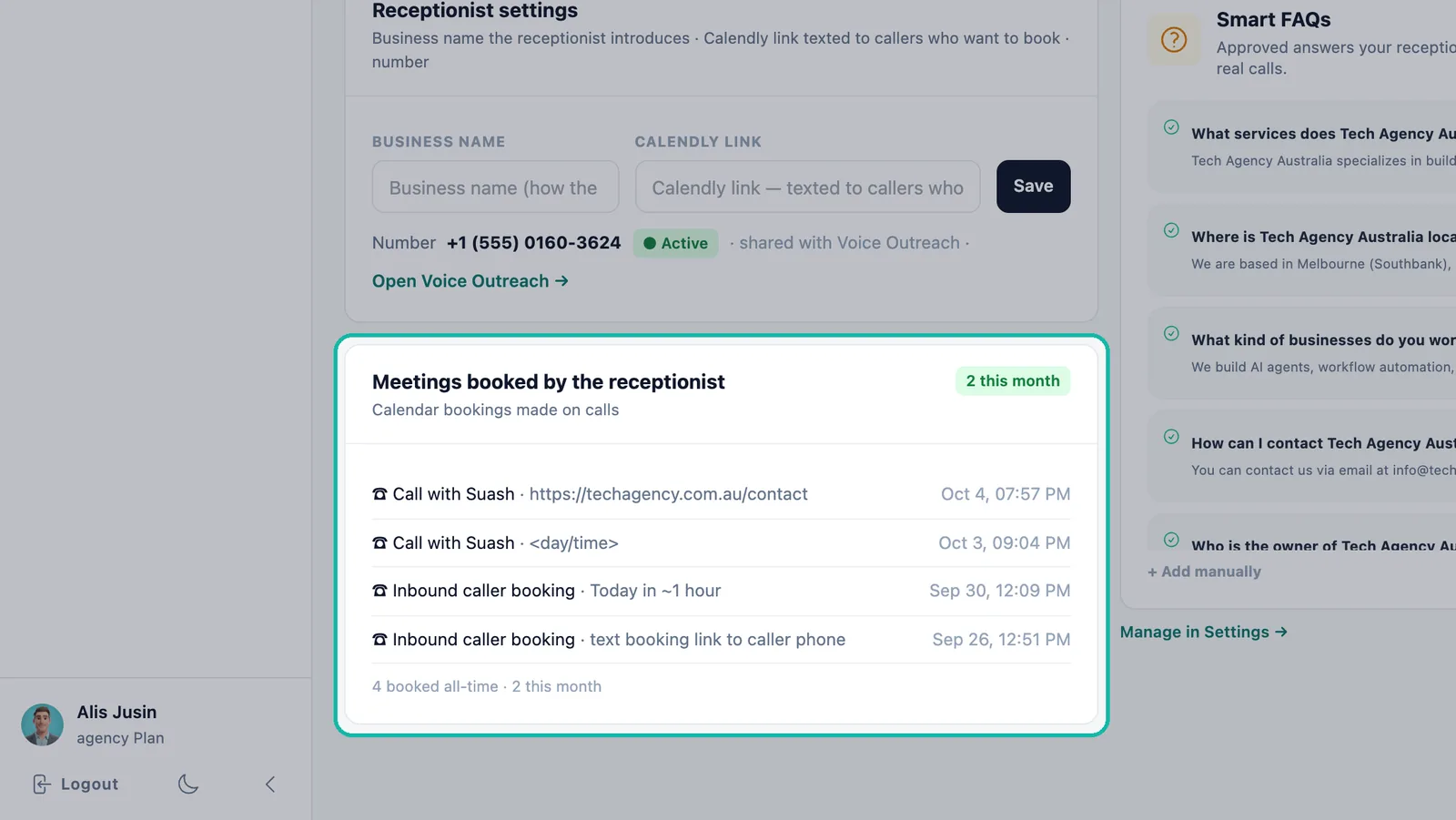
Meetings booked by the receptionist
Every calendar booking made on a call, with this month's count. Bookings also appear in Settings → Meetings Calendar. Booking on calls is part of AI Receptionist Pro (Growth plan and above).
Texts from callers
The receptionist can text callers your booking link and ask them to text back their email, so it is captured exactly. Turn this on with Texting on incoming calls. Texts callers send to your number appear under Inbound messages. See Texting.
Get notified
In User Settings, under Notifications, you can be alerted for Callback requests, a call that scored 7/10 or more on buying intent, a caller who booked a slot, and each call your receptionist answered. See Notifications and digests.
Troubleshooting
- NO NUMBER YET — activate a number in Voice Outreach.
- Callers are being declined — your monthly allowance is used up. Add a Receptionist Pack or wait for your cycle to reset.
- No meetings appear — booking on calls needs the Growth plan or higher, and a Calendly link in Receptionist settings for text bookings.
- Tone shows nothing — tone appears after the first answered calls.
Next steps
- Texting on calls and the Texts inbox
- How voice credits work
- Learn more about the AI Receptionist
Frequently asked questions
What does the Swashi AI Receptionist do?+
It answers incoming calls to your Swashi number automatically, in the language you selected. It answers questions, qualifies callers, books meetings and takes messages, then shows you what each caller needed.
Which plans include the AI Receptionist?+
The AI Receptionist is included in every paid plan. Starter covers routing, voicemail and transcripts; Growth adds appointment booking, CRM sync, AI qualification and lead scoring; Agency adds multilingual answering, calendar orchestration and human transfer; Enterprise adds custom workflows and SLAs.
What happens when I use up my monthly receptionist calls?+
Calls after your monthly allowance are declined until your cycle resets, and unused calls do not roll over. You can add more calls every month with the Receptionist Pack add-on.
Can the receptionist speak my callers' language?+
Yes. It answers in the language you selected and can switch during the call if the caller changes language, across all 18 Swashi languages.
Where do meetings booked by the receptionist appear?+
Under Meetings booked by the receptionist on the AI Receptionist page, and in Settings → Meetings Calendar.