How email follow-ups and send timing work in Swashi
Learn how Swashi's 4-step email sequence works: Initial Touch, two follow-ups and a Breakup on day 0, +3, +6 and +9, and stopping as soon as the lead replies.
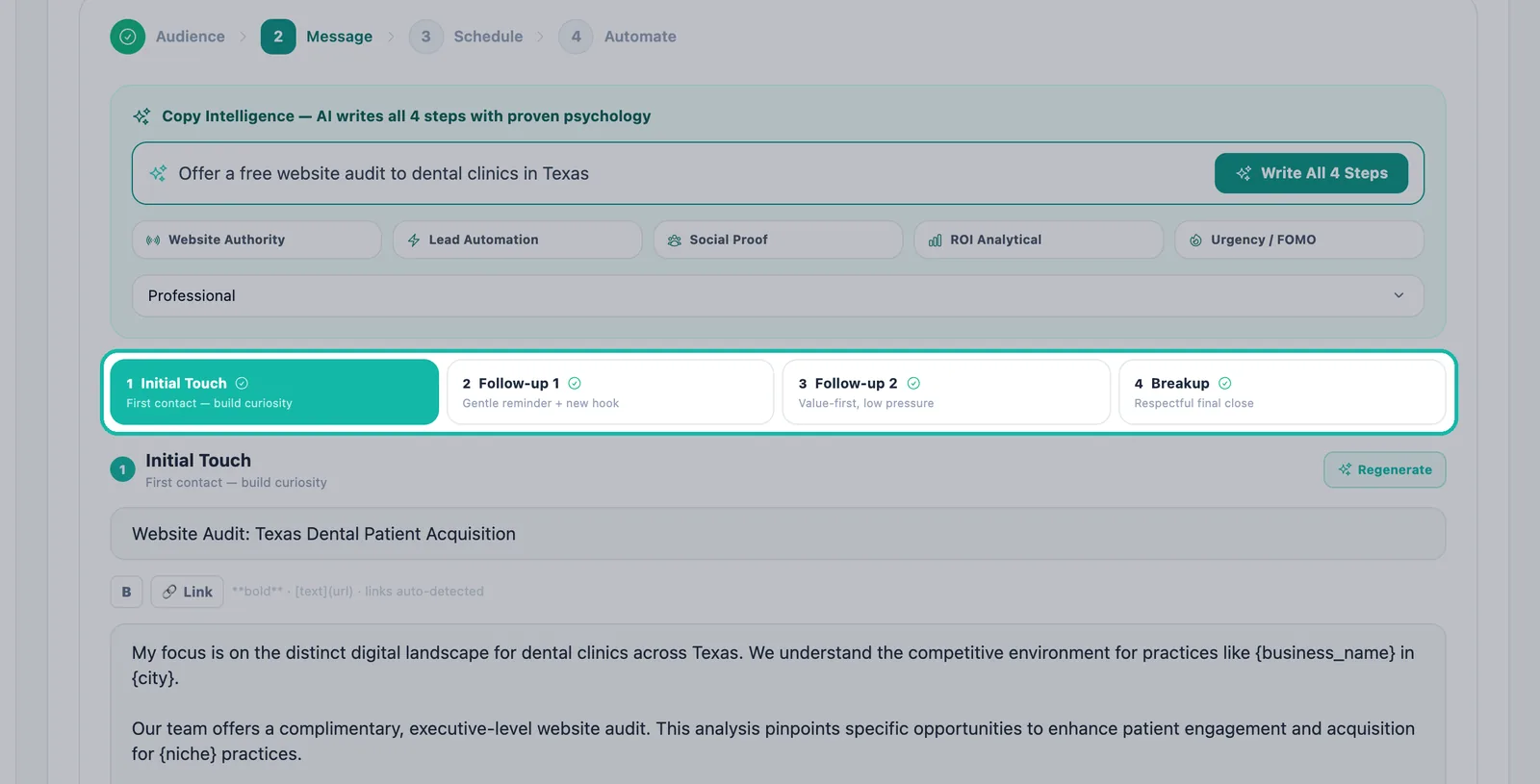
- 1Write the sequence. In Email Studio's Message step, click Write All 4 Steps to create the Initial Touch, Follow-up 1, Follow-up 2 and Breakup.
- 2Review each step. Use Sequence step to open each email and check its subject line and body.
- 3Check the variables. Make sure variables such as {first_name} and {business_name} are spelled exactly as listed under the email body.
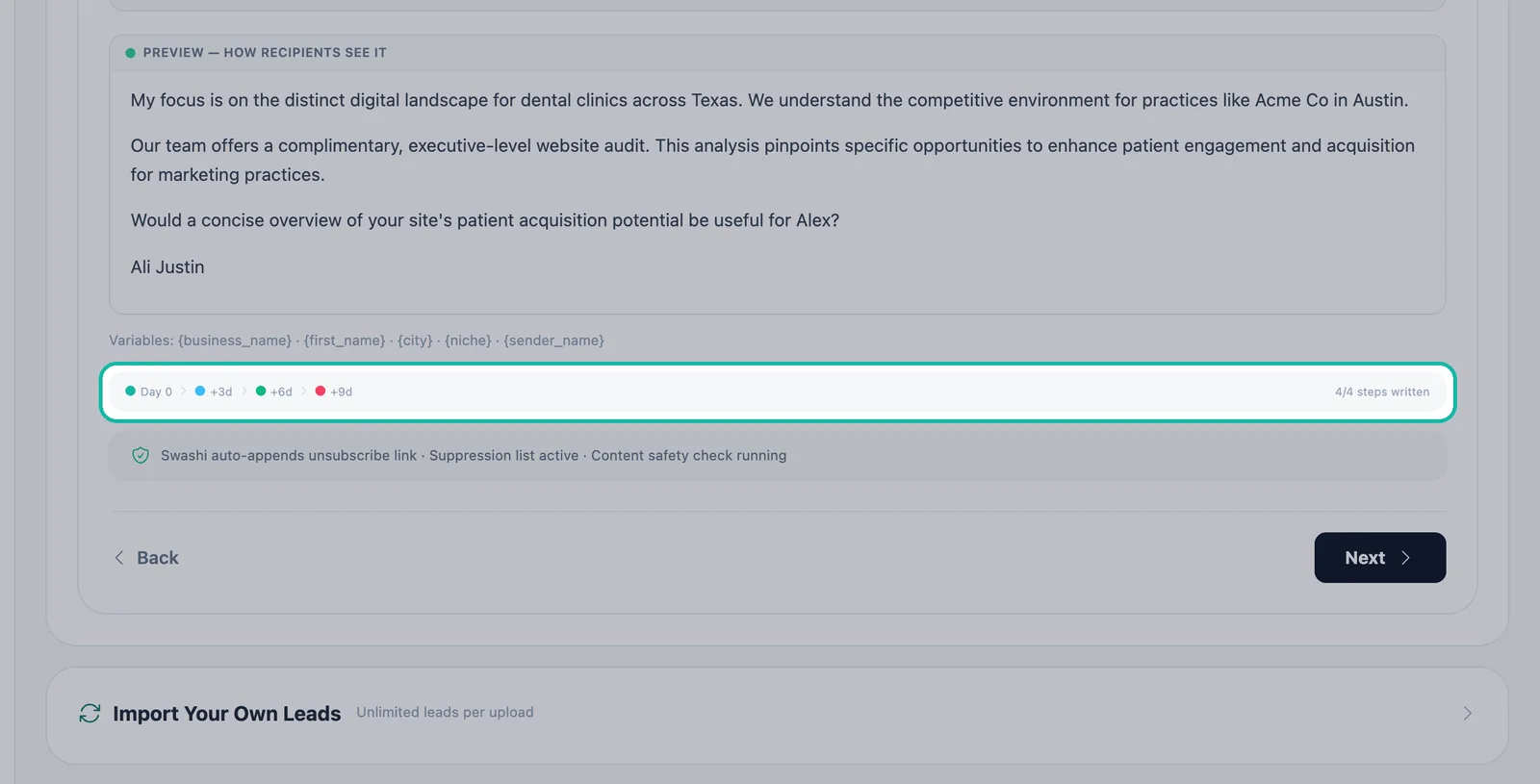
- 4Confirm the cadence. Check that the cadence bar shows Day 0, +3d, +6d and +9d and 4/4 steps written.
- 5Set the send window. In Schedule, choose the timezone, send window and sending days, then click Automate.
Prefer to watch? This tutorial walks through the same steps in the live app. All tutorials →
Every Swashi email campaign is a four-step sequence: an Initial Touch on day 0, Follow-up 1 on day 3, Follow-up 2 on day 6 and a Breakup email on day 9. Follow-ups only go out if the lead has not replied, so nobody who answers you gets chased. This page explains what each step is for, how timing is decided and how personalization variables work.
Product: Lead Gen & Outreach Automation
Before you start
You write and review the sequence in Email Studio, in the Message step. Click Write All 4 Steps and Copy Intelligence writes all four emails at once, using the offer, angle and tone you chose.
The four steps
Each email has its own job. The app labels them like this:
| Step | Label in the app | Its job | When it sends |
|---|---|---|---|
| 1 | Initial Touch | First contact — build curiosity. The first cold email, with no prior contact. | Day 0 |
| 2 | Follow-up 1 | Gentle reminder + new hook, for a lead who received the email but didn't reply. | +3 days |
| 3 | Follow-up 2 | Value-first, low pressure. A second follow-up with an angle switch. | +6 days |
| 4 | Breakup | Respectful final close. The last email before the sequence ends. | +9 days |
In some places the same steps appear as Cold Intro (Step 1), Follow-up 1 (Step 2), Follow-up 2 (Step 3) and Closing (Step 4). They are the same four emails.
Note:The Breakup is the last email. After it, the sequence ends for that lead.
How timing works
The cadence bar in Email Studio shows Day 0 · +3d · +6d · +9d. On top of that, three things decide the exact moment an email is sent:
- Your schedule. Emails go out only inside your Send window (local time) and on the days you chose under Send on. Where the recipient's country has a single timezone, sends are gated by the recipient's local business hours.
- Pacing. Every send waits a random 30–120 seconds after the last one. Swashi never sends a whole batch at once.
- Safe daily limits. Sending stays within the campaign's Daily Cap and each mailbox's warm-up limit. See Deliverability and warm-up.
Swashi also applies a 72-hour cooldown: a lead never receives another email within 72 hours of the last one. You cannot override this setting.
Stopping on reply
The sequence is reply-first. A reply or a booked meeting stops further steps to that person. Their message lands in your Unified Inbox, where you can answer from your own mailbox.
Note:Replies are detected on mailbox providers that support inbound monitoring. SendGrid is a sending-only service, so reply monitoring is not available for SendGrid accounts.
Personalization variables
Under the email body, the app lists the variables you can use:
| Variable | Filled with |
|---|---|
{first_name} | The lead's first name |
{business_name} | The lead's business name |
{city} | The lead's city |
{niche} | The lead's niche or industry |
{sender_name} | Your name as the sender |
Example subject line from the app: Quick question about {business_name}.
To check how a lead will see an email, look at PREVIEW — HOW RECIPIENTS SEE IT. Variables appear there filled in.
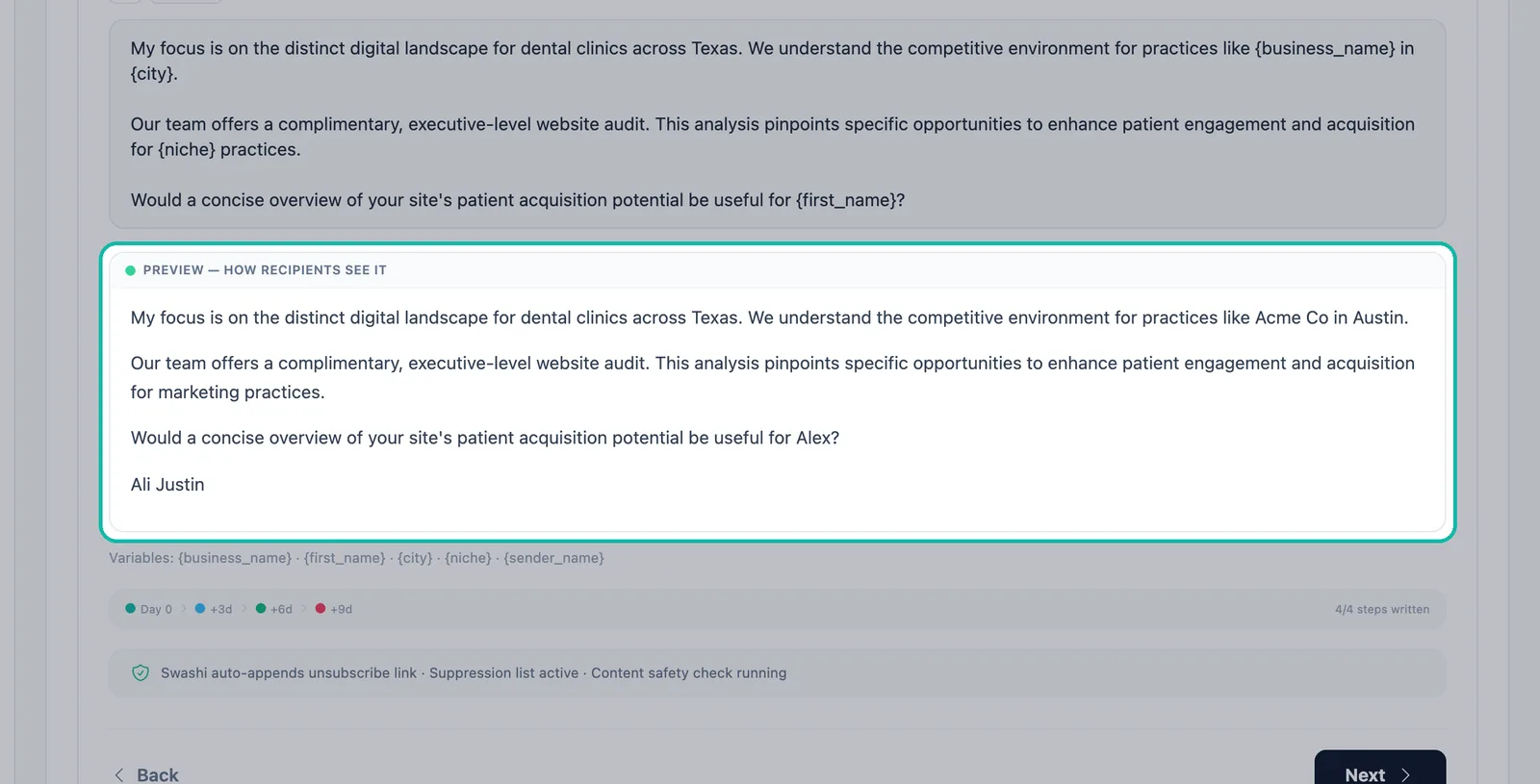
Important:Type variables exactly as listed, with curly braces. At the final step before sending, Swashi removes any merge token it cannot fill, so no email ever ships with a raw {token} in it.
Editing a step
- In the Message step, use Sequence step to open the step you want.
- Edit the Subject line or Email body, or click Regenerate to get a new version.
- Check the preview, then move on to Schedule.
Troubleshooting
| What you see | Why |
|---|---|
| A follow-up did not go out on day 3 | The lead replied, today is outside your send window or sending days, or the daily cap was reached. |
| "No eligible leads left today — resumes at your next scheduled run." | Every lead due today has been handled. The campaign continues on its next run. |
| "Monthly send limit reached — resumes on the 1st." | Your plan's monthly outreach quota is used up. |
Next steps
Frequently asked questions
When do follow-up emails go out?+
The first email goes out on day 0, then follow-ups on day 3, day 6 and day 9, unless the lead replies. Each send also falls inside the send window and sending days you set.
Does Swashi keep emailing someone who replied?+
No. A reply or a booked meeting stops further steps to that person, and the reply lands in your Unified Inbox.
Which personalization variables can I use?+
The app lists {business_name}, {first_name}, {city}, {niche} and {sender_name}. They are filled in for each lead, and the preview shows what the recipient sees.
Can a lead get two emails in one day?+
No. Swashi applies a 72-hour cooldown between emails to the same lead, and this setting cannot be overridden.
What if a variable can't be filled for a lead?+
Swashi checks every email at the last step before sending, so no email ever ships with an unfilled merge token.