How to export leads to CSV or PDF and sync them to Google Sheets
Learn how to export your Swashi leads to CSV or PDF, and how to connect a Google Sheet so every new lead you find is added to it and kept in sync for you.
- 1Open Lead Generation. Click Lead Generation in the sidebar.
- 2Connect your sheet. In the Google Sheet Sync card, click Connect Sheet and sign in with Google.
- 3Choose the sheet. Select an existing Google Sheet or click Create new sheet, or paste the sheet's URL and click Confirm.
- 4Check the connection. Look for the CONNECTED badge and the rows synced count on the card.
- 5Push existing leads. Click Sync All to push all the leads you already have to the sheet right now.
- 6Export a file. Above your lead list, click CSV or PDF to download your leads.
You can take your Swashi leads anywhere in two ways: export them as a CSV or PDF file at any time, or connect a Google Sheet so every lead you find is added to it automatically. Export is best for a one-off copy; the Google Sheet keeps a live, up-to-date copy of your pipeline that your team and your outreach campaigns can use.
Product: Lead Gen & Outreach Automation
This page covers both, plus how to fix a paused sync.
Before you start
- Plan: lead export and Google Sheets sync are turned off during the free trial. They are available on paid plans that include Lead Generation. See plans and billing.
- Google account: to sync, you need a Google account with access to Google Sheets.
Export leads to CSV or PDF
Click Lead Generation in the sidebar.
Narrow the list first if you want only some leads, for example with the All Statuses menu or the Filters panel. See the filters reference.
Click CSV for a spreadsheet file, or PDF for a document you can read or share.
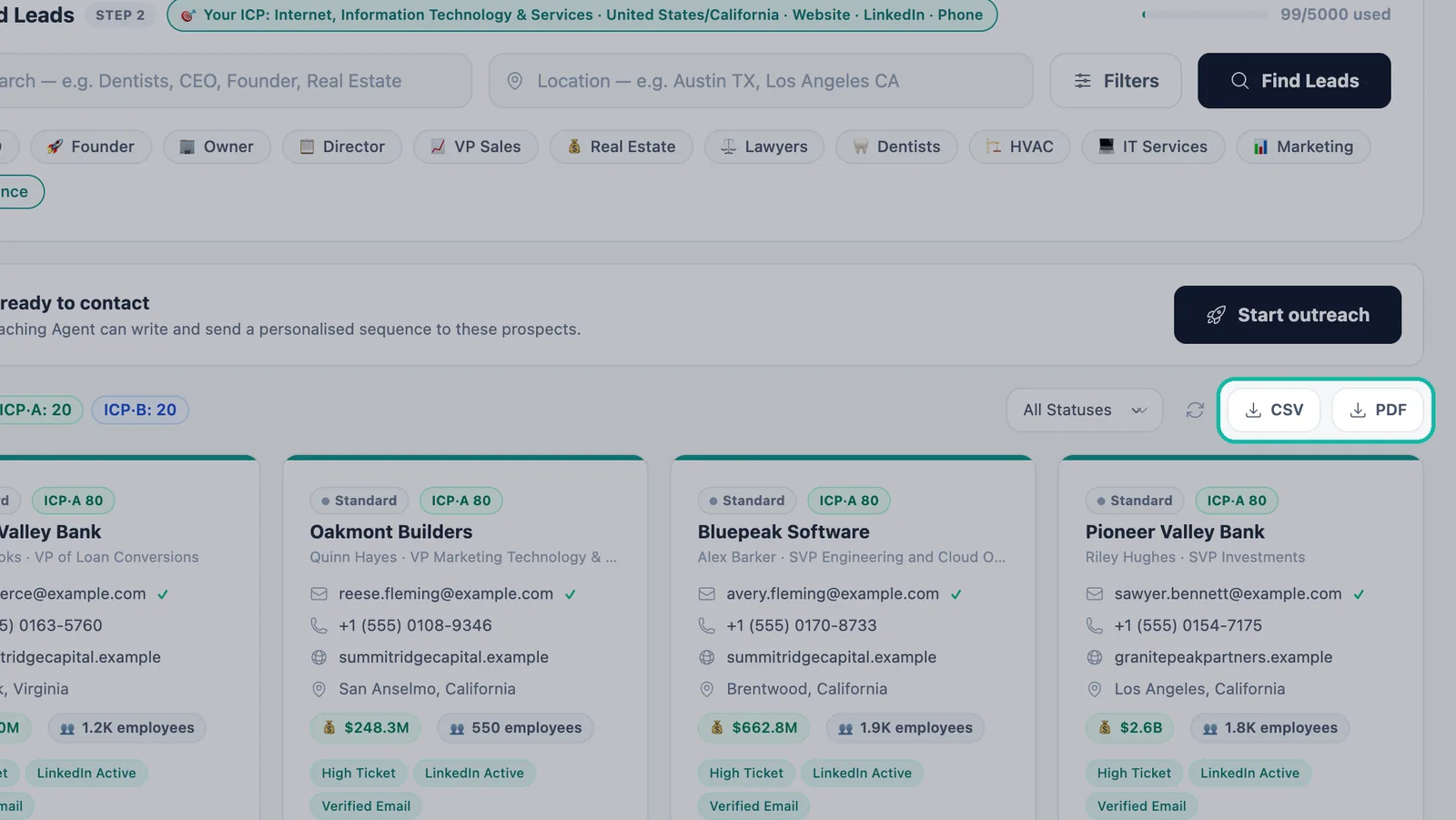
Export your leads as CSV or PDF.
| Format | Best for |
|---|---|
| CSV | Opening in a spreadsheet, or loading into another tool such as your CRM |
| Reading, printing or sharing a clean list with your team |
Note:If you see Upgrade with the message "Upgrade to export your leads," your current plan or trial does not include export.
Connect a Google Sheet
The Google Sheet Sync card at the top of the Lead Generation page is marked STEP 1. It reads: "Connect your Google Sheet first — every lead you discover will be synced there automatically, so your sheet is always up to date and ready for outreach." Connecting is optional, and you can do it at any time.
- Click Lead Generation in the sidebar.
- In the Google Sheet Sync card, click Connect Sheet ↗.
- Sign in with Google and allow Swashi access.
- Choose where your leads should go: Select Google Sheet to pick an existing sheet, or Create new sheet. If you are asked for a link, paste the URL of the Google Sheet where you'd like your leads to appear and click Confirm.
- The card now shows a CONNECTED badge, Your Sheet, and a count of rows synced.
From now on, new leads are added automatically when you search.
Tip:As the app says, "We only access the sheet you select."
Push the leads you already have
New leads sync automatically as you search. To copy the leads already in your pipeline, click Sync All to push all your leads to this sheet right now. The button shows Syncing… while it works.
How the sheet is used for outreach
Your connected sheet is also a lead source for your campaigns. When you build a campaign, choose Sheet Targets to contact the leads in your sheet, or All Sources to combine your sheet with leads you uploaded. See Email Studio and import your own leads.
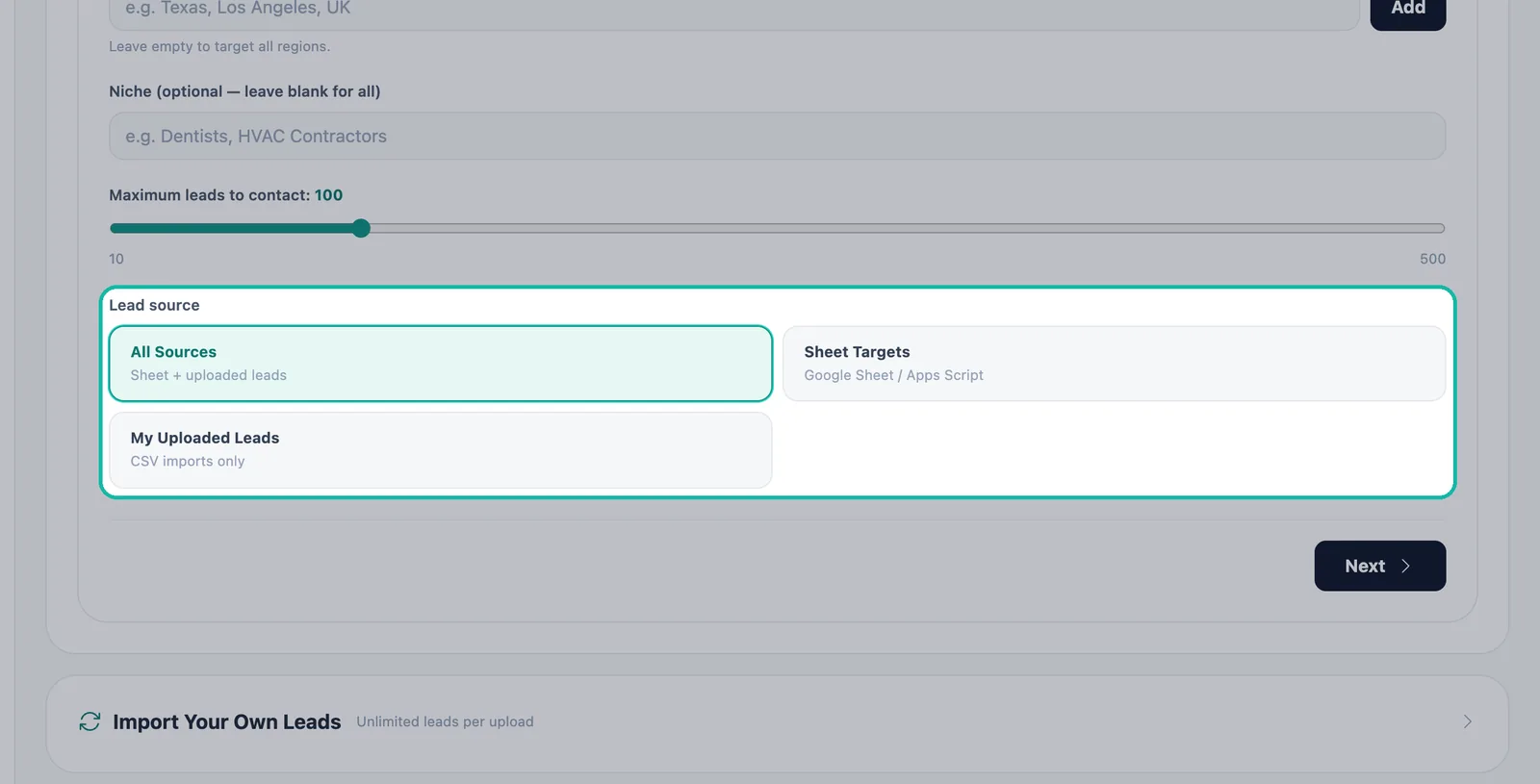
You can see how many leads have reached your sheet under Sheet Rows Synced in the Lead Gen section of Performance.
Change or disconnect your sheet
| You want to | Do this |
|---|---|
| Use a different sheet | Click Change Sheet. There is no need to disconnect first. |
| Stop syncing | Click Disconnect Sheet. New leads will no longer sync there. |
| Start over completely | Use Disconnect & start over, then connect again. |
Troubleshooting
- The card says SYNC PAUSED or "Your Google token has expired." Your Google sign-in has expired. Click Reconnect to resume auto-syncing leads to your sheet.
- My earlier leads aren't in the sheet. Click Sync All to push all your leads to the sheet.
- Export or Connect Sheet asks me to upgrade. Export and sync are off during the trial and on plans without Lead Generation. See current options on the pricing page.
Next steps
Frequently asked questions
Do I have to connect a Google Sheet to use Lead Generation?+
No. The sheet is optional. Without one, your leads stay in your Swashi pipeline and you can export them as CSV or PDF.
Will leads I already found be added to a sheet I connect later?+
New leads are added automatically when you search. To push the leads you already have, click Sync All on the Google Sheet Sync card.
Can Swashi see my other Google Sheets?+
No. Swashi only accesses the sheet you select.
Why can't I export or sync during my free trial?+
Lead export and Google Sheets sync are turned off during the Starter trial. They become available once you are on a paid plan.
Why does my sheet say SYNC PAUSED?+
Usually your Google sign-in has expired. Click Reconnect to resume syncing new leads to your sheet.