How to connect an email sending account to Swashi
Connect Gmail, Outlook / Microsoft 365, Brevo, SendGrid or any SMTP server to Swashi Email Outreach, step by step, with the exact fields each provider needs.
- 1Open Email Outreach. Click Email Outreach in the sidebar to open Outreach Studio.
- 2Start a connection. In Email Sending Accounts, click Connect account to open the Connect Your Email Account window.
- 3Choose your provider. Under Choose Your Service Provider, pick Gmail, Outlook, Brevo, SendGrid or SMTP.
- 4Enter your details. Fill in the fields for your provider, such as your email ID and an app password, SMTP key or API key.
- 5Verify the account. Click Verify Account and wait for the message Connection verified! Click Save to add this account.
- 6Save the account. Click Save Account; the mailbox appears in your account list and starts its automatic warm-up.
To send email campaigns from Swashi, you connect your own mailbox: Gmail, Outlook / Microsoft 365, Brevo, SendGrid or any SMTP server. Open Email Outreach, click Connect account, choose your provider, enter the details below, then Verify Account and Save Account. Swashi then warms the new mailbox up automatically before it sends at full pace.
Before you start
- A paid plan. Email Outreach is locked on the Free plan. Starter includes 1 mailbox, Growth 6, Agency 18 and Enterprise 55. Extra Inbox (+1 inbox) and Outreach Pack (+3 inboxes) add more. See current prices on the pricing page.
- The mailbox you want to send from. Every campaign email goes out from an account you own, so replies come back to you.
- 2-factor authentication turned on, if you use Gmail or Microsoft 365. You need it to create an app password.
Connect an account
Click Email Outreach in the sidebar. The page opens on Outreach Studio.
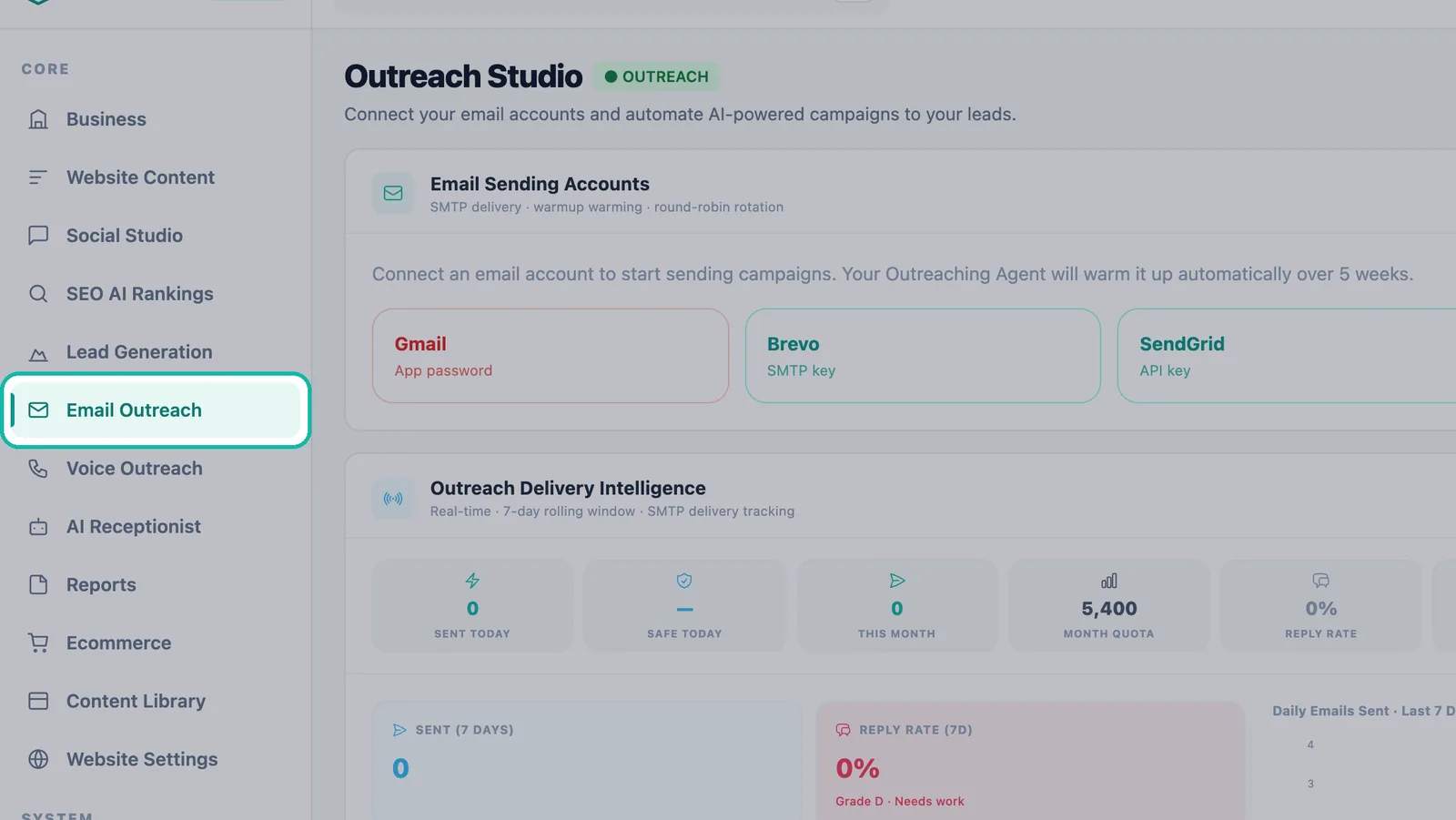
Open Email Outreach to reach Outreach Studio. In Email Sending Accounts, click Connect account. If you have no accounts yet, the card reads "Connect an email account to start sending campaigns."
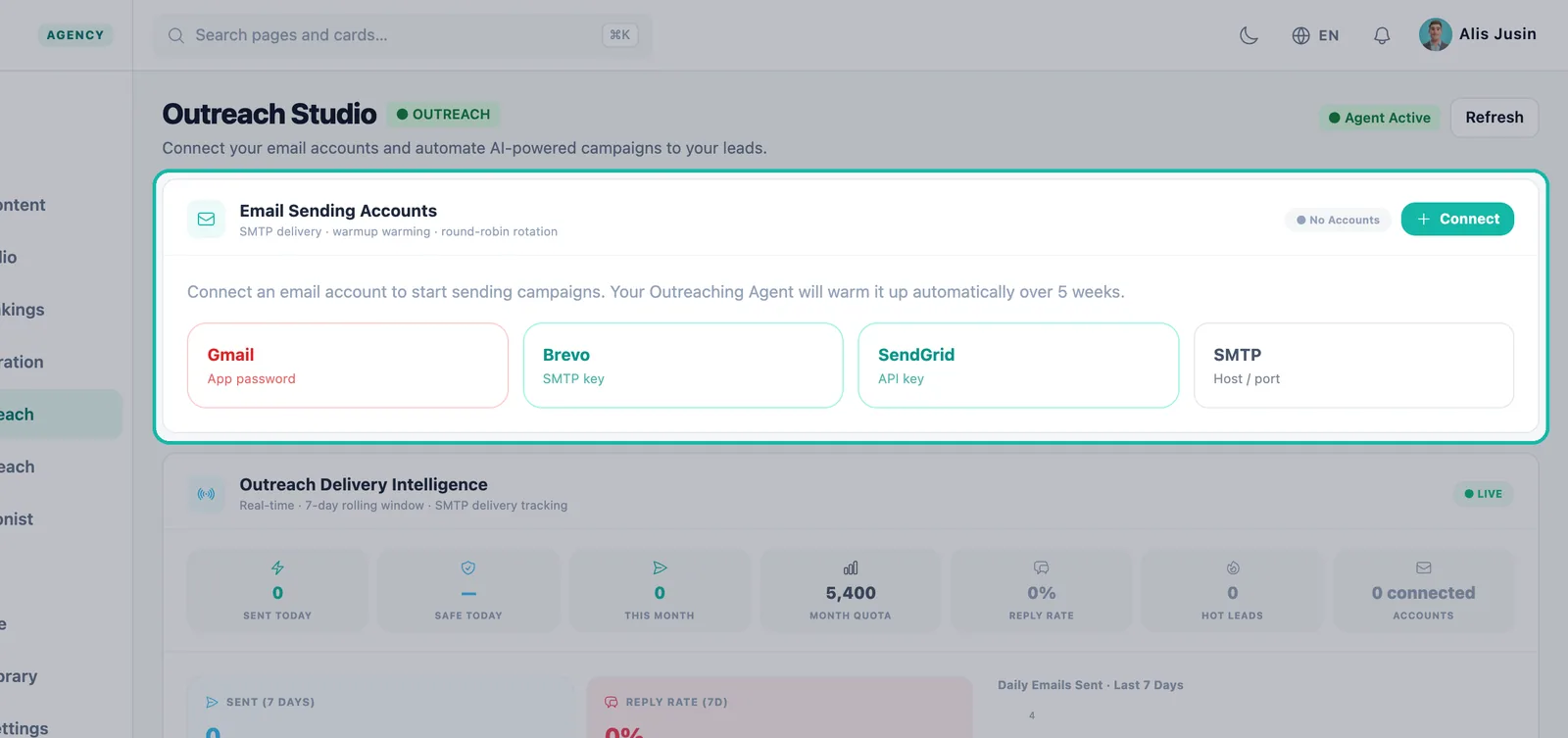
Connect a mailbox from the Email Sending Accounts panel. In Connect Your Email Account, under Choose Your Service Provider, pick your provider. To switch later, click Click Here to Change Provider.
Fill in the fields for your provider (see the sections below).
Click Verify Account. When you see "Connection verified! Click Save to add this account.", continue.
Click Save Account. The mailbox is added to your account list with its warm-up status.
Gmail (app password)
The window title reads Connect Your Gmail Account.
- In your Google account, turn on 2-factor authentication.
- Create an App password: Google Account → Security → App Passwords.
- In Swashi, enter Your Gmail ID (your Gmail address).
- Paste the app password into the password field. Use the app password, not your regular Google password.
- Click Verify Account, then Save Account.
Outlook / Microsoft 365
The window title reads Connect Your Outlook / 365 Account.
- For a Microsoft 365 work or school account, turn on 2-factor authentication and generate an app password. The app points you to account.microsoft.com → Security → Advanced security.
- Enter Your Email ID and Your App Password.
- Click Verify Account, then Save Account.
Important:The app notes that personal Hotmail/Outlook.com accounts can no longer send via SMTP (Microsoft disabled it). Use Gmail, Brevo or SendGrid instead.
Brevo
The window title reads Connect Your Brevo Account.
- In Brevo, go to SMTP & API → SMTP (app.brevo.com/settings/keys/smtp).
- In Swashi, enter Sender Email (From). This must be a verified Brevo sender.
- Enter Brevo SMTP Login. This is the "Login" shown in Brevo → SMTP & API → SMTP (it looks like xxxx@smtp-brevo.com), not your email address.
- Enter Your Brevo SMTP Key.
- Click Verify Account, then Save Account.
Note:If you see an "Unauthorized IP" error, turn off Authorized IPs in Brevo. Swashi sends from changing server IPs.
SendGrid
The window title reads Connect Your SendGrid Account.
- In SendGrid, go to Settings → API Keys and create a key. Make sure it has Mail Send permission.
- In Swashi, enter your Sender Email ID.
- Paste the key into SendGrid API Key.
- Click Verify Account, then Save Account.
Note:SendGrid is a sending-only service. Inbound reply monitoring is not available for this provider, so replies will not reach your Unified Inbox.
Any other provider (SMTP)
The window title reads Connect Your SMTP Account. Use this for providers that offer standard SMTP, such as your own domain's mail server.
- Enter Your Email ID.
- Enter Your SMTP Host Link: the SMTP hostname from your mail provider.
- Enter the Port. Common ports are 587 (STARTTLS) or 465 (SSL).
- Enter Your Password for that mailbox.
- Click Verify Account, then Save Account.
After you connect
- Warm-up starts automatically. The account card shows "Day N of warmup", the safe number of sends for today and how many were sent. Read Deliverability and warm-up for the full ramp.
- Round-Robin rotation. With more than one account, emails rotate across all active accounts in order (#1 → #2 → #3). Paused accounts are skipped.
- Pause or resume. Click Pause on any account to remove it from rotation without disconnecting it, and Resume to bring it back.
- Daily send cap. Each account shows its Daily send cap.
Tip:Connect your mailbox early, even before your first campaign is ready. Warm-up counts from the day you connect.
Troubleshooting
| What you see | What to do |
|---|---|
| Verification fails on Gmail or Microsoft 365 | Check that 2-factor authentication is on and that you pasted an app password, not your normal password. |
| "Unauthorized IP" with Brevo | Turn off Authorized IPs in Brevo, then click Verify Account again. |
| Brevo login rejected | Use the SMTP Login from Brevo's SMTP & API → SMTP page, not your email address. |
| Personal Outlook.com or Hotmail will not connect | Personal Microsoft accounts can no longer send via SMTP. Connect Gmail, Brevo or SendGrid instead. |
| "Connect an email account first" in Email Studio | No sending account is connected yet. Connect one here first. |
Next steps
Frequently asked questions
Do I use my normal Gmail password to connect Gmail?+
No. Turn on 2-factor authentication in your Google account, then create an App password under Google Account → Security → App Passwords, and paste that app password into Swashi.
Can I connect a personal Outlook.com or Hotmail address?+
The app notes that personal Hotmail/Outlook.com accounts can no longer send via SMTP because Microsoft disabled it. Use Gmail, Brevo or SendGrid instead. Microsoft 365 work or school accounts can connect with an app password.
Why do I get an Unauthorized IP error with Brevo?+
Swashi sends from changing server IPs. If you see an Unauthorized IP error, turn off Authorized IPs in your Brevo account and verify again.
Will replies show up if I connect SendGrid?+
No. SendGrid is a sending-only service, so inbound reply monitoring is not available for this provider. Use a mailbox provider such as Gmail if you want replies in your Unified Inbox.
How many email accounts can I connect?+
It depends on your plan: Starter includes 1 mailbox, Growth 6, Agency 18 and Enterprise 55. The Free plan cannot connect mailboxes. See the pricing page for current plans and add-ons.