How to set up report notifications and email digests
Set up Swashi report notifications: get an instant email on every positive reply, a daily digest or a weekly summary, delivered at the local time you choose.
- 1Open Reports. Click Reports in the sidebar and scroll to Report Notifications at the bottom.
- 2Add recipients. Enter one or more email addresses under Send reply notifications and daily digests to, and click Add.
- 3Choose a frequency. Pick Instant on positive reply, Daily digest or Weekly summary.
- 4Choose the delivery time. Under Deliver report at, set the time in your local time zone.
- 5Send a test. Click Send Test Report Now to send a live preview to every address you added.
Prefer to watch? This tutorial walks through the same steps in the live app. All tutorials →
Report notifications send your Swashi results to your inbox, so you do not have to open the app to know what is happening. In Reports → Report Notifications, add one or more email addresses and choose Instant on positive reply, Daily digest or Weekly summary, then pick the local time you want reports delivered.
This guide is for owners and sales teams who want to react quickly to interested prospects and keep their team informed. It follows the "Reports in your inbox" step of the EP9 video tutorial, "How to Generate Reports on Swashi."
Before you start
- Plan: Report Notifications carries a plan badge in Reports and is included from that plan up. On a lower plan, the section shows which plan unlocks it.
- Outreach running: positive-reply alerts need campaigns that are sending and receiving replies. See Reports for how replies are counted.
Choose how often you hear from Swashi
| Option | What you get | Best for |
|---|---|---|
| Instant on positive reply | An email as soon as a prospect replies positively | Following up with interested prospects quickly |
| Daily digest | A summary every day | Owners who check in once a day |
| Weekly summary | A summary every week | Managers, partners and clients |
Set up report notifications
Click Reports in the sidebar.
Scroll to Report Notifications at the bottom of the page.
Under Send reply notifications and daily digests to:, type an email address (for example, you@company.com) and click Add. Repeat for each person who should receive reports.
Under Notification frequency:, choose Instant on positive reply, Daily digest or Weekly summary.
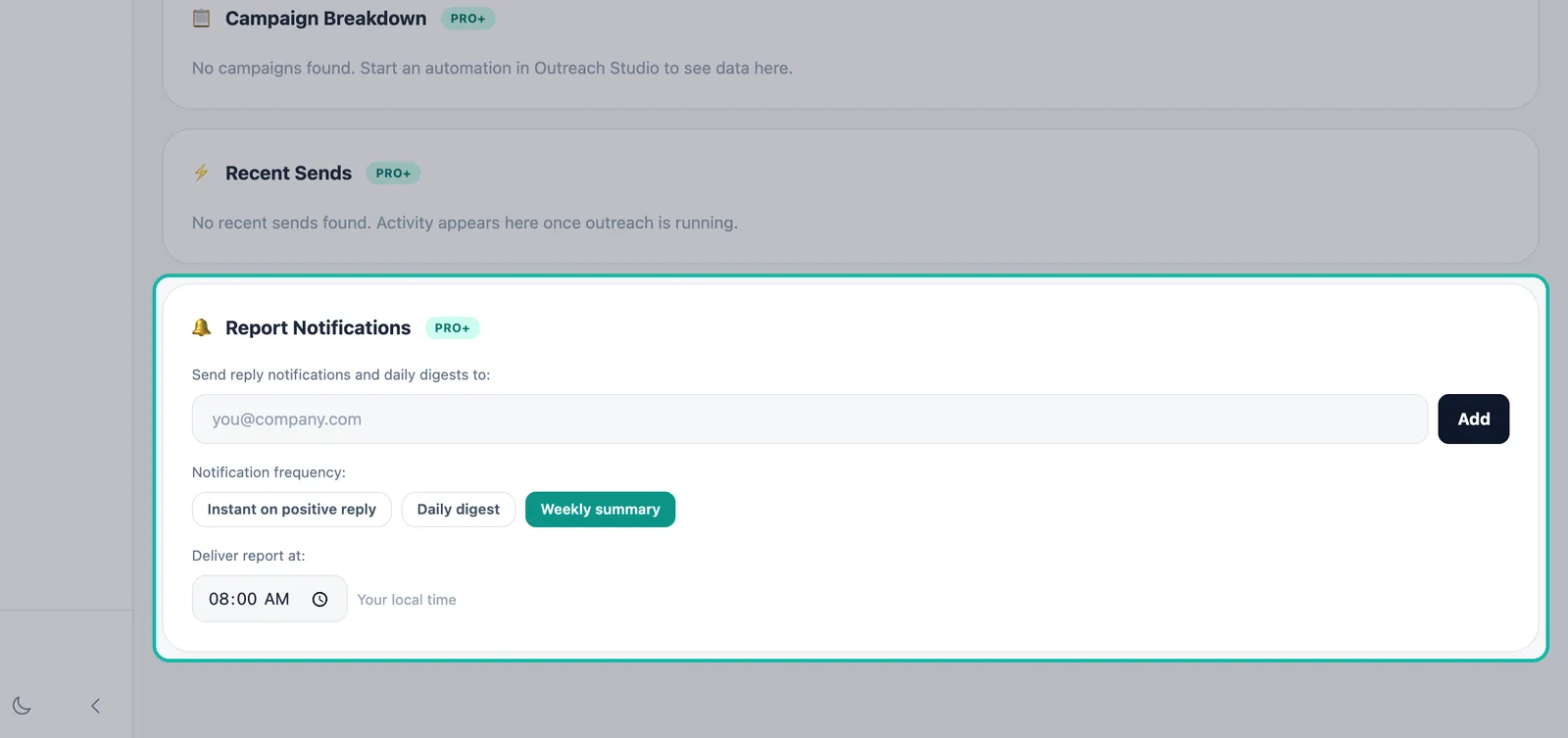
Add recipients, choose a frequency and set the delivery time. Under Deliver report at:, choose the time. It uses your local time.
Your choices are saved. You will see "Notification settings saved."
Tip:Choose Instant on positive reply if speed matters. A prospect who just said yes is easiest to reach right away. Then answer them from the Unified Inbox.
Send a test report
Click Send Test Report Now to send a live preview to all the addresses you added. Use it to check that everyone receives the email and that it does not land in a spam folder.
Your daily brief
Separately from Report Notifications, Swashi sends you a daily brief email that sums up the day, in your account language. Your language is set once in User Settings and applies to the app, every email Swashi sends you, voice and chat. See languages.
In-app notifications (the bell)
The bell in the app header shows your own business events as they happen, never marketing. Choose which events reach it in User Settings → Notifications:
| Notification | When it appears |
|---|---|
| Positive email replies | A prospect answered one of your campaigns and wants a person |
| Callback requests | A caller asked your AI receptionist to be called back |
| High-intent calls | A receptionist call scored 7/10 or more on buying intent |
| Meetings booked | A caller booked a slot with your receptionist |
| Articles published | An article went live on one of your websites |
| Inbound calls | Your AI receptionist answered a call |
| Text messages | Someone texted your Swashi number and is waiting for your reply |
The bell shows your most recent items. When there is nothing new, it reads "Nothing new. Replies, callbacks and bookings appear here as they happen." Learn more about the AI Receptionist.
Troubleshooting
- "Save failed. Try again." Check that each address is a valid email and try again.
- The test report did not arrive: check spam and promotions folders, and confirm the address is spelled correctly.
- No positive-reply alerts: alerts only go out when a reply is classified as positive. Check Reply Intelligence in Reports to see how your replies were sorted.
- The bell says "Some sources could not be read; this list may be incomplete." Refresh in a moment. Swashi tells you when a list is partial.
Next steps
- Read your full Reports page.
- Answer replies in the Unified Inbox.
- Manage your account settings.
- See revenue intelligence on the Swashi website.
Frequently asked questions
Can Swashi email me when a prospect replies positively?+
Yes. In Reports, under Report Notifications, add your email address and choose Instant on positive reply. You are emailed as soon as a positive reply is detected.
Can I send reports to more than one person?+
Yes. Add as many addresses as you need under Report Notifications. Each one receives the notifications and digests, and Send Test Report Now sends a preview to all of them.
What is the difference between the daily digest and the weekly summary?+
The daily digest is a summary sent every day. The weekly summary is a summary sent once a week. Both arrive at the delivery time you choose.
Which plan includes report notifications?+
Report Notifications carries a plan badge in Reports and is included from that plan up. On a lower plan, the section shows which plan unlocks it.
What appears in the notification bell in the app?+
Only your own business events, never marketing: positive email replies, callback requests, high-intent calls, meetings booked, articles published, inbound calls and text messages. You choose which ones in User Settings under Notifications.