How to connect Google Search Console to Swashi
Connect Google Search Console to Swashi with read-only access to unlock keyword rankings, impressions, clicks, CTR, indexing status and answer engine data.
- 1Open SEO AI Rankings. Click SEO AI Rankings in the sidebar and find the Setup Checklist.
- 2Start the connection. On the Google Search Console item, click Connect.
- 3Sign in with Google. Click Continue with Google and sign in with the Google account that owns your Search Console property.
- 4Choose your property. Select the site you want to monitor from the properties found on your Google account and click Link.
- 5Confirm the connection. The checklist item shows Connected, and your rankings, performance and indexing cards start to fill.
Prefer to watch? This tutorial walks through the same steps in the live app. All tutorials →
To connect Google Search Console to Swashi, open SEO AI Rankings, click Connect → on the Google Search Console item in the Setup Checklist, sign in with the Google account that owns your property, and choose the site to monitor. The connection is read-only. It unlocks your real keyword rankings, impressions, clicks, click-through rate and indexing status.
Product: SERP AI
This guide is for anyone who wants real Google data in Swashi instead of guesses. It follows the "Google Search Console" step of the EP5 video tutorial, "How to Monitor SERP AI For AEO, GEO, SEO with Swashi."
Before you start
- Plan: Search Console rankings are included from Starter. The AEO tab, which also relies on Search Console, is included from Growth.
- Ownership: you must own the Search Console property for your site. Use the Google account that owns it.
- Not on Search Console yet? Add and verify your site in Google Search Console first, then come back to Swashi.
What Search Console unlocks
| In Swashi | What you get |
|---|---|
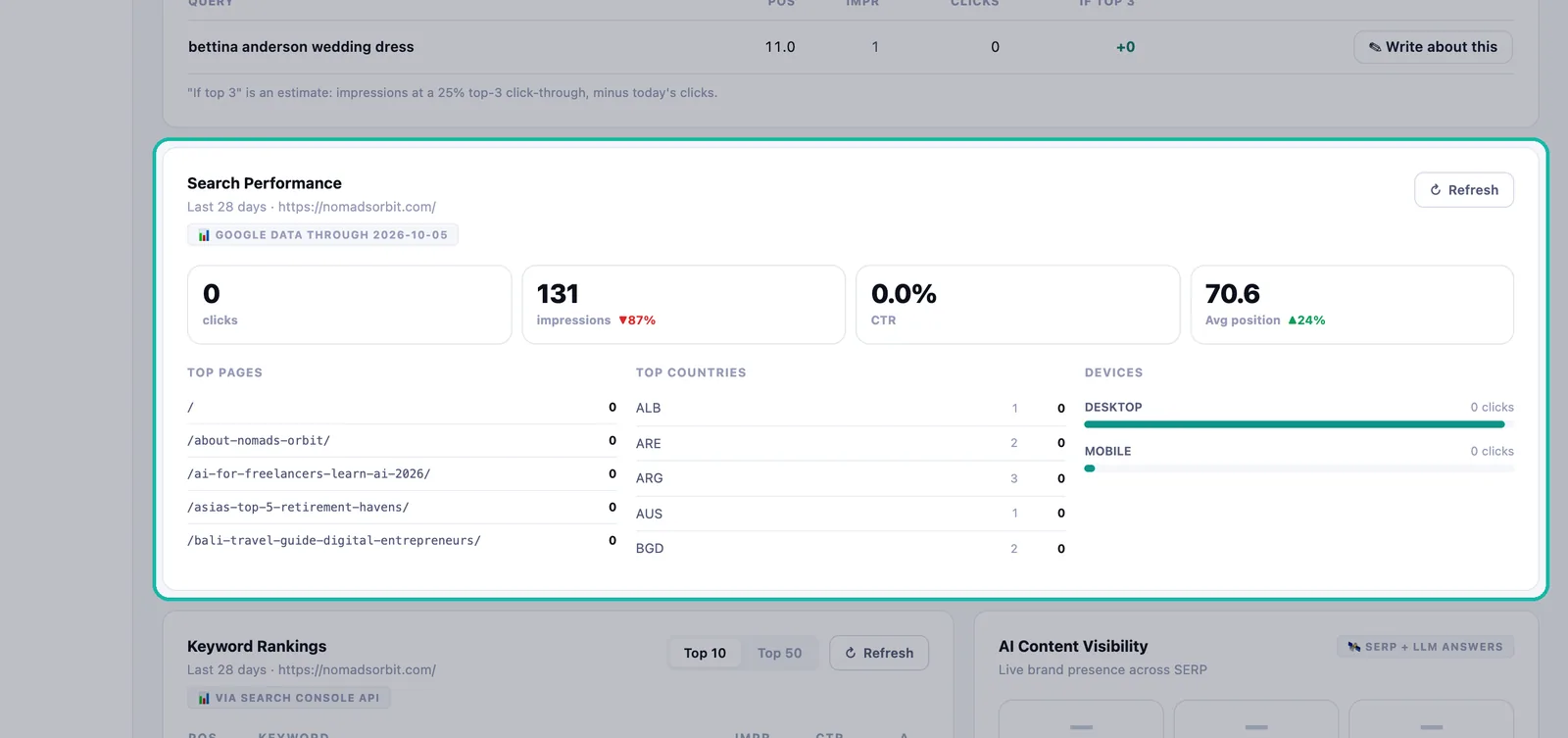
| Search Performance | Clicks, impressions, CTR and average position for the last 28 days, with top pages, countries and devices |
| Keyword Rankings | The keywords you rank for and how they move, filtered by Top 10 or Top 50 |
| Striking-distance queries | Searches where you rank 4 to 20, the quickest places to gain clicks |
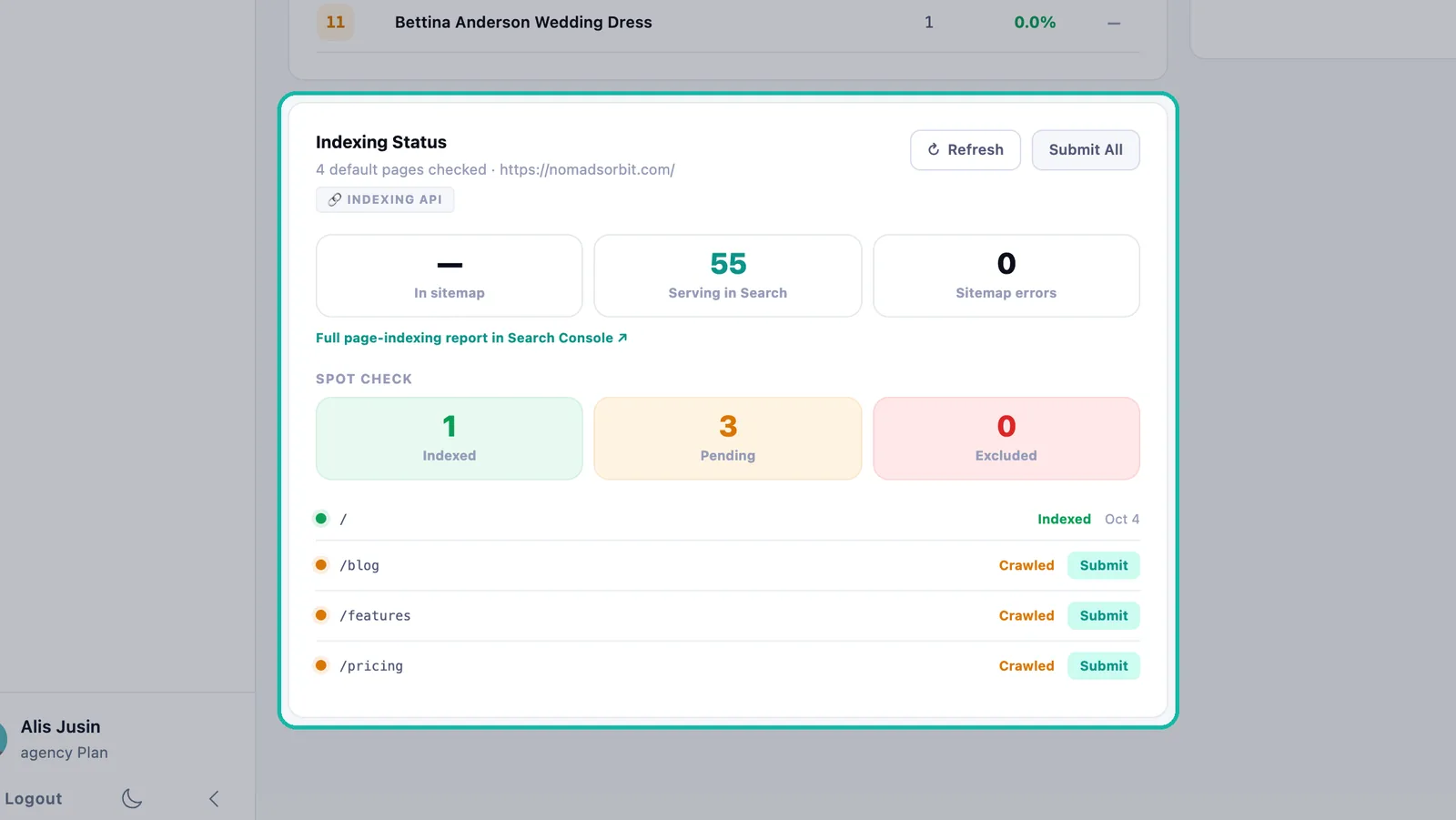
| Indexing Status | Which pages are indexed, pending or excluded, plus sitemap and serving counts |
| AEO tab | Snippet-eligible pages, People Also Ask questions and answer opportunities |
Without Search Console, those cards read "Connect Google Search Console to see your ranking keywords" or a similar message. The site health audit and Core Web Vitals still work without it.
Connect Search Console
- Click SEO AI Rankings in the sidebar.
- In the Setup Checklist, find Google Search Console. It unlocks keyword rankings, impressions, CTR and indexing status, and reads "Read-only. No password stored. You must own the GSC property."
- Click Connect →. The Connect Google Search Console window opens.
- Sign in with Google. Click Continue with Google and use the Google account that owns your Search Console property. Your password is never shared with Swashi.
- Select your property. Swashi lists the properties found on your Google account. Choose the one you want to monitor and click Link →. You will see "Property linked successfully!"
- The checklist item now shows ✓ Connected, and your cards begin to fill with real data.
Note:Swashi has read-only access. It reads your rankings, impressions and indexing status and never writes to your Search Console account.
Change or disconnect
- Change property: click Change property on the checklist item to pick a different site.
- Disconnect: click Disconnect and confirm. You can reconnect and pick a different property at any time.
- Revoke from Google: you can also remove access from your Google Account under Security → Third-party apps. Swashi stores only the access token, never your password.
Submitting pages for indexing
On the Indexing Status card, Submit or Submit All asks Google to index your pages. If you see "Please reconnect your Google account to enable Indexing API access," reconnect Google and try again. See SEO AI Rankings for the full card.
Keeping data fresh
Google reports search data with a short delay. The label Google data through shows the latest date Google has reported. Click Refresh on a card to re-pull the latest data from Search Console.
Troubleshooting
| Message | What to do |
|---|---|
| "No properties found in this Google account." | Sign in with the account that owns your site's property, or add your site to Search Console. Then click Refresh list. |
| "Google access was declined — nothing was connected." | Connect again and approve access. |
| "That connect link expired. Please try again." | Start again with Connect →. |
| "Your Google session has expired." | Click Reconnect Google Account. |
| "Connected to Google, but saving failed." | Try again. If it keeps happening, contact the Support Center. |
Next steps
- Read your rankings in SEO AI Rankings.
- Use your Search Console data for AEO.
- Read about how Swashi handles your data in security and privacy.
- See Swashi's Google API compliance page.
Frequently asked questions
Can Swashi change anything in my Google Search Console?+
No. The connection is read-only. Swashi reads your rankings, impressions and indexing status and never writes to your Search Console account.
Does Swashi store my Google password?+
No. You sign in with Google directly. Swashi stores only the access token, never your password, and you can revoke access at any time from your Google Account security settings.
Which plan includes Search Console rankings?+
Search Console rankings are included from the Starter plan up. The AEO tab, which also uses Search Console data, is included from Growth.
Why does Swashi say No properties found?+
The Google account you signed in with does not own a Search Console property. Sign in with the account that owns your site's property, or add your site to Search Console first.
Why is my Search Console data a few days behind?+
Google reports search data with a short delay. Swashi shows the latest date Google has reported next to Google data through.